
Your “if → then” rules change products in one marketplace's feed only: add the type to the title, apply a channel markup, drop products without a barcode. The catalog stays unchanged.
When you need this:
- A marketplace needs another title — a rule adds the type and cuts it to the limit.
- One channel needs a higher price — a rule multiplies it by 1.15 and ends it in .99.
- Wrong barcodes get rejected — an “invalid GTIN → Exclude” rule keeps them out.
- Five templates need one markup — change a shared set in one place.
Where to start: template card → “Related settings” → “Feed rules”.
What feed rules can do
- The “If” condition — a rule works only on matching products, or on all products if no condition is set.
- Seven actions — set, prepend, append, replace or cut text, recalculate a number, exclude a product.
- Exclude and “Stop here” — the product won't get into the file, and the next rules won't touch it.
- Preview — a “before → after” table on the template's products; nothing is saved.
- Shared sets — one markup or one exclusion for many templates.
- Change history — compare versions and bring back a previous one.
How a rule works: the “If” condition and the “Then” actions
A rule changes a product only in this feed. In the catalog, on the website and in other templates the product stays unchanged.
Each rule is a card with two parts. “If” is a condition on product fields — the same builder as in filters, with “and” / “or” groups; an empty condition means “all products”. “Then” is one or more actions on fields.
Rules run top to bottom. Each next rule sees the result of the previous ones, both in its condition and in the values. If the first rule added “Processor ” to the title, the third one cuts the new, longer title. To change the order, drag the handle on the left of the card; from the keyboard — Alt + ↑/↓.

1
Order handle2
If condition3
Then action4
Field placeholders5
Collapsed rule6
Editing- Drag to change the order of rules; from the keyboard — Alt + ↑/↓.
- The category path contains “Processor” — the rule applies only to these products.
- Add to start puts “Processor ” in front of the Name field.
- A click inserts the field code into the value, at the cursor.
- A collapsed card shows the rule as one If … → … line: here an invalid barcode → Exclude with a stop.
- This template’s rules or a shared set.
Conditions and actions can use these product fields: “Name”, descriptions, “Manufacturer”, “Category” (full path), SKUs, barcodes, stock status, prices, quantity, weight. Your own custom product fields are there too. Conditions can also use the product's ad labels (margin, stock and so on) — what they mean and how to build your own.
One card is open; the rest are collapsed into an “If … → …” line. This way you see the whole list of rules on one screen. A rule turned off with its switch stays in the list but is not applied.
What you can do with a field: seven actions
| Action | What it does | Field |
|---|---|---|
| “Set value” | replaces the whole value | any |
| “Add to start” | adds text before the value | text |
| “Add to end” | adds text after the value | text |
| “Replace text” | changes every match of “text to replace” to “replace with”; the match is case-sensitive | text |
| “Cut to N characters” | keeps the first N characters and removes a trailing space; shorter values stay as they are | text |
| “Multiply / add” | value × “Multiplier” + “Number to add”, then “Rounding” | number |
| “Exclude” | the product does not get into the file (more) | — |
Values from other fields. A field code in curly braces inserts the value of that field of the same product. “Set value” {manufacturer_name} {name} {sku} builds a title from the manufacturer, name and SKU. Below the value box there are “Insert a field into the value:” chips — a click inserts the code where the cursor is.
Rounding can be “no rounding”, “to whole”, “to 0.1”, “to 0.01” or “to .99”. “To .99” drops the cents and sets 99: 16,372 × 1.15 + 20 = 18,847.8 becomes 18,847.99. A price of 1,150.00 becomes 1,150.99, and 1,150.40 also becomes 1,150.99.

1
Multiplier2
Add number3
Rounding- The price is multiplied by 1.15.
- 20 is added after multiplying.
- To .99 drops the cents and sets 99.
If titles in your catalog already start with the brand, don't add {manufacturer_name} again — you'll get “Intel Intel Core i7”. Add the product type or brand with a condition on the category or manufacturer.
How to remove a product from the feed and stop the next rules
“Exclude” removes the product from this file. The next rules are no longer applied to it.
For barcodes there is a separate condition operator, “invalid GTIN”, on the “EAN barcode”, GTIN and UPC fields. It checks the length, digits, check digit, and internal store numbers or coupons that marketplaces don't accept. An empty field also counts as invalid. The check is the same as in the “Feed quality” window.
The “Stop here” checkbox on a card stops processing the product if this rule's condition matched. Products the condition didn't match go on to the next rules as usual.
If the rules exclude all products, the file is not published: the marketplace keeps the last working feed, and a red line about it appears in the export log (what to do).
When some products are excluded, the run log shows the line “Feed rules excluded products: N”. The “What will be exported” dialog shown before a run doesn't take rules into account: its count is before exclusion.
How to see the result before saving
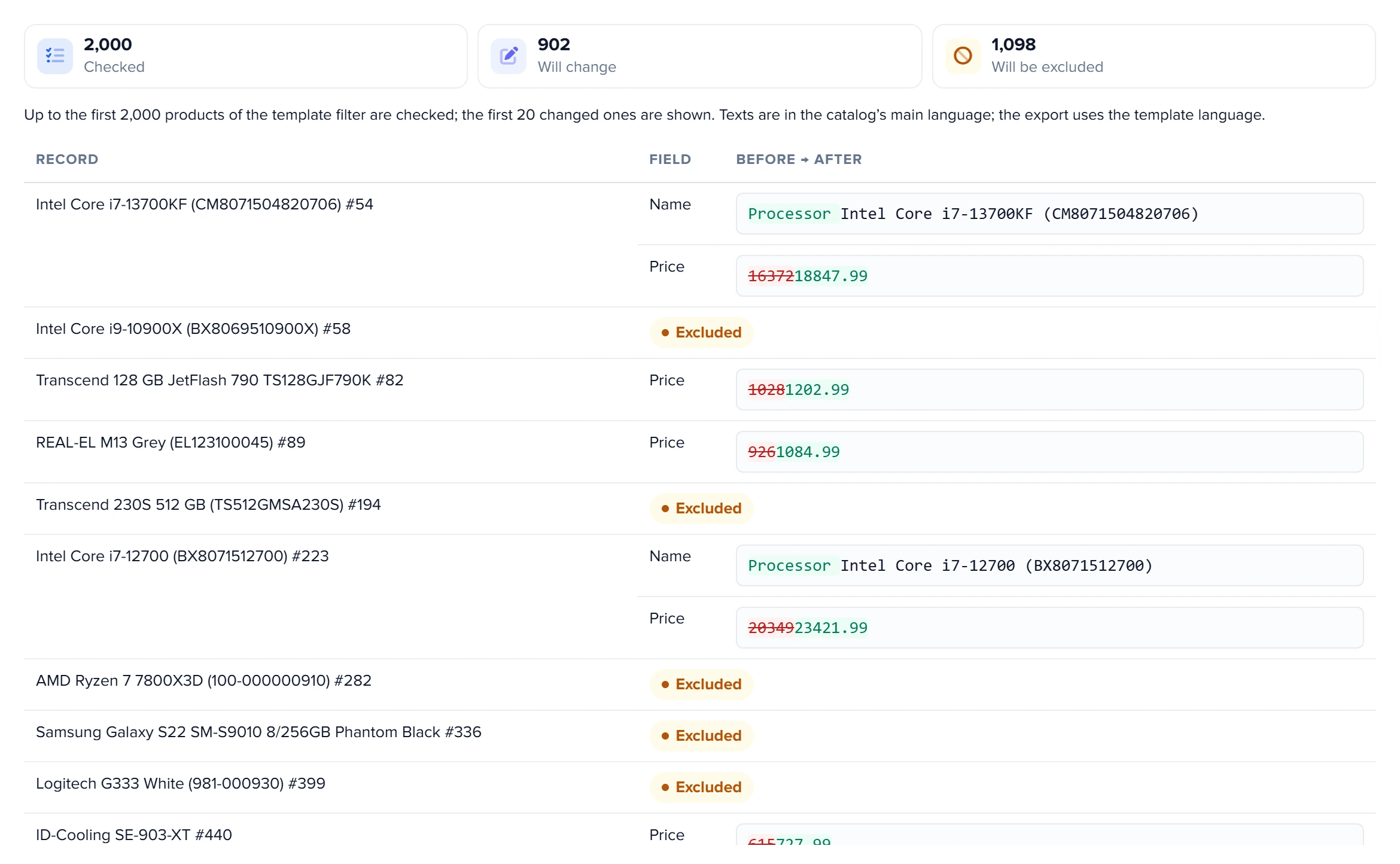
Click “Preview”. Elbuz applies the rules from the window — even unsaved ones — to the first 2,000 products of the template filter and shows a summary: “Checked”, “Will change”, “Will be excluded”. Below is a “Record / Field / Before → after” table for the first 20 changed or excluded products.
1
Will change2
Will be excluded3
Before → after4
Excluded- How many of the checked products the rules change.
- How many products the Exclude rule removes from the file.
- The new name with the product type added; below — the price with the markup.
- A product with an invalid barcode does not get into the feed.
Preview saves and exports nothing. Its texts are in the catalog's main language; the feed itself uses the template language. To see the finished XML of one product with the rules applied, click the “Check” flask in the template card.
When you're happy with the result, click “Save”. The program checks every rule: an action without a field, a text action on a number field, or a condition with a field that no longer exists is highlighted, and nothing is saved.
One set of rules for several templates: shared sets
A rule set is a list of rules that you attach to several templates. Change the markup in the set, and it changes in every template the set is attached to.
- In the “Editing” field, choose “+ New set”.
- Enter a “Set name”, add rules and click “Save”.
- In each template that needs the set, choose “Rules of this template” under “Editing”, add the set to “Attached sets” and save.
Rules of attached sets run before the template's own rules — in the order the sets appear in the list (oldest set first), not in the order you attached them. So the template can adjust what the set did — for example, cut the title differently for one marketplace.
Preview of a set counts only the set's own rules — without the template's rules or other sets — on the products of the template you opened the window from.
“Delete set” removes it from all templates at once: they silently stop applying its rules. Before deleting, the program asks “Delete the set “…”? Templates it is attached to will stop applying it.”
How to restore a previous version of the rules
The “Change history” button shows previous versions of the template's or set's rules. Click a version to compare it with the current one as “If … → …” lines.
- The last 50 versions are kept.
- Edits by one person within 10 minutes become one version.
- The first version appears right after the first save: what was there before the edit goes into history.
“Restore” brings a version back immediately, without the “Save” button; the current version also goes into history. In a template, the list of attached sets and the template's product filter as they were at that version come back together with the rules.
All sets are stored as one record, so they also share one history: the 50-version limit and the 10-minute merge apply to all sets together. The window shows changes to the selected set only, but “Restore” brings back the state of all sets at that moment: it rolls back edits to other sets and brings back deleted ones.
Which templates support rules
The “Feed rules” button is in the cards of XML feeds and Google-format feeds: Rozetka, Prom.ua XML, Epicentr, Hotline, universal XML, Google Merchant, Facebook, TikTok and other templates with an XML product template.
There are no rules in the XLSX/CSV price list, the OpenAI feed, CSV feeds for price comparison sites, or Prom.ua XLSX. Nor are there any in API exports to marketplaces, 1C (CommerceML) or Elbuz CMS. There, you set a markup or title with a column or field formula.
Rules change a product field before it goes into the template. This means two things:
- Template formulas
[[…]]are calculated from the catalog and don't see the rules. If the feed price comes from a formula, a “Price × 1.15” rule won't change it — change the field the template uses as a{…}macro. - Macros for other languages (such as the Ukrainian title in a multilingual template) are also taken from the catalog.
A rule that has become impossible — for example, a custom field in its condition was deleted — is skipped during export instead of stopping the run. Open the rules window: the rule will be highlighted when you save.
Scenarios
A Google Shopping title with the product type
A rule “If “Category” contains the name of your processor category → Add to start “Processor ”” on the “Name” field. The condition compares text literally: if the category path is “Computer Components / Processor”, as in the screenshot above, type “Processor” exactly as it is written there. The second rule is “all products → Cut to 150”.
- “Intel Core i7-13700KF” becomes “Processor Intel Core i7-13700KF” in the feed; the title in the catalog doesn't change.
- No title goes over Google's 150-character limit.
A +15% Rozetka markup with a .99 price
A rule “all products → Price, Multiply / add: Multiplier 1.15, Number to add 0, Rounding “to .99””.
- A product priced 1,000 costs 1,150.99 in the Rozetka feed and 1,000 on the website.
Don't send products with a wrong barcode
The first rule: “If EAN barcode — invalid GTIN → Exclude”.
- Products without a barcode or with an internal store number don't get into the file, so the marketplace won't reject them.
- “Preview” shows how many such products there are in the “Will be excluded” line.
One markup for five templates
Create a “Marketplace markup” set with a markup rule and add it to “Attached sets” in each of the five templates.
- You change the markup once — in the set — and it applies to all five feeds from the next run.
What to do when a rule didn't work
| What you see | Why | What to do |
|---|---|---|
| “Fix the highlighted rules” | the rule has no action, no field is selected, or a text action is on a number field or vice versa | open the highlighted card and fix the “Then” line |
| “The rules do not change any of the checked records.” | the condition didn't match the template's first 2,000 products, or the rule is turned off | check the switch and the condition; try the rule on “all products” |
| The price changed in the preview but not in the file | the template takes the price from a [[…]] formula or from another field | change with the rule exactly the field the template uses as a macro |
| “The template’s product filter is not supported by the preview — check the template with the “Check” button.” | a complex template filter can't be turned into a preview selection | check the product with the “Check” flask in the template card |
| “Also check “Feed rules”: an “exclude product” rule may have removed every product.” | the check ran without a product number, and no template product reached the file — there is an “Exclude” rule. With a product number, the message is “Product #N was not exported: …” | open “Preview”: the “Will be excluded” line shows how many products the rule removes; narrow its condition |
| The log says “Feed rules excluded all products (N) — the file was not published…” | the “Exclude” condition matches every product — often it's “invalid GTIN” on an empty field | open “Preview”, narrow the condition and run the export again |
FAQ
Will the product change in the catalog or on the website?
No. Rules affect only the file of the template they are set in (how a rule works).
I set a rule — why didn't anything change in the file already exported?
Rules are applied during a run. The file changes after the next export — manual or scheduled.
How many products did the rules remove from the feed?
Before a run — “Will be excluded” in the preview (on the first 2,000 products). After a run — the “Feed rules excluded products: N” line in the export log.
Can I set rules for an XLSX price list or an API export?
No, rules work only in XML feeds and Google-format feeds. In a price list, you set a markup or title with a column formula (where rules work).
What runs first — a set or the template's rules?
Attached sets first, in the order of the sets list, then the template's own rules.
How do I undo a bad edit to the rules?
“Change history” → choose a version → “Restore”. The version comes back immediately, together with the attached sets and the template's product filter at that moment (change history).
Where to find it and who has access
- Menu
- Directories → Operations → Data export → template card
- Other ways in
- the “Related settings” block of an XML or Google template card → “Feed rules”
- Access right
- the “Export template setup” window in “Group permissions”
- Prepare
- an XML or Google-format export template

1
Feed rules- Opens the rules window of this template.
Related topics
- If you need the big picture of exports — How to set up product exports.
- If you want to know which products a marketplace won't accept, before any rules — Feed quality.
- If a product didn't get into the file and rules have nothing to do with it — Why a product wasn't exported.
- If you want to see the product count before a run — How to check an export before running it.
- If the Google Shopping feed isn't built yet — How to build a Google Merchant feed; for other XML marketplaces — XML feed.