
The “Elbuz User” certificate confirms that an employee has completed every lesson of one track with hands-on tasks and without a single skipped step. A track is a lesson folder, for example “Product catalog”.
What it gives you:
- Proof of skills — a PDF with the name, track and date to add to a CV or portfolio.
- Verification by number — an employer opens a page on elbuz.com and sees that the certificate is genuine.
- Visible team training results — every employee’s certificates are in their card.
Where to start: complete every lesson of one folder in the “Lessons” tab with no skipped steps.
What the certificate does
- Is issued automatically — for a track completed with no skipped steps.
- Downloads as a PDF — from the chat and from the employee card.
- Is verified by number — a page on elbuz.com and a QR code.
- Arrives by email — with tips on how to use it.
When the certificate is issued
One skipped step in any lesson of the folder holds the certificate back. There are 17 folders with lessons, so you can earn up to 17 certificates.
| Award | When it is given |
|---|---|
| section cup | all lessons of the folder are completed, even with skipped steps |
| certificate | all lessons of the folder are completed, each with no skipped steps |
Every lesson of the folder is required, so without access to the window of at least one of them there will be no certificate for that folder.
A lesson with a skipped step can be fixed. While the lesson is running, return to the skipped step with “Go back”. After the finish, click “Take again” and do every step — the certificate arrives as soon as the folder has no lessons with skipped steps left.
How these buttons work — Skip, go back, stop.
The certificate is dated the day the track’s final lesson was finished cleanly. An issued certificate is never taken away, even if a lesson is added to the folder later.
Name and language of the certificate
The name comes from the employee’s profile: the first and last name in their card. The certificate language is the employee’s interface language.
If both the first and last name in the profile are empty, the certificate waits for a name: instead of the PDF button there is “Enter name”. It opens the “Name on the certificate” window. The name is entered once — 3 to 80 characters.
The entered name goes on every certificate that was waiting and on later ones while the profile stays empty. A name filled in the profile takes priority.

1
First and last name2
Issue- The first and last name as they should be printed — 3 to 80 characters.
- “Issue certificate” issues every certificate that was waiting for a name.
Once issued, the name on a certificate does not change. So check the first and last name in the card before you complete the last lesson of a track.
Where to find and download it
As soon as the condition is met, a “New certificate!” card pops up over the chat. After that, the certificate stays in two places.
- AI consultant chat → the “Lessons” tab → the “🏆 x / y” awards chip → the “Certificates” block.
- Employee card → the “Learning” section → “Certificates”.

1
Track2
Date and number3
Verify4
PDF- The track name — the lesson folder the certificate was issued for.
- Issue date and EBZ number, as on the certificate.
- “Verify” opens the certificate page on elbuz.com.
- “Download PDF” — a file for a CV or portfolio.
Each row shows the track, issue date, number and a “Verify” link. “Download PDF” builds the file anew on every download: one A4 page, landscape.

1
Certificates2
Number3
PDF- The “Certificates” block in the “Learning” section — all of the employee’s certificates.
- The number and “Verify” are the same as in the chat.
- A manager with the “Users” window downloads the PDF from here.
While there are no certificates, the card shows a hint instead of the list: “A track certificate is issued once every lesson in its folder is completed without skipped steps.”
Number and QR code
The number looks like EBZ-XXXX-XXXX. It is printed in the top right corner, and the verification page address is under the QR code.
| Account | What the certificate has |
|---|---|
| paid | number, QR code and verification address |
| free Elbuz account | number, QR code and verification address |
| unpaid (demo) | no number and no QR code |
In an unpaid account, the certificate row says the number and QR code appear after payment. After payment, the number appears by itself. It shows up the next time the employee card is opened or the PDF is downloaded.

1
Number2
Name3
Track4
Date5
QR code- The EBZ-XXXX-XXXX number — in paid accounts and free Elbuz accounts.
- The name from the profile or from the “Name on the certificate” window — it doesn’t change after issue.
- The track — a lesson folder completed with no skipped steps.
- The date the last lesson of the track was completed.
- The QR code and the address under it lead to the verification page.
How to verify a certificate
Open https://elbuz.com/cert/<number> — the QR code and the “Verify” link lead there. You can also type the number into the address by hand.
The page shows the holder’s name, track, issue date, number and the status “Certificate is valid”. There is no email, store name or account on it.
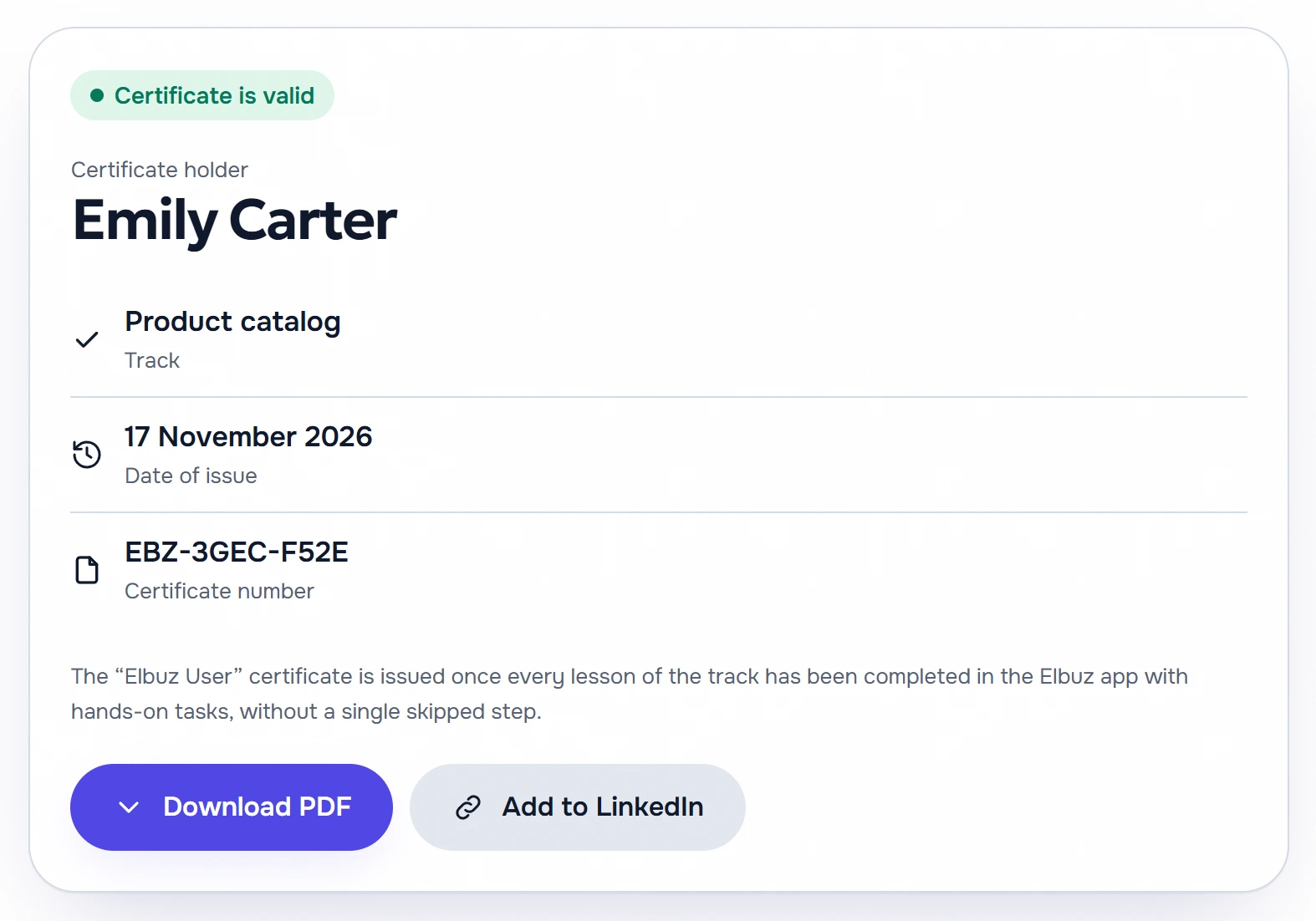
1
Status2
Holder3
Number4
PDF5
LinkedIn- “Certificate is valid” — the certificate is genuine and not revoked.
- The holder’s name, as printed on the certificate.
- The number matches the one on the PDF.
- “Download PDF” — a copy of the certificate for whoever is checking it.
- “Add to LinkedIn” opens the certificate form with the fields already filled in.
If the number is mistyped, the page says “Certificate not found”. If the certificate has been revoked, the status is “Certificate revoked”.
Certificate email
Right after the certificate is issued, the employee gets the email “Your “…” certificate is ready”, one per certificate. It goes to “Email for notifications” from the employee card, or to the main email if that field is empty.
The email contains the track, number, a “Download PDF” button and a link to the verification page. The “How to use your certificate” block suggests:
- how to list the certificate in a CV and job applications;
- how to add it to LinkedIn — the fields are already filled in;
- where to put the PDF in a portfolio and freelance profiles;
- what to send an employer or client — the verification link;
- which track to take next, if one is left.
In an unpaid account, the email has no number and no verification link. The “Open the certificate in Elbuz” button leads to the program, and the email suggests sending the PDF to an employer. After payment there is no second email with the number — the number appears in the program.
Scenarios
A content manager completed the “Product catalog” section. Four lessons with no skipped steps — and “New certificate!” pops up. They download the PDF and add the certificate to LinkedIn with the button on the verification page.
A candidate sent you a certificate. You scan the QR code or open elbuz.com/cert/ with their number. The name, track and the “valid” status on the page mean the certificate is genuine.
FAQ
Why is there no number on the certificate?
The account hasn’t been paid for yet: in a demo, the certificate is issued without a number and QR code. After payment, open the employee card or download the PDF again — the number will appear.
I have the cup but no certificate — why?
The cup is given for all lessons of a folder even with skipped steps, the certificate only without them. Find the folder’s lesson with a skipped step and take it again in full.
How do I change the name on a certificate?
You can’t: an issued certificate keeps the name it was issued with. Later certificates take the name from the employee’s profile, so fill it in the card in advance.
How do I verify someone else’s certificate?
Scan the QR code or open https://elbuz.com/cert/ with the number from the top right corner. A genuine certificate has the status “Certificate is valid” and the same name as on the PDF.
Can a manager download an employee’s certificate?
Yes, with the “Users” window: employee card → “Learning” → “Download PDF”. There they can also enter the name if the profile has none.
The certificate email didn’t arrive — what should I do?
The email is sent once, at the moment of issue. If the card had no email then, it won’t arrive later. The certificate doesn’t depend on it — download the PDF in the chat or in the card.
Where to find it and who has access
- Your certificates
- round robot button → the “Lessons” tab → the “🏆 x / y” chip → “Certificates”
- An employee’s certificates
- employee card → “Learning” section → “Certificates”
- Verification
- https://elbuz.com/cert/<number> — for anyone, no sign-in
- Access rights
- your own — everyone; someone else’s — with the “Users” window
Related topics
- If you need the big picture of training — In-app lessons.
- If a step doesn’t count — What to do when a step doesn’t count.
- If you want to know what else lessons give you — Points, ranks, medals and cups.
- If you need to pick the next track — Lesson list.