
The Elbuz till takes cards via a separate terminal, a smartphone terminal or a QR code. With the last two, the till sends the bank the amount and posts the sale once the bank confirms.
When you need this:
- Cashiers mistype amounts — with a smartphone or QR, it comes from the receipt.
- No terminal, renting is costly — an NFC smartphone with the bank's app becomes one.
- Sale rung up, money never arrived — no bank response, no sale.
- The store isn't in Ukraine — myPOS Glass (EU, UK), “Card” or QR via Stripe or Przelewy24.
Where to start: find your country in the table, then open your method.
What card payment at the till can do
- “Card” (F4) — a separate terminal from any bank; the cashier confirms the payment.
- PrivatBank “Terminal” (F10) — the till's smartphone takes cards through PrivatBank's “Terminal” app.
- “Terminal by mono” (F10) — the same through the monobank app.
- myPOS Glass (F10) — the same in the EU and the UK through the myPOS app.
- “QR” (F7) — the customer scans the code and pays from their own phone.
Which methods work in your country
| Method | Where it works | What the store needs |
|---|---|---|
| “Card” (F4) + a separate terminal | Any country | Your bank's terminal. It isn't connected to Elbuz: the cashier types the amount on the terminal and confirms with “Yes, approved” at the till |
| “QR” (F7) | Depends on the payment service: monobank, LiqPay, WayForPay — Ukraine; Przelewy24 — Poland; Stripe — EU, UK, US | A payment service in “External services” → “Payment” |
| “Terminal” (F10), PrivatBank | Ukraine, PrivatBank customers with the “Terminal” service | A client key from the terminal.pb.ua dashboard in the till settings |
| “Terminal” (F10), monobank | Ukraine, sole proprietors and LLCs with monobank acquiring | The monobank payment service in Elbuz and an MT… terminal in the till settings |
| “Terminal” (F10), myPOS Glass | EU, EEA countries and the UK, a myPOS account | Android 10+ with NFC and myPOS Glass signed in with your myPOS account; the “myPOS Glass” switch in the till settings |
The F7 and F10 buttons appear at the till only once the method is set up. “Card” is always there.
Elbuz picks the smartphone terminal by the account's base currency: with the hryvnia, the till settings show the monobank and PrivatBank fields; with any other currency (EUR, PLN, GBP…), the myPOS Glass switch. A terminal already set up for a till stays visible after a currency change, so you can remove it. There is one F10 button — “Terminal”.
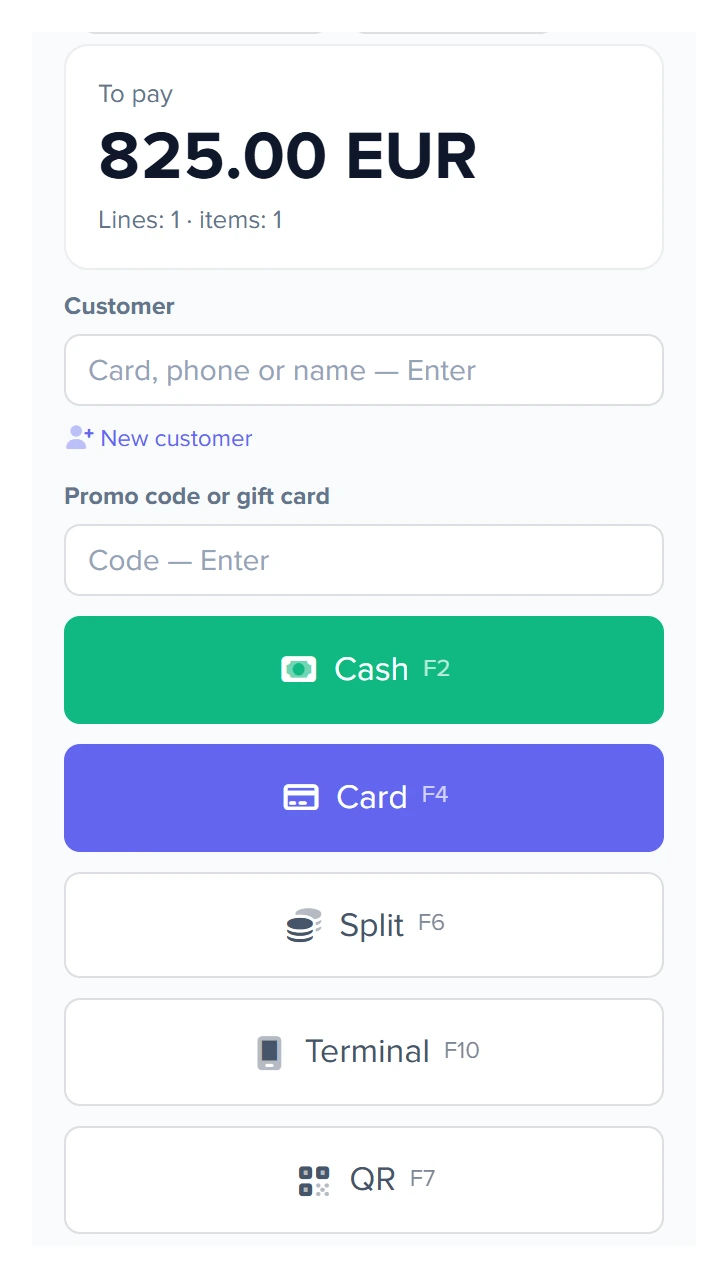
1
Card F42
QR F73
Terminal F10- Available on every till: the cashier types the amount on their own terminal.
- Appears once a payment service is connected.
- Appears once a smartphone terminal is set up for the till.
How a smartphone terminal payment works
The cashier works in the till on the same NFC smartphone or tablet where the bank's app is installed. The bank gets only the amount — the product list isn't sent.
- Request or action
- Reply
- alt — one of the options, depending on the condition
- loop — repeats
- Note
- The cashier builds the receipt and clicks “Terminal” (F10). Elbuz creates an unposted sale draft: no stock is written off yet.
- The till screen shows the amount and the “Open terminal” button: it opens the bank's app with the receipt amount.
- The customer taps a card or phone on the till's smartphone.
- Every 5 seconds the till asks the bank. Once the bank confirms, the sale is posted on its own: a cash receipt with the RRN, authorization code and masked card number, stock write-off, points, and a PRRO receipt if a fiscal register is connected to the till.
- If the bank declines, the draft is cancelled, the products stay on the receipt, and the cashier takes payment another way.
With myPOS, the amount and currency go straight to the myPOS Glass app, and the sale is posted on the Glass response: bringing the cashier back to Elbuz, the app reports the payment as approved. What it looks like at the till.
In the shift report this money is in the “Card” line, like payments on a separate terminal.
What you set up and what Elbuz has already done
Elbuz is registered with monobank and PrivatBank as a POS developer, and its key is already built into the software. You don't see it or enter it anywhere, and myPOS Glass needs no keys at all — your part takes a few minutes:
| Bank | What you do |
|---|---|
| PrivatBank | Create a client key in the “Terminal” dashboard and paste it into the till settings. Step by step |
| monobank | Connect your monobank in “External services” → “Payment” and choose an MT… terminal in the till settings. Step by step |
| myPOS | Sign in to Glass with your myPOS account on the till's smartphone and turn on the “myPOS Glass” switch in the till settings. Step by step |
A till can have only one smartphone terminal. Two tills of a store with the hryvnia can work with different banks: one with monobank, the other with PrivatBank.
Scenarios
A coffee shop in Ukraine, the till on a tablet
What to turn on. A PrivatBank client key in the till settings.
What you get. “Terminal” appears at the till: the customer taps a card on the tablet, the sale and receipt are posted on their own, no separate terminal needed.
A store in Poland
What to turn on. myPOS Glass on the till's smartphone or your bank's terminal for “Card”, and Przelewy24 or Stripe for QR.
What you get. The customer taps a card on the till's smartphone or terminal, or pays by phone with a QR code — in the shift report, card and QR are separate lines.
The terminal is busy and the queue is growing
What to turn on. A payment service for QR alongside the terminal.
What you get. The second customer pays by QR code while the first one pays at the terminal.
FAQ
The till is open on a computer. Will “Terminal” work?
No: “Open terminal” launches the bank's app on the same device, so open the till where the app is installed.
Can the remainder after a gift card be paid with the terminal?
No: as with QR, take the remainder after a gift card in cash or by “Card”.
How do I refund a smartphone terminal payment?
Process a return at the till with the “Card” method, and refund the money itself in the bank's app or dashboard: Elbuz doesn't send refunds to the bank.
The cashier clicked “cancel”, but the customer had already paid. What happens?
Before cancelling, the till asks the bank. If the payment is there, the sale is posted as usual and nothing is cancelled.
My bank isn't monobank or PrivatBank. What do I do?
Take cards on its terminal with “Card” (F4) or connect a payment service for QR. A store in the EU or UK can use myPOS Glass as a smartphone terminal.
Where it is and who has access
- Menu
- “Directories” → “Documents” → “POS” → payment buttons on the right
- Settings
- in the “POS” window — the “Till settings” gear → till
- Access rights
- payment — anyone with access to the till; settings — the “Till settings” right
Related topics
- To set up PrivatBank — PrivatBank “Terminal” at the till.
- If the store is in the EU or UK — myPOS Glass at the till.
- If the customer pays by phone with a code — Paying by QR code at the till.
- For the big picture of the till — POS in Elbuz: how to ring up an in-store sale.