
The Elbuz till shows the QR code of your payment service's invoice, and the customer pays by phone. Once the service reports the payment, the software posts the sale, stock and fiscal receipt itself.
When you need this:
- No terminal, or it's busy — the customer pays by phone to the payment service account.
- No typing the amount — it comes from the receipt.
- Post only paid sales — until the service reports the payment, the sale stays a draft.
- The customer changed their mind — one button cancels the sale; products stay on the receipt.
Where to start: connect a payment service and reopen the till — “QR” appears.
What QR payment can do
- Invoice QR code — the amount comes from the receipt, the payment service is the one connected in “External services”.
- Automatic posting — stock, points, promo code and fiscal receipt once the service reports the payment.
- Cancelling — the draft isn't posted, and the products stay on the receipt.
- Shift report — a separate “Paid by QR” line; this money doesn't go into the drawer.
When the till has a “QR” button
The “QR” button (F7) appears on the right under “Split” when a payment service is turned on and set up in “External services” → “Payment”: monobank, LiqPay, WayForPay and others. These are the same services as for payment by link.
If several are connected, the till uses the first one in the list of payment services. The button appears when you open or select the till again; a payment module on the website doesn't count for it.
How to take a QR payment
- Scan the products and, if needed, add the customer, a promo code or points.
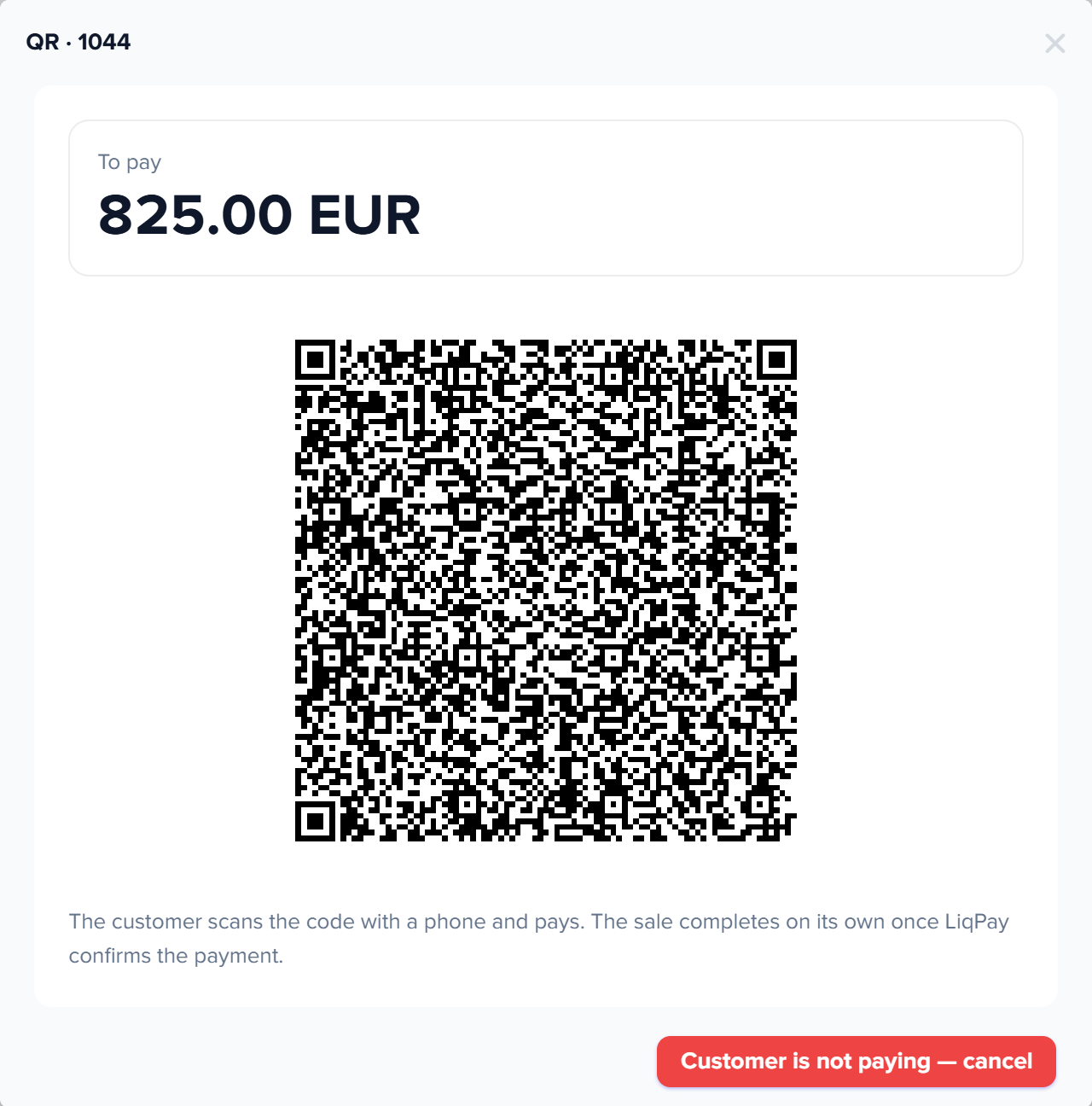
- Press “QR” (F7). A window opens with the amount, the QR code and the hint “The customer scans the code with a phone and pays. The sale completes on its own once … confirms the payment.”
- Show the screen to the customer and wait: the window checks for the payment every two seconds.
- After payment, the window closes on its own, and the sale number appears in “Last receipt”.
1
Amount to pay2
QR code3
Hint for the customer4
Customer is not paying — cancel- Amount to pay — 825.00 EUR.
- QR code — the customer scans it with a phone and pays.
- Hint — the sale completes on its own once the payment service confirms the payment.
- Customer is not paying — cancel — closes the QR window without a sale.
Until the customer pays, the sale is an unposted draft with the status “Awaiting payment”: stock isn't written off, points aren't earned, and the promo code isn't used. All of this happens when the service reports the payment, together with the fiscal receipt if the till has a PRRO selected.
If the service didn't create the invoice, the till shows its error, and the receipt keeps its products — there's no sale number. The draft gets “Canceled” right away, and the next press of “QR” creates a new invoice.

1
Last receipt2
QR button- Last receipt — number 1044, the same as in the QR window title, with the amount and links to open the order and print the receipt.
- QR button — starts a payment by QR code.
The sale is posted even if the till window has already been closed: the payment is accepted by the software, not the browser. A receipt with a gift card can't be paid by QR: take the difference in cash or by card.
The customer isn't paying
Press “Customer is not paying — cancel”. The sale isn't posted, the order and the sales receipt get the status “Canceled”, and the till says “QR payment cancelled: sale … was not completed.” The products stay on the receipt — take payment another way.
The invoice in the payment service isn't cancelled — technically, the customer can still pay it. If they managed to pay before you pressed the button, the window closes as after a regular sale: the sale is posted as paid.
If the payment arrives after cancelling, the sale isn't posted: a posted cash receipt appears on the canceled order. The money shows in the shift report in the “Paid by QR” line, and the order stays “Canceled” — you need to sort out this payment manually.
What appears in documents and the shift report
| Document | What it shows |
|---|---|
| Customer order and sales receipt | Created right away, unposted, with the status “Awaiting payment”. After payment they're posted and get “Done”; after cancelling — “Canceled” |
| Cash receipt | Created by the service's payment notification: payment type “Bank card”, the service name in the description; posted right away |
| PRRO fiscal receipt | Only when the till has a PRRO selected: payment form “Online acquiring”, for LiqPay — “LiqPay” |
The X report and the shift closing report have a “Paid by QR” line when there were such payments. This money is in the payment service account, so it isn't included in “Cash”, “Card” and “Expected in the drawer”. More: X report.

1
Paid by QR2
Cash3
Expected in the drawer- Paid by QR — the total of sales paid by the customer scanning the QR code.
- Cash — the total of cash payments in the shift.
- Expected in the drawer — the cash that should be in the till; QR payments are not included.
Scenarios
A store without a terminal
What to turn on. A payment service in “External services” → “Payment”.
What you get. “QR” appears at the till: the customer pays by phone, the sale and receipt are posted automatically, and for tills with shifts this money shows on a separate report line.
The customer scanned the code and changed their mind
What to do. “Customer is not paying — cancel”, then “Cash” or “Card”.
What you get. The draft stays canceled, and the sale is rung up as usual with the same products.
What to do when a QR payment doesn't go through
| What you see | Why | What to do |
|---|---|---|
| “To take QR payments, connect a payment service (monobank, LiqPay, WayForPay…) in External services → Payment.” | The payment service was turned off while the till was open | Turn the service on (where) or take payment another way |
| A payment service error, for example “… did not create the link: …” | The service didn't create the invoice: keys, connection or the service itself | Press “QR” again; if it still fails, take cash or card |
| “A gift card and QR can’t be combined in one sale: take the remainder in cash or by card.” | The receipt already has a gift card | Take the rest in cash or by card |
| “QR payment cancelled: sale … was not completed.” | The sale was cancelled or the draft was deleted | Take payment another way — the products are still on the receipt |
FAQ
How do I refund a sale paid by QR?
With a regular return by sale number: the “QR” method is selected on its own. The till records the return, and you refund the customer in the payment service dashboard — the till can't transfer the money.
Do I need a terminal?
No: the customer pays from their own phone using the payment service invoice; the till only shows the code and waits for the notification.
Two services are connected. Which one will the till use?
The first one turned on and set up in the list of payment services. You can't choose a service for a particular till.
The till window was closed before payment. Will the sale be lost?
No: as soon as the service reports the payment, the sale and receipt are posted automatically. It gets into the shift report if the shift hasn't been closed yet.
Does a cashier need a separate right for QR?
No: the button is available to everyone who works at the till, once a payment service is connected.
Where it is and who has access
- Menu
- “Directories” → “Documents” → “POS” → “QR” (F7)
- Access rights
- no separate right: anyone with access to the “POS” window and this till
- Prepare
- a payment service in “External services” → “Payment”; for fiscal receipts — the till's PRRO
Related topics
- If no payment service is connected yet — How to send a customer a link to pay an invoice.
- If the customer pays in cash or by card — Selling at the till.
- If you need to reconcile the money for a shift — Shifts and till settings.
- If a customer returns a product — Returns at the till.