
Trade-in is a store page where customers value an old device and request an exchange with a top-up. The request with model, condition, photos and amount arrives in Elbuz “Tickets”.
When you need this:
- Customers hesitate over their old phone — the price offers up to UAH 11,500 for it.
- The manager always asks for model and condition — the form collects answers, IMEI and photos.
- The price depends on storage and condition — option estimates add up live.
- You reply in writing — in “Tickets”; the store emails it.
Where to start: “Store settings” → “Marketing & promotions” → Trade-in → valuation form and categories.
What trade-in can do
- Trade-in page — device categories, “How it works” steps, questions and answers.
- Valuation form — questions about the model, storage, condition and accessories, each option with its own amount.
- Estimated value — the customer sees the amount while answering, and “up to N” on the category card.
- Line on the product page — a trade-in offer next to the price; the request is linked to the product.
- Requests in “Tickets” — with answers, estimate and photos; your reply goes to the customer by email.
- Notifications — by email and in Telegram as soon as a request arrives.
How to launch the trade-in page
- Open the module screen. “Store settings” → the “Marketing & promotions” section → the Trade-in card.
- Create forms in the “Trade-in forms” block — one per device type (how to build a form).
- Add categories in the “What we accept” block: “Name”, “Picture”, “Valuation form”.
- Turn on the “Enabled” switch at the top of the screen.
- Click “Save”. The settings go to the store right away.

1
Category name2
Picture link3
Valuation form4
No form- Category name on the trade-in page, set separately for each language.
- Link to a picture on the internet; the store downloads it itself.
- The form with questions and estimates for this kind of device.
- Without a form the shopper goes straight to contact details.
“What we accept” holds up to 50 categories. Customers see a category in a site language only if it has a name in that language.
“Picture” is a link to an image on the internet (https://…): the store downloads it itself. Without a picture, the card shows a placeholder.
The “Valuation form” is chosen from the forms you've created. “— no form —” works too: the customer goes straight to contacts. On the right, “Still to set up” then shows the reminder “Category “…” has no estimate form”.
With the “Enabled” switch off, customers see “Page not found” at the page address. An enabled module with no categories shows customers “Trade-in is not set up yet”.
On the right you'll then see “No categories — the trade-in page is empty”. How the window works in general is covered in “Store settings”.
The “General” block
| Field | What it does | Default |
|---|---|---|
| Block on the product page | The “Trade in your old device” line next to the price (more details) | on |
| Device photos in a request | How many photos the customer can attach, from 0 to 10. 0 — no photos | 3 |
| Bot protection (captcha) | Shows the “I am not a robot” check if one is chosen in “Form protection” (how to set it up) | on |
How to build a valuation form
A form is the questions the customer answers about their device. Answer options have an “Estimate”: an amount in the store's main currency, plus or minus. The sum of the chosen options' estimates is the estimated trade-in price.
- In the “Trade-in forms” block, click “Add form”.
- Enter the “Form name” — only you see it, for example “Smartphones”.
- A new form already has one required “List” field. Set its “Label” and add options with estimates. Add more fields with “Add field”.
- Click “Save” at the bottom of the form window. The form goes to the store right away and appears in the categories' “Valuation form” choice.

1
Form name2
Field header3
Move and delete4
Add field- Only you see the name; shoppers do not.
- Number, label and type of the field; click to expand its settings.
- Fields are reordered and removed here.
- Adds a new field, a “List” by default.
| Field type | What the customer picks | Example |
|---|---|---|
| List | One option from a drop-down list | Storage: 128, 256, 512 GB |
| One option | One option, all visible at once | Condition: like new, scratches, cracked screen |
| Several options | Any of the ticked ones | Accessories: box, charger |
| Line | Types text in a single line | Model, IMEI |
| Text | Types several lines | What doesn't work |
How the estimate and “up to N” are calculated
The customer chose “256 GB” (9000), “Scratches” (-1200) and “Box” (300) — the estimated value is UAH 8,100. A total below zero counts as zero. An option with the estimate 0 doesn't affect the amount.

1
Required2
Estimate column3
512 GB row- Without an answer the request cannot be sent.
- How much the option adds to or subtracts from the estimate.
- The largest estimate of the field goes into “up to N” on the category card.
“up to N” on the category card is the best possible result: the highest estimate in each field, and in “Several options” — the sum of all positive ones. Change the estimates in the form, and “up to” changes by itself.
A store with several currencies shows the amount in the customer's currency at the store's rate.
What else you can set for a field
- “Label”, “Placeholder”, “Error text” — for each language. A label or placeholder is needed in at least one language. The customer sees the “Error text” under the field when a required field is empty or the answer doesn't match the pattern. If it's empty — “Please fill in this field.”.
- “Required” — the request can't be sent without an answer. “Show the label” — turn it off if the placeholder is enough. “Options in a row” — “One option” and “Several options” choices sit side by side instead of in a column.
- “Check pattern (regular expression)” — only for “Line” and “Text”.
^[0-9]{15}$accepts only a 15-digit IMEI; otherwise the customer sees the “Error text”. - “Suggest catalog products” — only for “Line”. The customer types two letters of the model, and up to 10 names of the store's enabled products appear. “Only from categories” narrows the suggestions; empty — the whole catalog.
- “Default value” — text that pre-fills a “Line” or “Text”.
- An option's “Description” — a small hint under it in “One option” and “Several options”, for example “up to 2 scratches on the body”.
A form holds up to 50 fields, a field up to 100 options. Reorder fields with the “Up” and “Down” arrows, options by dragging.
Copying and deleting a form

1
Add form2
Applied status3
Categories4
Copy5
Delete- Adds a new form with one “List” field.
- The forms are already in the store.
- Categories that use this form.
- Creates a new form with the same fields.
- A form can be deleted only if no category uses it.
A similar form is easiest to make as a copy: the “Copy” icon opens a new form with the same fields; enter your own name. The “Categories” column shows who uses the form, or “not linked”.
A deleted form disappears from the store right away. A form chosen in at least one category can't be deleted: first choose another form for those categories.
What the customer sees
The trade-in page has a description, “How it works” steps, category cards with “up to N”, and questions and answers. A request takes three steps:
- Device — the customer picks a category card.
- Condition — the form questions. Below them, “Estimated value” changes with every answer, with the note “The final amount is set by our specialist after inspecting the device.”. A category without a form skips this step.
- Contacts — name, phone, email (optional) and photos: JPG, PNG or WebP, up to 5 MB each.
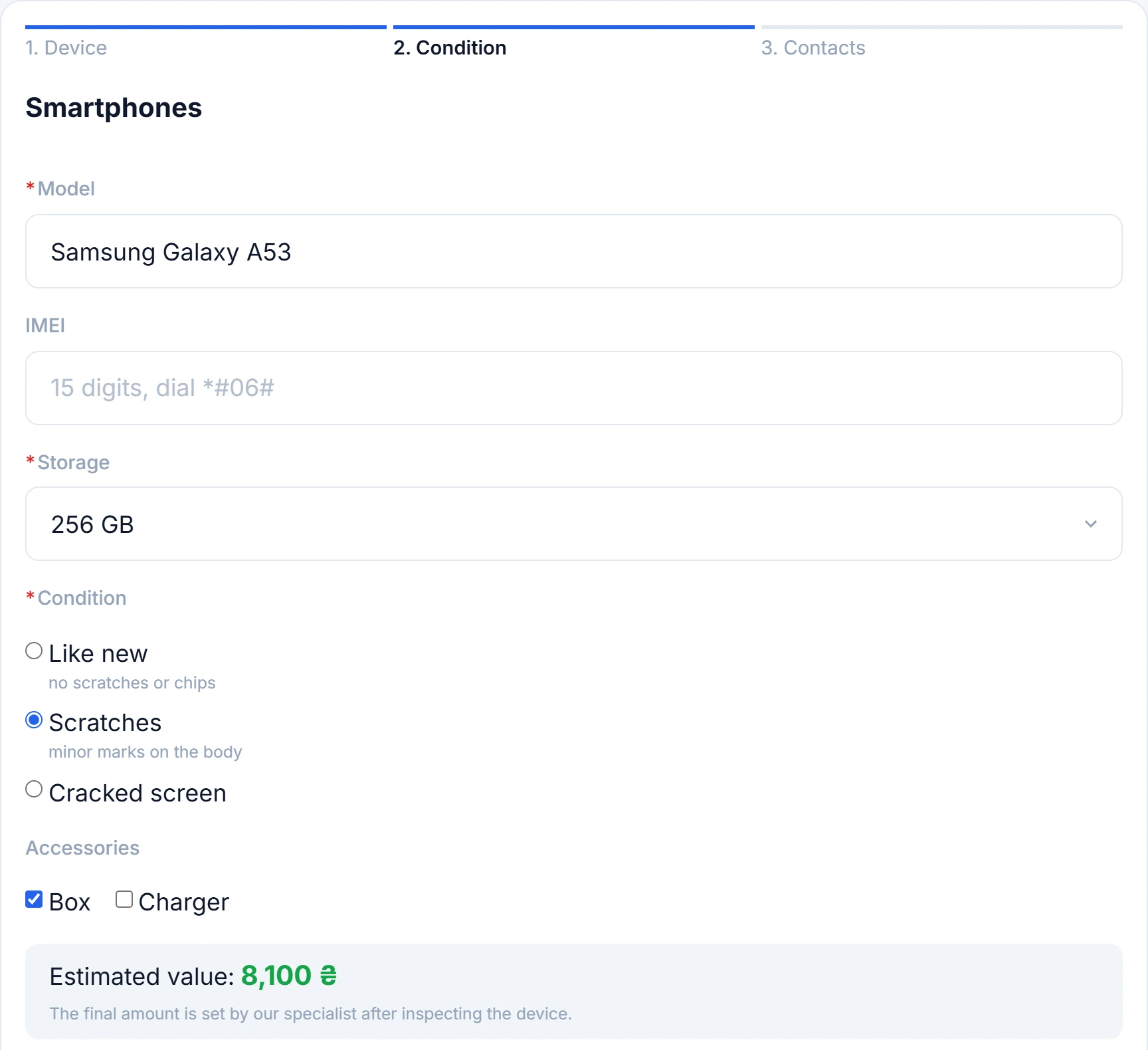
1
Request steps2
Condition3
Estimated value- Device, condition and contacts steps of the request.
- Options with estimates from the form; Scratches reduces the total.
- Sum of the chosen options, changes with every answer.
After sending — “Request #12 received. We will contact you shortly.” and the estimate, if it's above zero. Customers who gave an email get a message with the request number.
The store rechecks the request: required fields, patterns, a name of 2–64 characters, a phone of 9+ digits. Bot protection always works: no sending within 3 seconds of opening the page, and at most 5 requests per hour from one address. Photos sit in a private store folder, hidden from the site.
Line on the product page
Under the price of every product — “Trade in your old device — up to UAH 11,500 off this purchase” and the “Get an estimate” link. The amount is the highest “up to N” among the categories. If the forms have no estimates, the line is different: “Trade in your old device and pay less”.
The link opens the trade-in page with this product, and the request will show “Exchange for: …”. The line appears when the module is enabled, “Block on the product page” is on, and at least one category is named in the site language.
Where requests arrive and how to reply
A request becomes a ticket in the “Tickets” window: channel “Website form”, subject “Trade-in: Smartphones — Olena”. The text has the category, answers, estimate, the product being traded for, phone and email; photos are attachments. Elbuz finds the customer by phone or email, or creates one.
Elbuz collects requests from the store no more often than every 10 minutes: on a schedule and when you open “Tickets”. The “Requests” button at the top of the Trade-in screen opens “Tickets” filtered to Trade-in. When there are requests, next to it you see “New requests”, “Requests in progress” and “Requests in 30 days”.

1
New requests2
Requests in progress3
Requests button- Requests that have not been answered yet.
- New, open, waiting-for-customer or paused requests.
- Opens Tickets filtered to Trade-in.

1
Request subject2
Estimate line3
Reply field4
Status- Device category and the customer's name from the request.
- Preliminary estimate calculated from the form.
- The reply goes to the customer by e-mail together with the status.
- Request status: New until a manager takes it.
- Request or action
- Reply
- Note
Ticket status and request status
The ticket status in Elbuz and the request status in the store are paired. Change the ticket status and it goes to the store, but the status change alone doesn't email the customer.
| Ticket in Elbuz | Request in the store (as the customer sees it in the email) |
|---|---|
| New | New |
| Open, On hold | Being assessed |
| Pending | Offer sent |
| Solved | Exchange completed |
| Closed | Rejected (if the ticket was closed after “Solved”, it stays “Exchange completed”) |
Replying to the customer
Write a reply in the ticket, up to 2,000 characters. The store adds it to the request and emails the customer “Trade-in request #… — store name”.
The email says “Hello …, The status of your trade-in request #…: …” followed by your text.
The status from “Send as” is set after the email, so the email shows the previous one. Need the new status in the email? Change the ticket status first, then reply.
A reply to a new request moves it to “Being assessed”. A customer without an email won't get the message — call them. How to work with tickets is covered in “Working with tickets as an agent”.
Email and Telegram notifications
In the “Request notifications” block, turn on “Send alerts about new requests”. Each request goes by email to all addresses in “E-mail for requests” and to all chats in “Telegram: chat IDs”. It has the number, category, answers, estimate, product, contacts, number of photos.
- “Telegram: bot token” comes from @BotFather after the /newbot command. Add the bot to the chat where requests should arrive.
- @userinfobot tells you the chat ID. A group ID starts with a minus. Several addresses or chats — comma-separated.
If notifications are on but no email or chat is set, the right side shows “Notifications are on, but no e-mail or Telegram chat is set”. An email or Telegram failure doesn't lose the request: it still arrives in “Tickets”.
Page texts and address
The “Page texts” block is filled in for each language: “Page title”, “Text above the categories”, and headings for the “How it works”, categories and questions blocks. An empty “Heading on the page” takes the “Page title”. An empty “Title in Google search” takes the heading on the page.
“How it works” holds up to 20 steps with a heading and text. “Questions and answers” holds up to 50 pairs.
“Page address” is the part of the address after the domain, one per language: trade-in → your-shop/trade-in. Lowercase Latin letters, digits, “-” and “_”. The store applies a new address within 5 minutes.
An address that's taken won't apply: the store keeps the previous one, and a note appears under the field (what to do). The other settings and languages are still saved. An empty address means the page has no short address in that language.
Scenarios
Smartphones: an accurate estimate before the visit
The “Smartphones” form:
- “Model” — “Line” with “Suggest catalog products”, “Only from categories” — smartphones;
- “IMEI” — “Line” with the pattern
^[0-9]{15}$; - “Storage” — “List” with estimates
7000,9000,11000; - “Condition” — “One option” with estimates
0,-1200,-3500; - “Accessories” — “Several options”: “Box”
300, “Charger”200.
Next to the price of a new phone — “up to UAH 11,500”; the request has a model from the catalog, a checked IMEI and photos.
Washing machines: an estimate by age, plus removal
The “Washing machines” form: “Age” — “List” with “up to 3 years” 2000, “3–7 years” 1000, “over 7 years” 300. “Working” — “One option”, “Needs removal” — “Several options” with the estimate 0.
The customer sees “up to UAH 2,000”, and the manager sees in the request whether removal and movers are needed.
Laptops: an estimate only after inspection
The “Laptops” category with “— no form —”, and in “General”, “Device photos in a request” is 5. The customer goes straight to entering contacts and attaching photos; you name the amount in your reply.
An offer to the customer by email
Once you've assessed the photos, first change the ticket status to “Pending”, then reply: “We offer a UAH 8,000 discount — bring the phone to the store”. The customer gets an email with the “Offer sent” status and your text.
What to do when trade-in doesn't work
| What you see | Why | What to do |
|---|---|---|
| The trade-in page address shows “Page not found” | The module is disabled or the address hasn't been applied yet | Turn on the “Enabled” switch, save and wait up to 5 minutes (page address) |
| The page says “Trade-in is not set up yet. Call us and we will help.” | There are no categories, or they have no name in the site language | Add categories and names for each language in “What we accept” |
| The product page has no “Trade in your old device” line | The module is disabled, “Block on the product page” is off, or no category has a name in the site language | Turn on the block in “General” and add a category (line on the product) |
| The customer doesn't see “Estimated value” and “up to N” | The form options have no estimates, or the total isn't above zero | Enter an “Estimate” for the options (how it's calculated) |
| “The form was not deleted: categories … use it” | The form is chosen in a “What we accept” category | Choose another form or “— no form —” for the categories, save the screen and delete the form |
| “Another page of the site already has this address — the previous one stays” | Another store page already has this address | Enter a different address, for example obmin |
| The customer says they sent a request, but it isn't in “Tickets” | Elbuz collects requests every 10 minutes | Wait 10 minutes and open “Tickets” again |
| “Saved, but the store rejected it: …” | The store didn't respond or rejected some fields | Fix the marked fields and save. If no fields are marked, the changes go with the next export |
FAQ
Is the estimate applied to the new order automatically?
No. The estimate is preliminary; you name the final amount after inspection. You apply the discount to the new order yourself, for example with a coupon.
Can I accept a request without an email?
Yes, email is optional. Name and phone are required. Such a customer won't get the reply email — call them.
Where do I see the device photos?
In the request's ticket, as attachments. Photos aren't visible on the store website.
What happens if I disable the module?
The trade-in page and the line on products disappear. Forms, categories and texts are kept, and requests stay in “Tickets”.
Can one form be used by several categories?
Yes. For example, “Smartphones” and “Tablets” with one form. In “Trade-in forms”, the “Categories” column will show both.
Where to find it and who has access
- Menu
- Directories → Operations → Store settings → “Marketing & promotions” → Trade-in
- Requests
- Directories → Contacts → Tickets, or the “Requests” button on the Trade-in screen
- Access rights
- the “Store settings” and “Tickets” windows in group permissions
- Prepare
- a list of the devices you accept and option estimates in the store's main currency
Related topics
- If you need to understand how the store settings window works — Store settings.
- If an agent handles the requests — Working with tickets as an agent.
- If the form needs an “I am not a robot” check — How to protect store forms from bots.