
Product configurator for your website: shoppers build the kit themselves
The Elbuz widget adds step-by-step product selection to your website: the shopper goes through steps built from your catalog categories, compatibility rules hide items that don't fit, and prices and stock come from your Elbuz catalog. It goes onto any website with an embed code, or onto OpenCart with a module.
- Build steps: catalog groups and categories set the order of choice; required steps make sure no essential item is skipped.
- Compatibility: rules between steps compare product attributes and narrow the choice.
- Services: assembly, connection or setup are added to the kit together with the products.
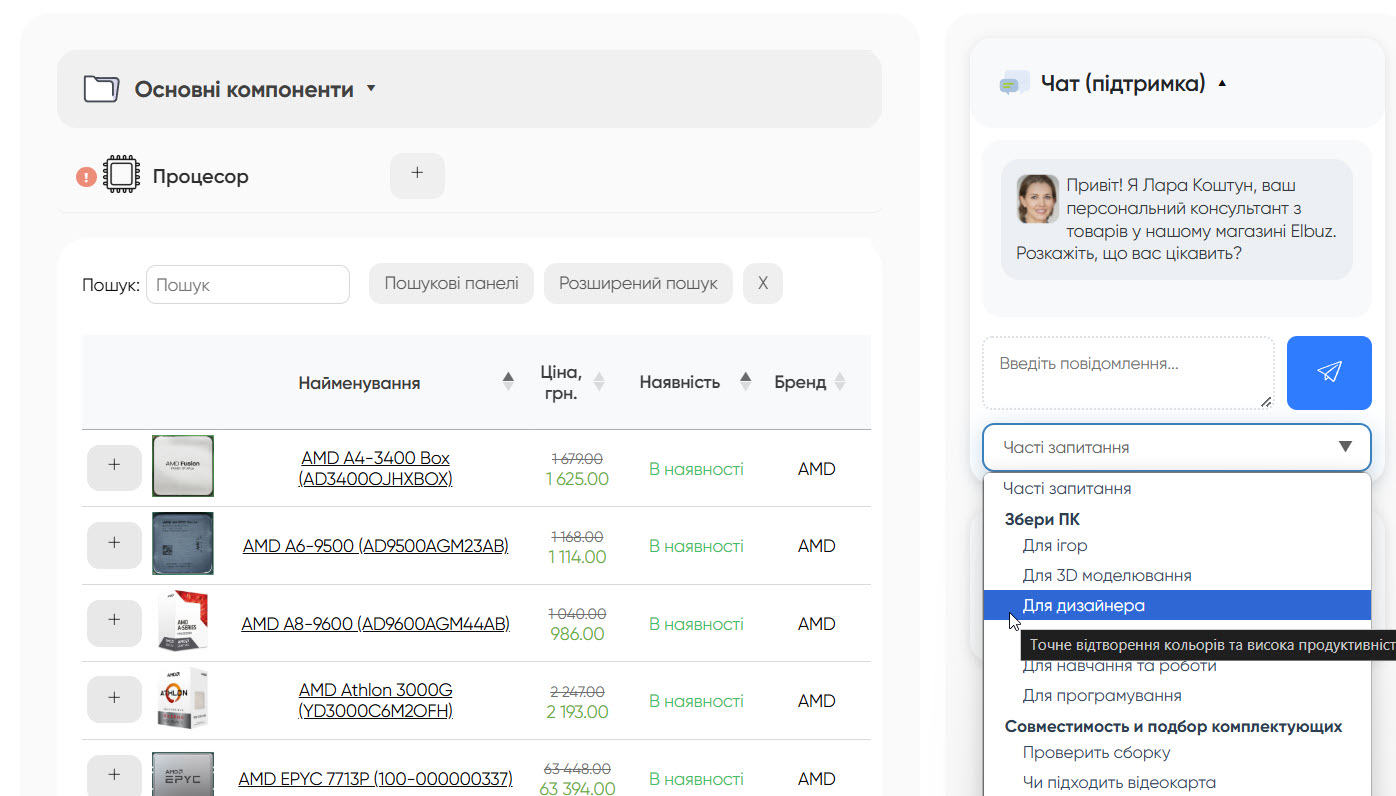
- AI assistant: the configurator chat answers based on the configurator's products.
- Chat history: see what shoppers ask about.
- Several builds: configurators are combined into a space and placed on a page with one code snippet.
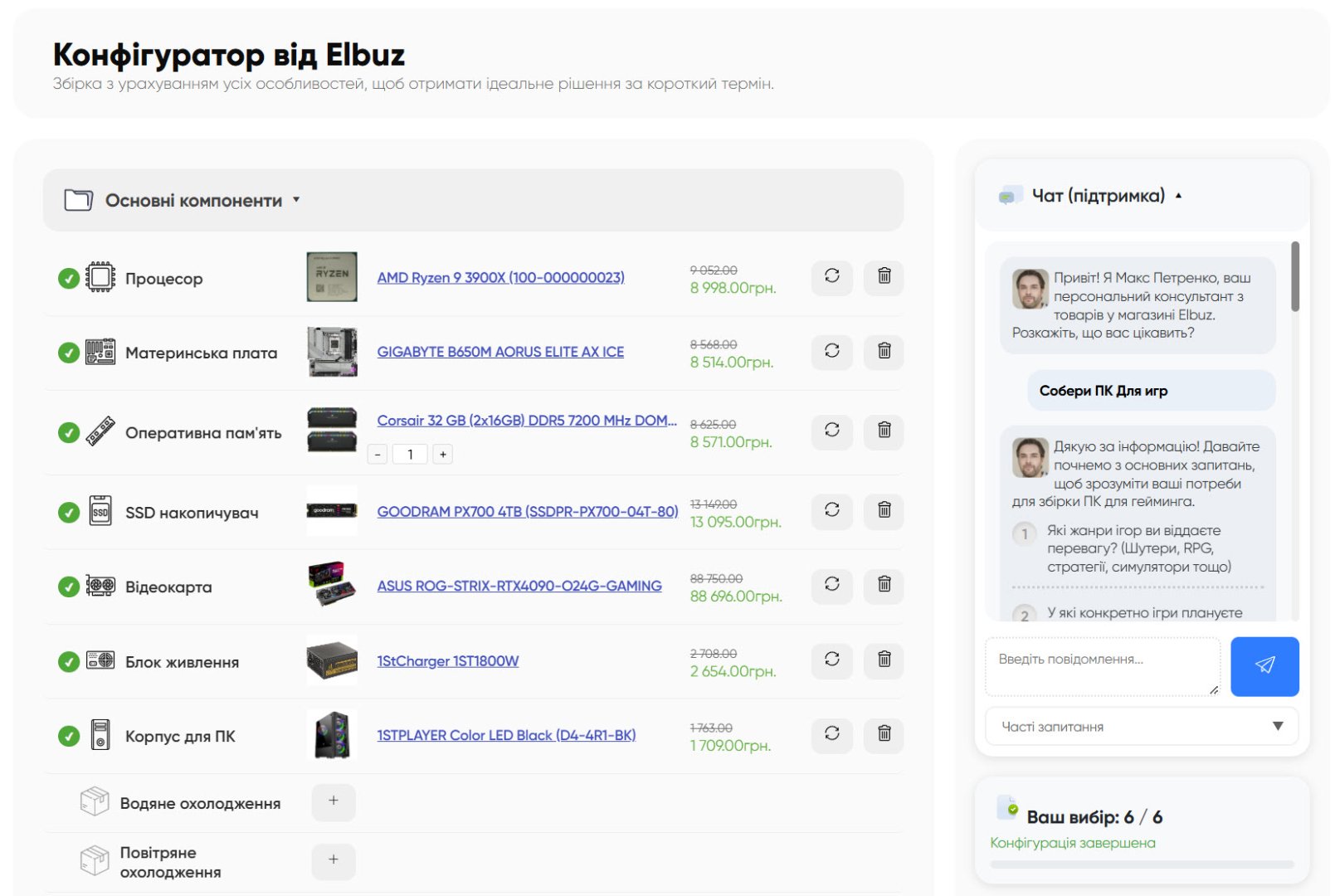
Step-by-step product selection
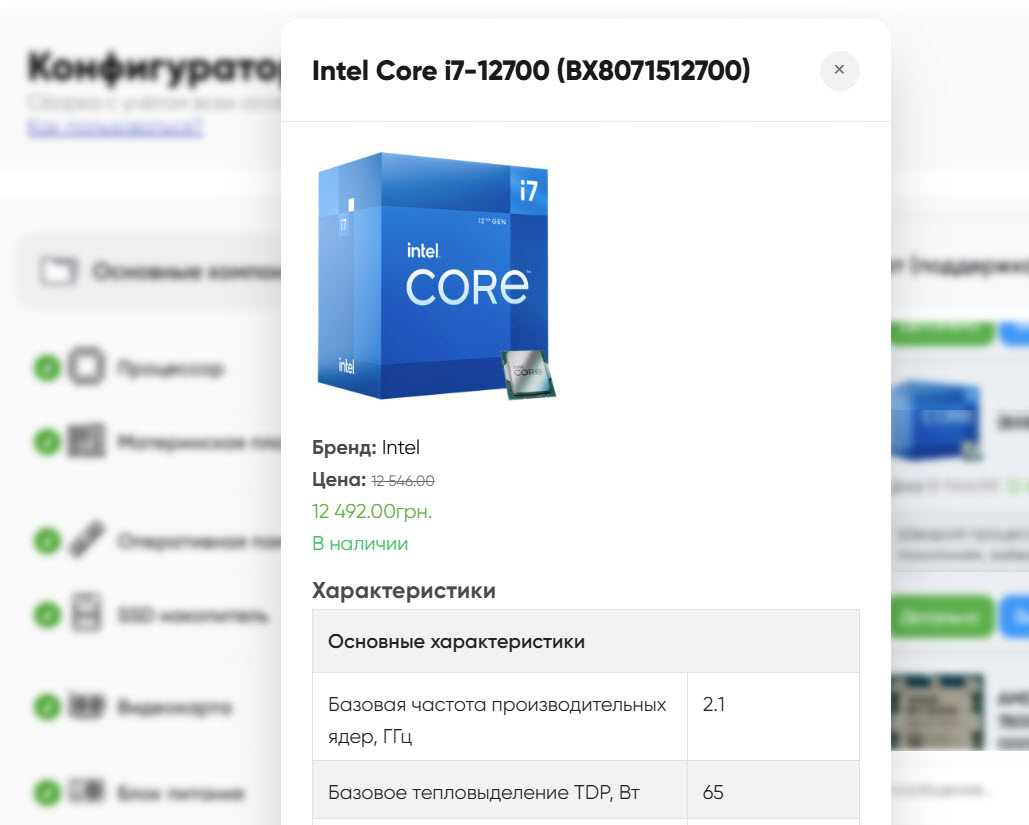
Product details
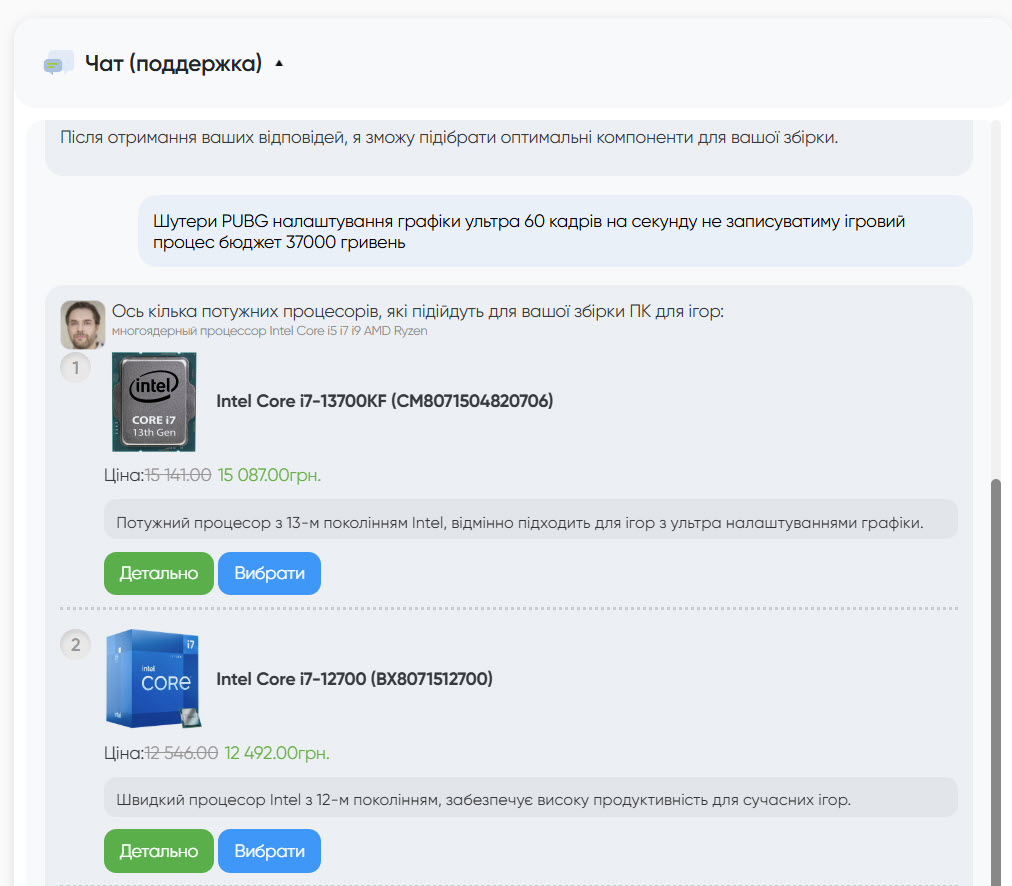
Chat with the AI assistant
Why an online store needs a product configurator
The Elbuz configurator is a widget for your website. The shopper goes through the steps you built from your catalog categories, picks an item at each one, and the configurator hides incompatible items and calculates the total price.
The shopper doesn't know where to start
A computer, a kitchen or a garden set is not bought as a single item. Without guidance, shoppers jump between catalog sections and can't tell what else they need.
How the configurator solves it
Steps follow the order you set: the base first, then components and accessories. A required step won't let the shopper complete the kit without the item it needs.
Incompatible items in orders
The CPU doesn't fit the motherboard, the filter doesn't fit the pump — and the manager finds out only after the order is placed.
How the configurator solves it
Compatibility rules compare product attributes between steps: a choice on one step narrows the list on the next. You build the rules on the "Compatibility" tab.
Shoppers' questions about the build
Shoppers ask which model goes with the one they already picked, and wait for a manager to reply.
How the configurator solves it
You can turn on a chat with an AI assistant in the configurator. It answers based on the products in the configurator structure, and conversations are saved on the "Chat history" tab.
Prices and stock change every day
A bundle assembled by hand on the website goes stale fast: an item sells out, a price changes.
How the configurator solves it
The configurator takes products, photos, attributes and prices from your Elbuz catalog. You choose the price field, and output limits hide the products you don't want to show.
A configurator vs. a regular store catalog
A catalog shows products one by one. A configurator walks the shopper from the first step to a finished kit. It doesn't replace your website — it sits on one of its pages as a separate block.
Step-by-step selection instead of browsing sections
- Catalog: the shopper moves between sections, compares specs and decides what else is needed.
- Configurator: groups and categories define the steps and their order. A step can show columns with attributes for comparison and articles on how to choose.
Compatibility by rules
- Catalog: compatibility is the shopper's problem.
- Configurator: compatibility rules remove items that don't match what is already selected, such as motherboards with a different socket.
AI assistant in the chat
- Catalog: a "similar products" block doesn't know what the shopper is building.
- Configurator: the assistant answers based on the configurator's products. Elbuz builds an AI index of the catalog for it, and you choose the model and write the assistant's instructions.
A kit instead of separate items
- Catalog: the shopper puts a bundle together alone, one product at a time.
- Configurator: a step can allow several items and a quantity, and you can attach services to a step — assembly, connection, setup.
Several builds on one page
- Catalog: every typical build needs its own page or collection.
- Configurator: several configurators are combined into a space ("Configurator groups") and placed on a page with one code snippet.
A kit, step by step
The shopper goes through the steps you defined and sees the kit's total price. Required steps make sure no essential item is skipped.
Answers in the chat
The AI assistant answers shoppers' questions based on the configurator's products. The greeting, FAQ and message limit are set in the configurator card.
Up-to-date data
Products, prices and stock come from your Elbuz catalog — no need to update them on the website separately.
Chat history
The configurator card shows shoppers' conversations with the assistant: what they ask and which questions the AI couldn't answer.
A look that fits your site
Custom CSS and JS in the configurator card match the block to your site's design, and AI can generate the configurator image from a description.
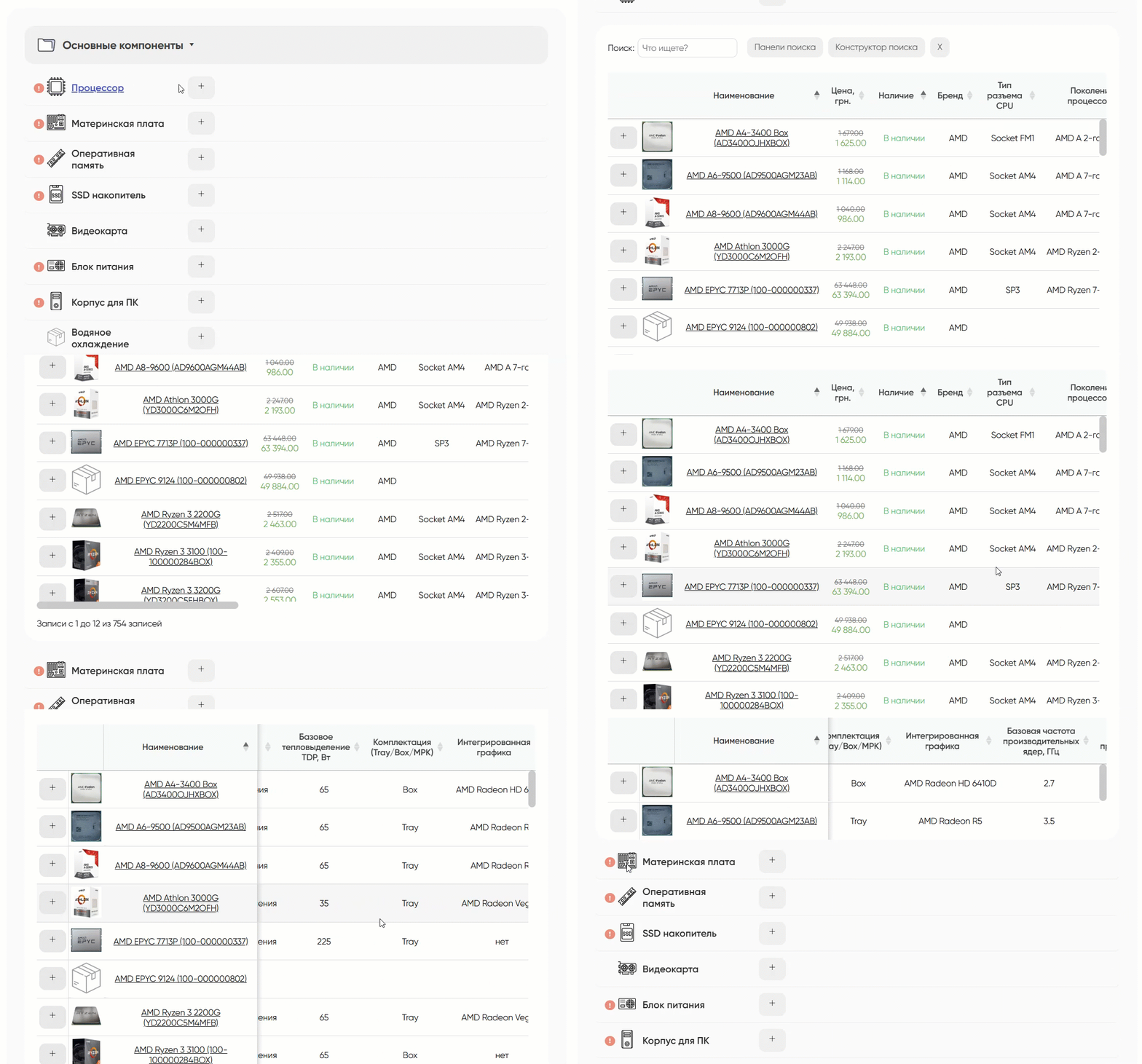
Step-by-step choice
Steps are grouped by meaning: base, components, accessories. The shopper sees what is already chosen and what is left.
A step can show attribute columns for comparison and articles with buying advice. AI can pick the columns and write the articles for a category.
Only compatible items
A choice on one step narrows the list on the next, following the rules you set.
A rule compares product attributes on two steps, such as the CPU and motherboard socket. Extra words in values ("Socket AM4" vs. "AM4") are dropped before the comparison.
Several items and quantity
On a step the shopper can take several products and set how many are needed.
For each step you turn on multiple selection, quantity selection, required selection or recommended selection.
Order from the widget
The shopper checks out the finished kit right in the configurator.
After checkout the shopper sees your message — you write it on the "Information" tab for each language.
See how the configurator looks to a shopper in the demo PC build.
What you can set up in the configurator
Each configurator has a card with the tabs "Information", "Settings", "Structure", "Compatibility" and "Chat history". You can have several configurators — for different builds and websites.
Matching compatible products
- Compatibility rules between steps based on product attributes (for example, CPU and motherboard socket).
- Items that fail a rule disappear from the step's list.
- A product filter that decides which catalog products the configurator shows at all.
Step structure
- Groups — logical blocks of the build and the order of steps.
- Group categories — the actual steps, linked to your catalog categories.
- Order and active status for each step.
What the shopper sees on a step
- Required, recommended and multiple selection, quantity selection.
- Columns with product attributes for comparison.
- Category articles with buying advice.
- Step services: assembly, connection, setup — added to the kit together with the products.
Prices and catalog
- The price source field, rounding and decimals.
- Showing the recommended retail price, the sale price and the old price.
- The Elbuz catalog is filled by file upload, from an XML link or by a two-way CMS module; descriptions, attributes and photos are managed in the Elbuz PIM system.
Placing it on a website
- The "For widget" code goes into the template of any website.
- The "For CMS module" code goes into the settings of the Elbuz module for OpenCart.
- A list of domains where the configurator is allowed to appear.
- Custom CSS and JS for the block's look.

Computers and components

Construction and renovation

Home, furniture and decor

Restaurants
PC, workstation and peripherals builds
Steps "CPU", "Motherboard", "Memory", "Graphics card", "Case", then accessories and software. A socket rule hides motherboards that don't fit the CPU, and an "Assembly" service is added to the kit.
Appliances room by room
A separate configurator for the kitchen, laundry or living room, all of them in one space on the page. The shopper picks appliances for a room in one go and can add installation to the kit.
A set for the garden
From a lawn mower or a cultivator to attachments and consumables. Compatibility rules pick attachments and parts for the selected model.
Materials for a project
Steps follow the stages of work: base, finishing, utilities, fasteners. Quantity selection on a step lets the shopper enter the required amount right away.
A room interior
Furniture, lighting, textiles and decor as steps of one configurator. The shopper sees the total price of the whole set before ordering.
Gear for a trip
Tent, sleeping bag, backpack, cookware, clothing — step by step, with recommended items that are easy to forget. Multiple selection lets the shopper take several items of one type.
Ordering food online
Steps follow the menu sections: mains, sides, drinks, desserts. Quantity selection on every step, and the guest sees the total before checkout.
Musical instruments and audio
A sound system of microphones, speakers and amplifiers; strings, stands and cases for an instrument.
Cosmetics and personal care
Care sets, hair clipper kits: clipper, guards, accessories.
Industrial equipment and tools
Fitting out a machine or a workstation, a tool set for maintenance.
Clothing and accessories
A complete outfit: clothes, shoes, bag, jewelry.
Food and drinks
Gift, wine or tea sets that the shopper puts together.
Office furniture and equipment
A workplace or a whole office: furniture, office equipment, stationery.
Events and catering
A service package: venue, menu, program, decoration — with a cost estimate.
Flowers
A bouquet step by step: flowers, quantity, wrapping, a card or sweets.
Bakeries and confectioneries
A custom cake: filling, size, shape, decoration, inscription.
How it works
- You add the partner's domain to the list of domains where the widget may be placed.
- The partner pastes the "For widget" code from the configurator or space card into the page.
- The reader goes through the steps and builds a kit from your products without leaving the page.
- Prices and stock come from your Elbuz catalog, just like on your own website.
Worth knowing
- Each website can get its own space with its own set of configurators and its own code.
- The configurator's language and currency are set by the embed code.
- The block's look is adjusted with custom CSS and JS.
How to launch a product configurator on your website
Five steps from the catalog to a block on your page.

The configurator shows products, attributes, photos and prices from the Elbuz catalog. If your products live only on your website for now, bring them into Elbuz.
- Upload a catalog file or import from an XML link.
- Or use the two-way CMS module, which keeps the catalog in sync with your website.
In "Directories → Categories", open the "Widget settings - Configurator" tile and create a configurator.
- The "Structure" tab holds groups and category steps.
- The "Compatibility" tab holds rules between steps.
- The "Settings" tab holds the price source and output limits.
If you want an assistant in the chat, turn on "Show AI chat" and "AI training", choose a model and write the assistant's instructions.
- The "AI product index" tile builds an index of the configurator's products.
- A rebuild sends only new and changed products.
Get access to the Elbuz configurator
- 14-day trial.
- Our support team will help you set it up.
| Capability | Elbuz configurator | Manager picks items | Bundle plugin |
|---|---|---|---|
| Help while choosing | An AI assistant in the chat answers based on the configurator's products. | Depends on the manager's experience and workload. | Usually only predefined bundles. |
| Compatibility | Rules between steps based on product attributes. | Checked by hand. | Usually not checked. |
| Speed for the shopper | Builds it alone, any time, no waiting. | Waits for the manager's reply. | Fast, but only within ready-made bundles. |
| Prices and stock | From the Elbuz catalog. | The manager checks them by hand. | Depends on how the plugin reads store data. |
| What shoppers ask | "Chat history" in the configurator card. | Stays in the manager's messages. | Not collected. |


