
Mapping is the same for every format; only the address differs: a column letter or number in a table, a tag name in XML, a column number of the flattened table in JSON. Elbuz detects the Excel header row, CSV delimiter and YML tags.
When you need this:
- A YML feed — addresses are matched automatically, no typing tag names.
- XML with custom tags — enter them by hand, AI suggests the structure.
- Garbled CSV headers — it's the file encoding, not the mapping.
- BMEcat or DATANORM — the file maps itself.
- JSON — the file becomes a table, addresses are column numbers.
Where to start: pick your format.
Which format you have
The mapping logic is the same for all formats, but what you enter as the address depends on what the supplier sent.
- Excel workbookThe address is a column letter or number; the program finds the header row itself
- CSV, TXT or TSVThe address is a column number; the delimiter and file encoding matter separately
- XML or YMLThe address is a tag name, attributes go in square brackets; plus four branches of the feed structure
- BMEcatNo mapping needed: the program recognizes the catalog and assigns the fields itself
- DATANORMNo mapping needed; what matters is how the price file was sent and whether rounding is on
- JSONNo auto-mapping at all: the file is flattened into a table, addresses are set by hand
Which extensions and archives the program accepts, and how it recognizes a feed with an unusual extension — Which files are supported.
What to enter as the address for an Excel workbook
The address is a column letter or its number. The program takes columns and sample values from a preview of the sheet, so the wizard shows you the same thing as the file.
The header row is the one with the most matches to saved column names; failing that, the row before the first data row. The numbering row Excel draws itself is skipped. Sometimes a sheet name lands in the mapping as a “column” — the program drops such rows by comparing them with sheet names.
One more subtlety saves you from a wrong conclusion. Sample values in the wizard are picked by header text, and only if that header isn't in the row — by column number. So the wizard can show correct samples even when the supplier has shifted the columns.
The address itself is a letter or number, and the import reads it literally: if the supplier rearranged the columns, fix the addresses. The program helps: after a successful upload it remembers the column headers and compares the next file with them. See the scenario “The supplier inserted columns at the start of the file”.
How to map CSV, TXT and TSV
The address is a column number or letter; numbering starts at one and follows the first row of the file. Two things that decide the fate of such a price list lie outside the mapping.
First, the delimiter. It's taken from the source settings; if it isn't set, the program detects it from the first fifteen rows. You can write a tab as \t. Second, the : if the price list isn't marked as , its content is converted from windows-1251. When the wizard shows “Цена” instead of headers, it's the encoding, not the mapping.
How to map XML and a YML feed
First make sure you need a price list. An XML file can be loaded two ways, leading to different places. A price list is the supplier's range: its prices are compared with yours, products are matched to the catalog, a markup goes on top. Catalog import from XML/YML is for a feed of your own range that goes straight into product cards, without matching or markups.
Here the address is a tag name, not a letter. Node attributes go in square brackets: [id], [available]. Auto-mapping compares tag names with the dictionary exactly. You can enter such an address in the field grid cell of the card or in the wizard's “Configure column” panel — for an XML source it skips the format check.
A combined address works differently in a feed. An XML feed joins comma-separated tags, the price included, so the “first non-empty value” rule doesn't apply; a price field then keeps only the digits of the joined string. The exception is the same as in a table: tag values for “Quantity” are added up.
Tags are joined like table columns: back to back, with a separator as text in curly braces. But a range 7-9 and a vertical-bar list 11|12 don't work in a feed: the address is a tag name, hyphens occur in names (offer-name), and a vertical bar in XPath already means a union.
Several well-known feeds are mapped the same way because their tags are standard. For (the format most marketplaces and platforms use to export catalogs), addresses are matched automatically — no need to type tag names by hand.
Google Merchant has its own tags, but they're fixed too: g:id, title, g:price, g:availability, g:brand, g:mpn, link, g:image_link — enter them in the target fields as ordinary addresses.
If the supplier sent with custom node names — and that happens more often than you'd like — auto-mapping won't work, and you'll have to set the addresses by hand. This is a normal working case, not a failure: look at the file itself, find the product tag and the field tags, and enter their names.
The wizard has no sample values for XML — the rows show “—” instead. This isn't a parsing failure: no preview is built for a feed, so you go by the tag names alone.
Besides the columns, XML needs four structure branches — a separate “XML structure” section in the card: “product tag”, “category tag”, “attribute list tag”, “photo list tag”. Auto-detection fills only empty branches and doesn't overwrite what you've set. The main one is the product tag: without it the feed isn't parsed at all, so it's filled in almost always.

1
Product tag2
Auto-map columns button3
Take currency rates from the file- Product tag — the XML element that wraps one product in the feed.
- Auto-map columns — detects the feed structure and maps tags with AI (not pressed while shooting).
- Take currency rates from the file — reads the rates from the currencies tag of the feed.
For XML the card also offers AI feed structure analysis: the “Auto-map columns” button in the same section, below it “Detected tags” as chips, a “System field ← Tag” table with an “Add row” button, an “Apply mapping” button and a “Product node sample” fold. For this block isn't available.
The same place has the “Take currency rates from the file (currencies tag)” checkbox. Its hint explains it word for word: “When enabled, prices are converted using the rates from the currencies block of the file. When disabled, the rates set in the price list columns or in the currency directory are used.”
Two checks that stop the import for other formats aren't run for XML at all: the feed goes into processing even with empty mapping, and you won't see a message about unfilled addresses. So for XML, “the import started” doesn't yet mean “the mapping is correct” — check the number of loaded products and the products themselves.
How to load a BMEcat catalog
loads like a regular price list: as a file, by link, by email or from FTP, including in an archive. The program recognizes the catalog by content, not by name, so the extension can be any allowed one, such as .xml or .txt. Elements are read the same way for all versions; tested on catalogs 1.01, 1.2 and 2005.
A new price list maps itself: the product tag and column addresses are set after the first upload, based on the fields present in the first 50 products of the file. The connection wizard and a new source also run the file through AI auto-mapping, so check the result in the “Columns” section.
A repeat upload uses the mapping already saved; your edits aren't overwritten.
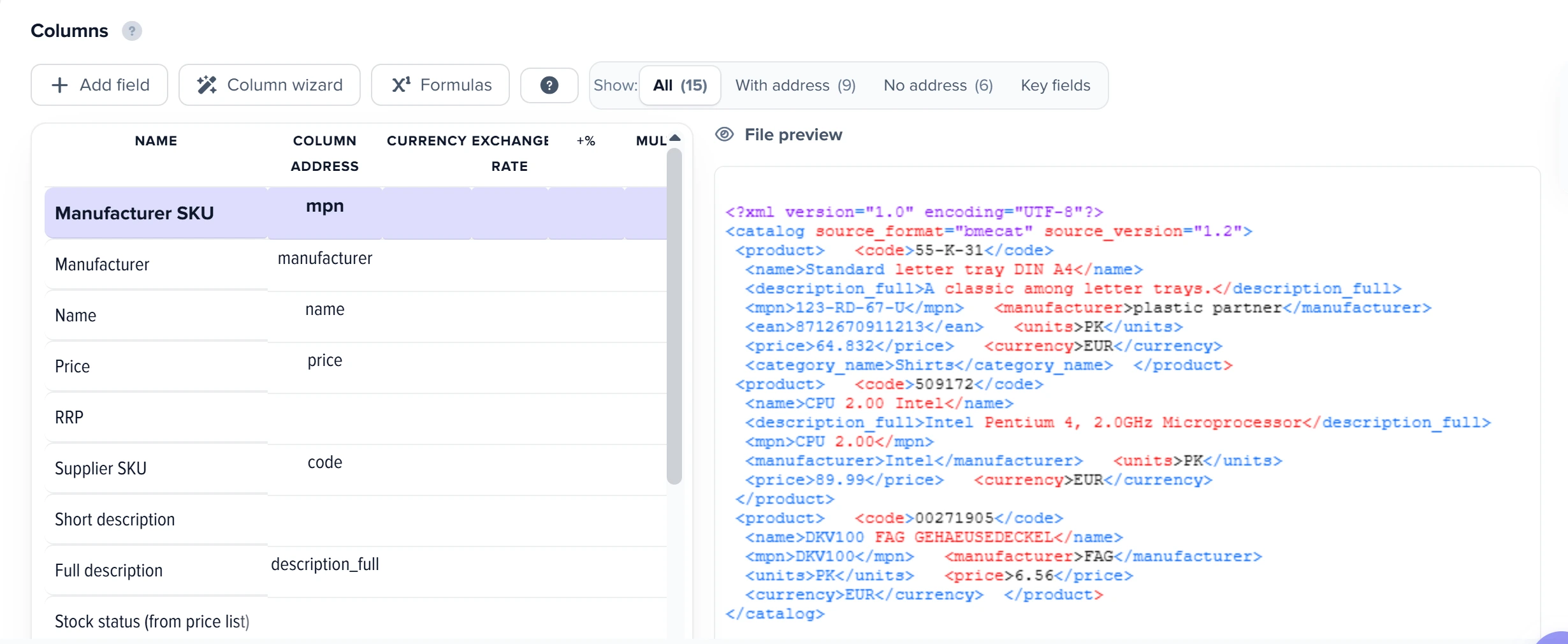
1
Address code2
File preview- The code address maps the supplier article number from the BMEcat file to the Supplier SKU field.
- The file preview shows the catalog converted to the internal format, with source_format="bmecat" in the root tag.
| Elbuz field | Where it comes from |
|---|---|
| Supplier SKU | catalog item number (SUPPLIER_AID or SUPPLIER_PID) |
| Manufacturer SKU | MANUFACTURER_AID or MANUFACTURER_PID |
| EAN | EAN or INTERNATIONAL_PID of type ean or gtin; 14 digits with a leading zero become EAN-13 |
| Name and description | short and long descriptions in the catalog's main language |
| Manufacturer, unit | MANUFACTURER_NAME, order unit ORDER_UNIT |
| Category | the first catalog group the product is linked to |
| Photo | images with a full address; relative paths — if the catalog specifies the site address (MIME_ROOT); thumbnails are skipped |
How the price is calculated
The price in the price list is per order unit: amount × factor ÷ the quantity the amount is given for. For example, 81.04 with a factor of 0.8 gives 64.832, and 500 for 100 pieces gives 5. A decimal comma is read too. If there are several price tiers, the tier with the smallest quantity is used.
If a product has several price types, the first available one is used in this order: contract (net_customer), contract export (net_customer_exp), list price excluding VAT (net_list), list price including VAT (gros_list), recommended (nrp). The price list RRP is nrp, or gros_list if nrp is missing, provided that type wasn't used for the main price.
Check the currency after the first upload. It comes from the “Currency” column in the “Price” and “RRP” rows of the “Columns” section; if it's empty, the default currency is used, and a catalog in euros gives the same numbers in hryvnias. The wizard runs the import itself, so after fixing the currency rerun the import, then apply prices. Auto-mapping can reset the currency — check it afterwards.
A record marked for deletion (mode="delete") doesn't get into the price list. A product without an amount, including “price on request”, loads without a price.
A price update catalog (T_UPDATE_PRICES) usually contains only the item number and price; it has no quantity the amount is given for, so “500 for 100 pieces” is read as 500. Features (FEATURE) aren't transferred.
A truncated or damaged catalog isn't loaded partially: the file stays as it is, and no products are parsed from it. Ask the supplier to send the complete file.
How to load a DATANORM price list
loads like a regular price list. Versions 4 and 5 are supported; the program recognizes the file by content and accepts extensions like .001. A new price list maps itself: no need to map columns, just check the addresses in the “Columns” section.

1
Address code2
File preview- The code address maps the supplier article number from the DATANORM data to the Supplier SKU field.
- The file preview shows the converted catalog with source_format="datanorm" in the root tag.
| What the supplier sent | What to do |
|---|---|
A DATANORM.001 file with prices in the item rows | upload the file |
A ZIP archive with DATANORM.nnn, DATPREIS.nnn, .WRG, .RAB | upload the archive: the set is assembled in one upload, versions 4 and 5. File names must be standard: a file with a different name won't be included |
Separate DATANORM.001 and DATPREIS.001, version 5 | pack them into one ZIP or connect the price file as a linked source |
Separate DATANORM.001 and DATPREIS.001, version 4 | pack them into one ZIP: such a price file isn't accepted on its own, because it has no price unit |
Prices in a separate file: a linked source for version 5
- Upload
DATANORM.001to the main source and run the import. - Click “Add” → “Stock price list for “…””, then confirm.
- Upload
DATPREIS.001to the new source and run its import.
Mapping and the “Copy value to main price list” checkboxes for price, RRP and stock status are set automatically; the second source's import pairs rows by supplier SKU. Items missing from the price file become “out of stock”. Set the currency in the second source too. Its rows show the item number as the name — that's normal. On every update, import the main source first, then the second. How it works: stock price list. A ZIP is simpler: one upload instead of three steps.
How the price is calculated
The first available amount is used: net from the price file, list price from the price file, the price in the item row, the lowest price tier. It's divided by the file's price unit, usually 1, 10, 100 or 1000 pieces. With both net and list prices, the list price goes to RRP. Check the currency as for BMEcat.
“Round up” spoils small prices. It applies to DATANORM too, where prices are often per 100 or 1000 pieces: 84.70 per 100 gives 0.847, and the price becomes 1. The exact amount is kept in the “Price from the price list” column, shown with two decimals: 0.85. The setting covers all prices and can't be turned off per product. If cheap items matter more, turn off “Round up” and “Round down”: prices will round to two decimals.
What the program doesn't take into account
- Version 3 isn't loaded: “DATANORM version 3 is not supported, the price list was not loaded. Ask the supplier for version 4 or 5.”
- Supplier discount (Rabatt). The price loads without the discount; the import log says how many items have one. Check the purchase price yourself.
- Copper surcharge isn't added to the price; the log has a line about it too. For cable, the price without it is noticeably lower than the final one.
- Price tiers. The lowest tier is used only if there are no other amounts; prices for larger quantities aren't transferred.
- Names and texts are limited by the format: two fields of 40 characters each, so a supplier's name may be cut off.
A truncated or damaged file isn't loaded; the previous price list file stays: “DATANORM: the file is truncated or damaged, the price list was not loaded. Download the file from the supplier again.” On a file upload, the error shows in the window right away. By link, email and FTP, the import runs on the old file, the log shows this error and “Products from the previous file remain in use.”, and the run gets an error status.
A damaged or password-protected archive, as well as an archive over 2 GB, isn't loaded: “The archive is damaged, password-protected or too large. The file was not loaded.” If the price list has no end marker, completeness can't be checked: the file loads, the log shows a warning with the item count — compare it with the supplier.
How to map JSON
The format is supported and the file loads, but there's no auto-mapping for it at any of the three levels: not during file parsing, not by the button, not by source auto-setup. Mapping here is fully manual.
What to enter as the address: the program flattens JSON into a table. It takes the product array — products by default, or the one in the “product tag” field. The first record gives column names, the rest become rows, nested structures become separate columns. The JSON address is a column number in this table.
If there are many columns, it's easier to ask the supplier for XML or .
Scenarios
The supplier provides a YML feed
Connect the feed as a regular source and run the import. Result: tag addresses are matched automatically; you only need to check the product tag in the “XML structure” section and the number of loaded products.
The supplier provides a Google Merchant feed
Enter the fixed Merchant tags in the target fields — they're listed in the XML section. Result: the feed is read the same way as YML, and the mapping won't change with the next file.
The supplier sends a BMEcat catalog
Create a source and upload the file. In the “Columns” section, check the addresses and choose the currency in the price rows, then run the import. Result: the price list has the price per order unit; check it on a few products and check the number of loaded rows.
The supplier sends DATANORM.001 and DATPREIS.001
Pack the files into one ZIP and upload it as a price list. Result: items and prices become one price list in one upload, and the price per 100 pieces is converted to a per-piece price. Check the import log and the rounding settings if a product costs less than one currency unit.
XML with custom node names
Open the “Product node sample” fold and find the product tag and field tags. Click “Auto-map columns” in the “XML structure” section, and add whatever AI didn't map to the “System field ← Tag” table. Result: after “Apply mapping”, the feed is parsed using your tags.
What to do when a feed isn't parsed
| What you see | Why | What to do |
|---|---|---|
| “Product node (‹tag›) not found in XML” | The feed has no node with that name: the is set incorrectly or empty | Enter the “product tag” manually in the “XML structure” section — look it up in the “Product node sample” fold (about XML) |
| “Structure detected. AI matched no fields — set tags manually below.” | The feed structure was parsed, but AI didn't suggest any “field — tag” pairs | Fill in the “System field ← Tag” table by hand and click “Apply mapping” (about XML) |
FAQ
XML shows “—” instead of sample values. Is this an error?
No. No value preview is built for a feed, so the wizard rows show a dash. Go by the tag names, and see a fragment of the feed in the “Product node sample” fold in the “XML structure” section.
Auto-mapping doesn't work for JSON. What should I do?
Map it by hand. The program flattens JSON into a table: it takes the product array (products by default), and the first record gives the column names. The address is a column number in this table.
The XML feed imported without errors, but there are no products. Why?
Unfilled address checks aren't run for XML, so the feed goes into processing even with empty mapping. Check the product tag and the number of loaded products. More: XML mapping.
The wizard shows “Цена” instead of headers. What's wrong?
The encoding: if the price list isn't marked as UTF-8, its content is converted from windows-1251. More: CSV, TXT, TSV.
Are features transferred from BMEcat?
No, FEATURE elements don't get into the price list. Item numbers, name, description, price, manufacturer, category and photos are transferred (BMEcat catalog).
DATANORM price list: why is the price 1 when the supplier's is 0.85?
“Round up” is on and the price is given per 100 or 1000 pieces. The exact amount is stored in the “Price from the price list” column. Turn off rounding, and all prices will have two decimals (how the price is calculated).
The XML describes my own range, not a supplier's. What should I choose?
Not a price list but catalog import from XML/YML: the feed goes straight into product cards, without matching or markups.
Where it is and who has access
- Menu
- Directories → Processing price lists → List of price lists
- Column addresses
- source card → “Columns” section
- XML structure
- XML source card → “XML structure” section
- CSV delimiter
- source card → “Products” section → “What data to load” → “Column delimiter”
- Access right
- the “List of price lists” window in group permissions
Related topics
- For the overall picture of mapping — How to map price list columns.
- If the Excel workbook has several sheets — Multi-sheet Excel.
- To join tags or columns into one field — Column address: how to join columns.