
The “Elbuz - Smart Search” module is built into your Elbuz CMS store: shoppers see products with your prices and stock as they type, and the full list on your search page.
When you need this:
- Shoppers make typos, type brands in Cyrillic or the wrong layout — search still finds the products.
- Prices and promotions change daily — results take price and stock from the store database.
- Bots and scrapers crawl your search — the module stops them before the service.
- You use Multisearch — the module connects it too.
Where to start: “Extensions” → “Modules” → “Elbuz - Smart Search” → enter the smart search card key.
What the search module does
- Live search under your theme's search field — products, word suggestions, categories and brands from the second character.
- Results page — the full list in your theme's standard product cards with working cart buttons.
- Prices and stock from the store database — with promotions for the customer group and the selected currency.
- Hybrid mode — the widget window with filters and an AI assistant while typing, the module's page after Enter.
- Two search services — Elbuz smart search or Multisearch with the same module settings.
- Protection and resilience — bot filtering, a request limit, and a switch to the store's standard search if the service doesn't respond.
Why a module and not the widget script
The module runs inside the store: Elbuz smart search only selects and ranks products, and the store displays them — from its database, with its own templates and buttons. On a site built on another CMS, search is added as a widget — a script with its own window on top of the page. What the module gives you:
- Prices and stock are always up to date. Price, promotion, discount and stock come from the store database at display time, not from a copy in the search index. Change a price and shoppers see the new one right away, with no index rebuild.
- Prices for this exact shopper. Customer group promotions and discounts, taxes and the currency selected on the site are calculated the same way as in the store catalog.
- Cart, compare and wishlist work out of the box. Results use your theme's standard cards with their buttons. With the widget, you have to specify a site function for each such button, or it does nothing.
- Search looks like part of the store. The window opens under your theme's search field, and the full list appears on the regular search page in your site's design; shoppers don't notice any third-party window.
- Results only show what can be bought on the site. The module skips products that are disabled in the store or not yet available by date, even if they are still in the index.
- Protection and resilience on the store side. The module cuts off bots and overly frequent requests before they reach the service, serves repeat queries from cache, and switches to the store's standard search if the service doesn't respond.
You manage the catalog in Elbuz and export it to the store; the same catalog goes into the search index, so search understands typos, brands in Cyrillic and your synonyms. Shopper queries flow back to Elbuz: search analytics shows what people search for in your store and what they can't find, and zero-result queries point to missing products or synonyms.
How to combine the widget window with the module's results page
Combine the module and the widget to get the best of both. While typing, the shopper sees the widget window — with filters by price, brand and attributes, and an AI assistant alongside. After pressing Enter, they land on the store's search page, filled in by the module: with store prices, promotions for their customer group and standard cart buttons.
- In the module, on the “General” tab, set “Search page only mode” to “Enabled”. The module then doesn't show its own window and only fills in the results page.
- Add the smart search widget to your site.
- In the widget card, in the “Search URL template” field, enter the address of the store's search page with the
{query}macro in place of the query, for examplehttps://your-store/index.php?route=product/search&search={query}. Without the macro, the query is appended to the end of the address. - Turn on “Press Enter to open the search page” and save the card.
Both parts use the same search index and the same analytics, so shoppers get the same results in the window and on the page.
| Module | Widget | Hybrid: widget + module | |
|---|---|---|---|
| Where it works | a store on Elbuz CMS | a site on any CMS | a store on Elbuz CMS |
| Window while typing | under your theme's search field: products, suggestions, categories, brands | the widget window with filters by price, brand, attributes | the widget window |
| Full list | the store's search page with theme cards | in the widget window | the store's search page — after Enter |
| Prices, discounts, stock | from the store database at display time | from the Elbuz search index | in the window — from the index, on the search page — from the store database |
| Cart and compare buttons | the theme's standard buttons | site functions must be specified in the widget card | in the window — site functions, on the search page — standard buttons |
| If the search service doesn't respond | the store's standard search can take over | — | on the search page — the store's standard search |
| AI chat in the search window | no | yes, on desktop: if the site has the chat widget and “Show AI chat” is on in the smart search card | |
| Search service | Elbuz or Multisearch | Elbuz | Elbuz |
Search window filters and the AI assistant beside results are widget features; an Elbuz CMS store gets them in hybrid mode. How the assistant fits into the search window — in the smart search article; it is added with the chat widget: without the search widget, it appears as a button on your pages and searches your catalog too.
How to connect the module to Elbuz smart search
You get the key and address from the smart search card in Elbuz: the “API” block at the bottom of the “Settings” tab shows the and KEY. In the module, on the “General” tab:
- “Search service” — “ELBUZ Smart Search”.
- “API key (site_uuid)” — the KEY value.
- “API base URL” — the URL value, usually
https://widget-ess.elbuz.com/. - Click “Test Connection”: a successful check shows “Connection successful” and the service response time.
- “Module Status” — “Enabled”, then “Save”.
“Search language” is auto by default: search runs in the language the shopper opened the site in. You only need a fixed language when your site's language versions don't match the catalog languages in Elbuz.
“Search page only mode” turns off the window under the search field. The shopper types a query, presses Enter and goes straight to the results page, already filled in by smart search. Use it when your theme has its own live search window you want to keep, or when the widget shows the window — see hybrid mode.

1
Search service2
API key (site_uuid)3
API base URL4
Test Connection5
Search page only mode6
Search language- Search service — Elbuz or Multisearch; all other settings are the same for both.
- API key (site_uuid) — the KEY from the API block of the smart search card in Elbuz.
- API base URL — the URL from the same API block.
- Test Connection — checks the key and URL and shows the response time.
- Search page only mode — turns off the dropdown and keeps only the results page.
- Search language — auto uses the language the site is opened in.
How the module finds your store's products
Elbuz search returns a list of products from its index, and the module takes the same products from the store database — with your prices, discounts and stock. Matching them requires a shared field. Products arrive in an Elbuz CMS store from Elbuz with their , so on the “Product Mapping” tab both fields must be set to uuid.

1
API field (source)2
DB field (target)- API field (source) — uuid is the same product UUID Elbuz exports to the store.
- DB field (target) — the store product field the search response is matched against.
The module only shows products that are enabled in the store and already available by date. A product missing from the store won't appear in results even if search found it: first you need to export it to the site, and it gets into search after the search index is built.
How to connect Multisearch instead of Elbuz search
The module also works with Multisearch, a third-party search service. We don't limit your choice: if you already use Multisearch, connect it in the same module, and every module feature — the search window, results page, bot protection, cache — works the same way.
- “Search service” — “Multisearch.io”.
- “Multisearch site ID” — the
idparameter from your Multisearch account, in the documentation section. This field is required. - “Multisearch secret key” — the
keyparameter from the same place. Optional: search works with the alone. - On the “Product Mapping” tab, select the product field exported to the Multisearch feed as the product id — usually
product_id. The module recognizes composite variant ids (product number and option together) on its own.

1
Search service2
Multisearch site ID3
Multisearch secret key- Search service — switching does not change the module's other settings.
- Multisearch site ID — required: the id parameter from the Multisearch account.
- Multisearch secret key — optional.
With Multisearch, the search window won't show popular queries, and Multisearch collects search analytics in its own account. The catalog reaches Multisearch through its feed, not from Elbuz.
Multisearch is a paid third-party service with a monthly subscription; the plan depends on catalog size, and suggestions while typing and filters in the search window are only in the top plan. See the Multisearch website for current prices. How both search engines handled the same queries is shown in the comparison of Elbuz smart search and MultiSearch.
What shoppers see in the search window
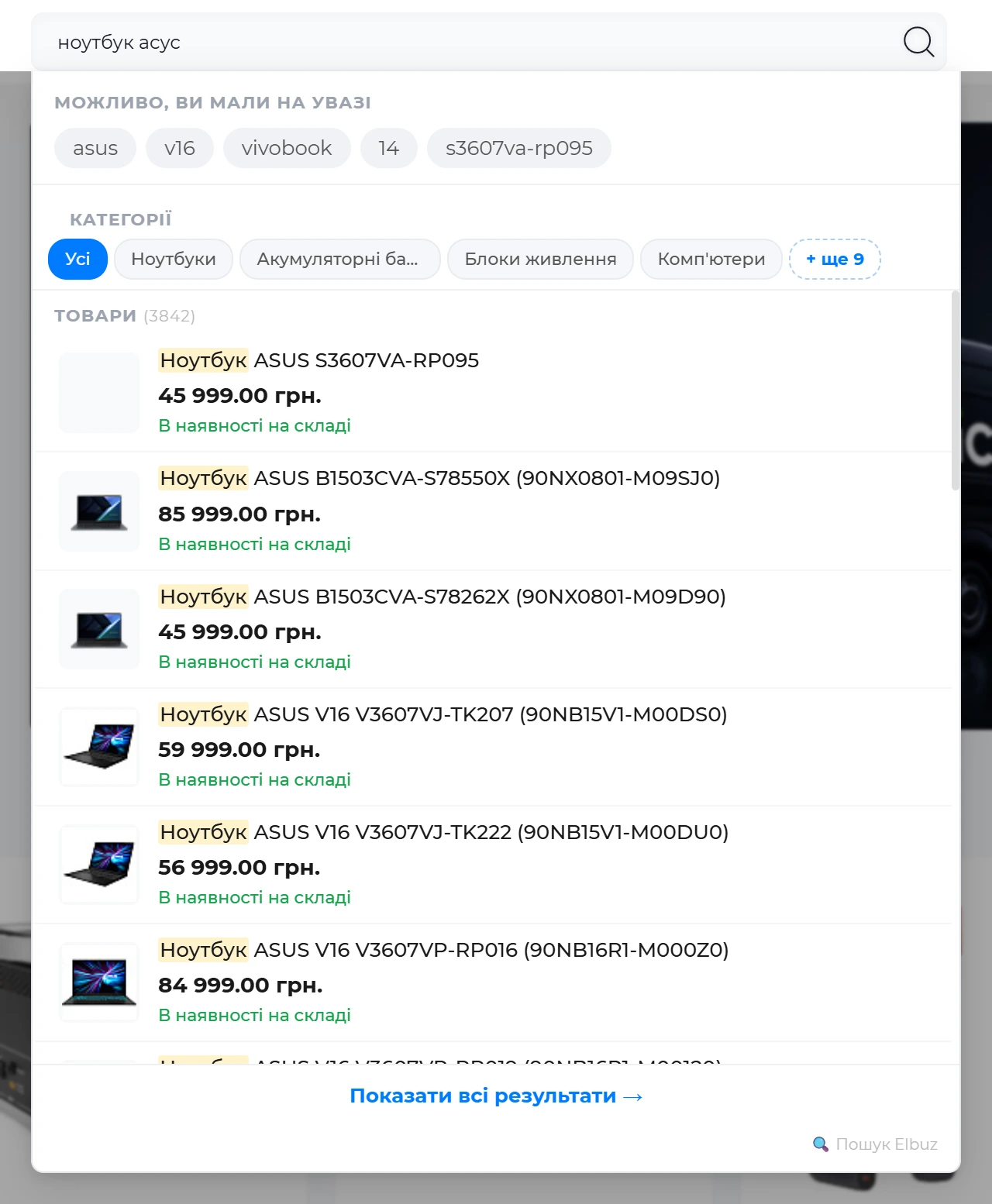
The window opens under your theme's search field as soon as the shopper types two characters. The screenshot shows an OpenCart store with this module: the query “ноутбук асус” (asus laptop) is typed in Cyrillic, and ASUS laptops were found.
1
Query2
Did you mean3
Categories4
Price and stock5
Show all results- Example on a Ukrainian-language store: the customer typed the brand in Cyrillic (асус) and got ASUS products — the search understands brand names in Cyrillic by itself.
- Words from your product names that refine the query: a click adds the word to the query and searches right away.
- Categories where products were found; “+ 9 more” expands the rest.
- Price and stock come from your OpenCart store, as in the catalog.
- Leads to the store’s search page with the full list.
- Products — photo, name with the query words highlighted, price, stock. Next to the block heading — how many products were found in total.
- “Suggestions” — words from your product names that refine the query. Clicking one adds the word to the query and searches right away.
- Categories — where the products were found; “+ N more” expands the rest.
- Brands — manufacturers from the results, linking to the manufacturer page.
- “View all results” — the search page with the full list.
- If nothing matches the query, the window offers your store's popular queries; clicking one replaces the unsuccessful query.
The window works with the keyboard: arrow keys highlight rows, Enter opens the highlighted product or category or adds the selected word to the query. Enter with nothing selected goes to the results page. On phones, the query is sent after a typing pause of at least half a second, so search isn't triggered on every letter.
Window settings
The “Live Search” tab controls when the window opens and what it shows. A “Dropdown width” of 0 means the width of the search field; a number sets the width in pixels if the field in your theme is narrow. “Dim background when dropdown is open” only works on desktop.

1
Delay (ms)2
Min characters3
Information blocks4
Product card options- Delay — the pause after the last keystroke before a request is sent.
- Min characters — the query length at which the dropdown opens.
- Information blocks — which blocks to show and how many rows.
- Product card options — what is visible in a product row.
How the results page works
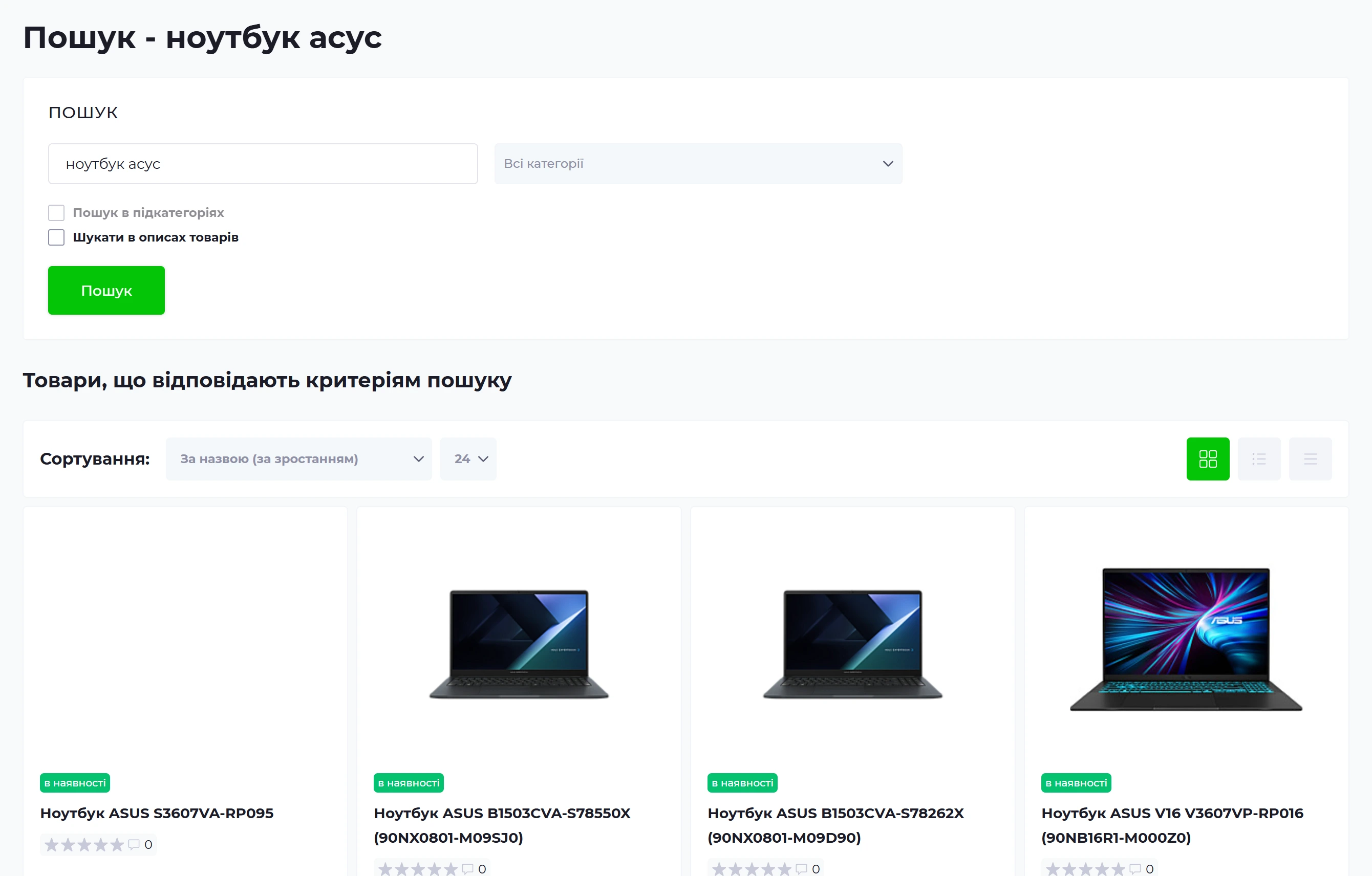
After Enter or “View all results”, the shopper lands on the store's regular search page. The module replaces only the product list: smart search selects the products, and your theme displays them in its own cards. Cart, compare, wishlist and reviews work the same as in the catalog.
1
Search page2
Sorting3
Product cards- Example on a Ukrainian-language store: the store’s regular search page in your theme’s design — the module replaces only the product list.
- Sorting by price is passed to the search; sorting by name keeps the relevance order.
- The cards are the theme’s standard cards: cart, compare and wishlist work as usual.
- Products are listed by relevance: the best matches for the query come first.
- Sorting by price is passed to search, and with Elbuz — by rating too. Sorting by name or model keeps the relevance order.
- The category filter in your theme's search form works too.
- “AJAX Pagination” on the “Advanced” tab switches results pages without reloading; the address in the browser still updates.
The number of products per page is set by your theme, just as in the catalog.
How to protect search from bots and service outages

1
Bot protection2
Rate limit (req/min)3
Cache status4
Fallback to DB5
Send search statistics- Bot protection — bots and scrapers get an empty result.
- Rate limit — how many searches per minute are allowed from one IP.
- Cache — a repeated query is served from the store cache.
- Fallback to DB — if the service is unavailable, products come from the standard OpenCart search.
- Send search statistics — searches and clicks go to Elbuz search analytics.
- “Bot Protection” — requests without the signs of a normal browser get an empty result. Scrapers and search engine crawlers can't page through your catalog via search.
- “Rate limit (req/min)” — how many search queries per minute are allowed from one IP address, 60 by default; 0 removes the limit. Requests from the window under the field count too, so leave headroom for fast typing.
- “Block search when exceeded” — what someone over the limit sees on the results page: on — an empty result, off — the store's standard search. The window under the field is empty after the limit is exceeded either way.
- “Cache status” — an identical query on the search page within the “Cache TTL” (300 seconds by default) is served from the store database without calling the service. “Clear Cache” resets saved results, for example after changing settings.
- “Fallback to DB” — if the search service doesn't respond, the search page runs on the store's standard search, so shoppers don't see an empty page. The module waits up to five seconds for the service to respond.
- “Event Tracking” — Elbuz only: searches from the results page, product clicks in the window and zero-result queries go to search analytics.
- “Debug Log” — records the time of each search query; you can view the log right there, in “Debug Log Viewer”. Turn it on while you investigate speed issues.
Scenarios
An Elbuz CMS store with its catalog from Elbuz
Select “ELBUZ Smart Search”, enter the KEY and URL from the “API” block, keep uuid on the “Product Mapping” tab and enable the module — step by step. Shoppers see the window under the search field and a results page with store prices.
Your theme already has its own live search window
Turn on “Search page only mode” on the “General” tab. The theme's window stays, and smart search fills in the results page after Enter.
You need filters and an AI assistant while typing
Combine the module with the widget in hybrid mode: the widget window with filters while typing, the store's search page with standard cart buttons after Enter.
Your store already uses Multisearch
Select “Multisearch.io”, enter the site ID and the product field from the feed on the “Product Mapping” tab — step by step. The window, results page, protection and cache work the same as with Elbuz search.
Scrapers are loading your search
Turn on “Bot Protection”, keep the “Rate limit” at 60 requests per minute and turn on “Cache status” — what each one does. Bots get an empty result, and repeat queries don't reach the service.
What to do when search in your store doesn't work
| What you see | Why | What to do |
|---|---|---|
| “Test Connection” shows “Connection failed” | wrong key or address | copy the URL and KEY from the “API” block of the smart search card again, without spaces |
| The window and the search page are empty, although the “Search test” tab in Elbuz shows products | products aren't matched to the store | set uuid in both fields of the “Product Mapping” tab and check that the products are exported to the store |
| The window under the field doesn't appear, and Enter goes to the results page | “Search page only mode” is on or “Live search status” is off | turn off the first or turn on the second on the “General” and “Live Search” tabs |
| Your monitoring service or script gets empty search results | “Bot Protection” mistook it for a bot | send requests with normal browser headers or temporarily turn off the protection |
FAQ
Do I need to install the search module?
No. The “Elbuz - Smart Search” module is already part of your Elbuz CMS store and updates along with it. The key comes from Elbuz, and the module turns on automatically together with search.
How much does smart search cost in an Elbuz CMS store?
The module is part of the store, search is included in your Elbuz plan, and the number of searches isn't counted. Only the AI features you turn on yourself in the smart search card are paid separately. Multisearch is billed at its own rates.
Where do prices and stock in the results come from?
From the store database at display time. Search only selects and ranks products, so discounts, sale prices and stock are always the same as in your store.
Does the module export the catalog to the store or to search?
No. Products get into the store by export from Elbuz, into search after the search index is built, and into Multisearch through its feed.
What will shoppers see if the search service is down?
With “Fallback to DB” on, the search page runs on the store's standard search. Without it, there are no results until the service responds.
Can I add the AI assistant to the module's window?
No, the assistant only works in the widget window. To have it while typing, turn on hybrid mode: the widget window with the assistant, and the module's search page after Enter.
Where to find it and who has access
- Module
- store admin: “Extensions” → “Extensions” → type “Modules” → “Elbuz - Smart Search”
- Key and address
- in Elbuz: Directories → Categories → “Widget settings - Smart search”, the “API” block
- Who it's for
- online store owners on Elbuz
- Before you start
- smart search turned on and the search index built
The module is already installed in your store and updates along with it. To open its settings:
- In the store admin, open “Extensions” → “Extensions”.
- In the “Choose the extension type” list, select “Modules”.
- In the “Elbuz - Smart Search” row, click the blue “Edit” button.
Settings are split across four tabs: “General”, “Product Mapping”, “Live Search” and “Advanced”. Changes take effect after you click “Save”.
Related topics
- To understand how smart search selects products and what shoppers search for — Smart search for your website.
- If search doesn't see new products or catalog changes — Smart search index.
- If shoppers search with typos or in another keyboard layout — How smart search understands shoppers' mistakes.
- If the products aren't in the store yet — Export to the site.
- If you're choosing between Elbuz search and Multisearch — Elbuz smart search vs. MultiSearch.