
Pagination splits a long product list into pages 1, 2, 3… An Elbuz CMS store adds the page number to the title and description, so search engines don't treat them as copies of page 1.
When you need this:
- Search shows page 7 of a category instead of page 1 — hide pages 2+ from results; their products stay in search.
- List pages have identical titles — each gets its own: “Refrigerators - Page 3”.
- A customer opens several category pages in tabs — each tab shows its page number.
Where to start: “Store settings” → “SEO & URLs” → the “SEO for pages 2, 3…” card.
What pagination for search engines can do
- The page number in the title and description — pages 2, 3… don't duplicate the first one.
- An instruction for search engines — don't show pages from the second onward in search, but follow their links to products.
- Links to the previous and next page — for search engines that use them.
- A choice of page types — categories, manufacturers, search results, specials.
The first page of a list doesn't change.
How to set it up
- Open the “SEO for pages 2, 3…” card in the “SEO & URLs” section.
- Check the title and description templates and mark where the module applies.
- To remove pages from the second onward from search, turn on “Instruction for search engines”.
- Click “Save”.

1
Enabled switch2
Title template3
Placeholder buttons4
Description template- The module works right after installation.
- The title of pages 2, 3… is built from the regular title and the page number.
- Placeholders are inserted at the cursor; an example is shown below them.
- The description is built from the regular description, the page number and the number of pages.
The module works right after installation. The title and description change from page 2 on all four page types; the search engine instruction and own prev/next links are off. How the window works in general is covered in “Store settings”.
The page number in the title and description
“Change the page title” and “Change the description” turn the templates on. The store replaces the words in curly brackets with:
| Placeholder | What you get |
|---|---|
{title} / {description} | the page's regular title or description |
{page} | the page number |
{total} | the total number of pages |
{page_text} | the word “Page” in the language the customer views the site in |
{of_text} | the word “of” in the customer's language |
The default title template {title} - {page_text} {page} gives “Washing machines - Page 3”, and in Ukrainian — «Пральні машини - Сторінка 3». The default description ends with “… Page 3 of 12.”
Placeholders are inserted with the buttons under the field, and an example is shown below. One template serves all languages, so write it with the bracketed words. Without {title}, only the page number is left of the title.
What to tell search engines about pages from the second onward
Turn on “Instruction for search engines” and choose an option in “What search engines should do”. The default is “Don’t show in search, follow links”.
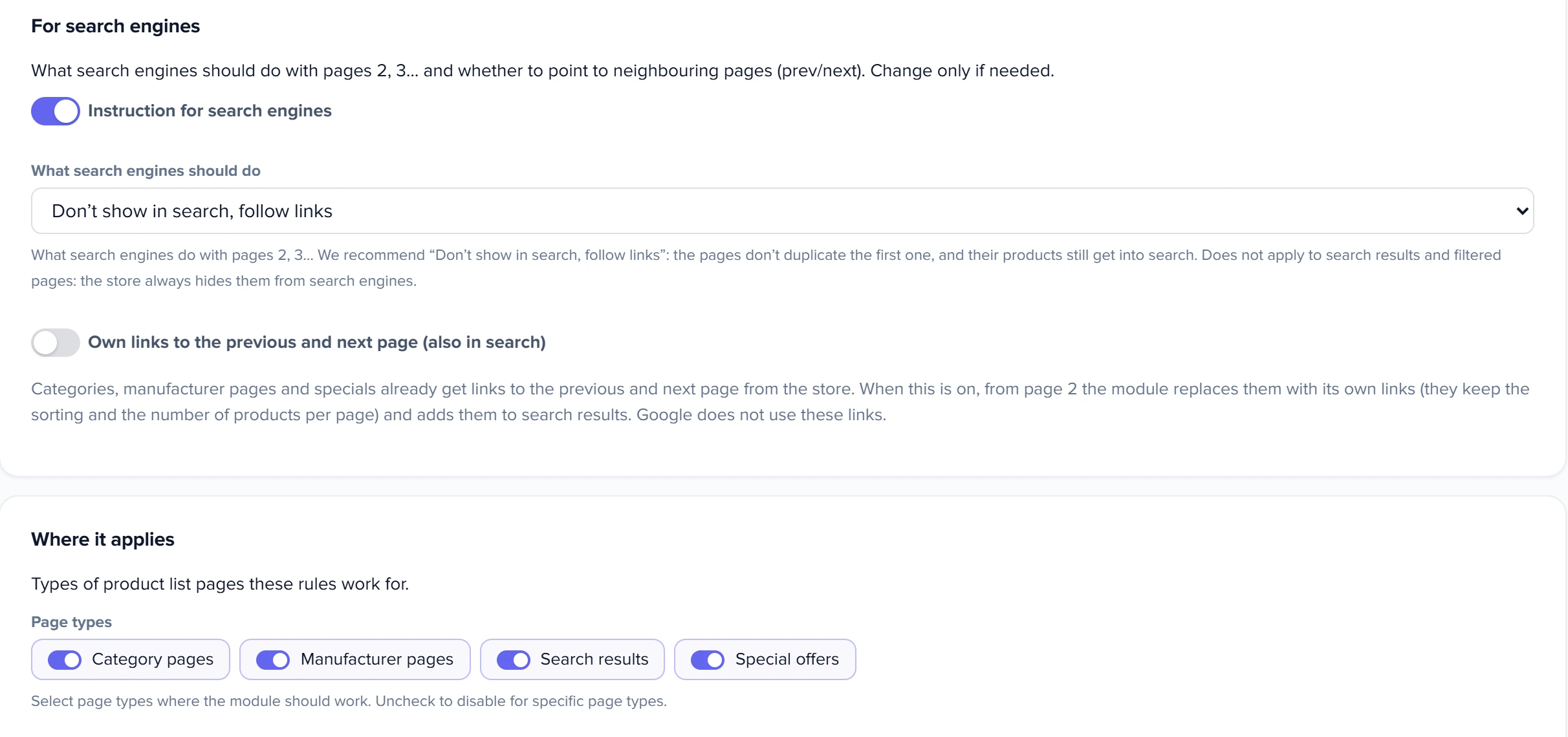
1
Instruction for search engines2
What search engines should do3
Own links to the previous and next page4
Page types- Turns on the instruction for pages from the second one.
- We recommend «Don't show in search, follow links».
- Prev/next links for search engines.
- The list types the module works on.
| What search engines should do | What happens |
|---|---|
| Don’t show in search, follow links | The page isn't in search results, but the crawler follows it to the products. Recommended for product lists |
| Don’t show in search, don’t follow links | The crawler won't reach products that are only on later pages. Not for a catalog |
| Show in search, follow links | Pages from the second onward appear in results like regular pages |
| Show in search, don’t follow links | The page is in results, but the crawler ignores its links |
The instruction doesn't apply to search results and filtered pages: the store always hides them from search engines, on every page. The title, description and prev/next links there change as anywhere else.
The page's main address (canonical)
The store sets the main address mark itself: each page 2, 3… points to itself, as Google recommends. If it pointed to the first page, products from later pages could drop out of search.
Previous and next page
Category, manufacturer and specials pages have prev and next links for search engines even without the module. “Own links to the previous and next page (also in search)” puts the module's links in their place and adds them to search results.
For page 2, the previous one is the first page of the list; the last page has no next one.
Google no longer uses these links, but other search engines may.
Where it applies
In “Page types”, mark: “Category pages”, “Manufacturer pages”, “Search Results”, “Special offers”. If all are unchecked, the module applies to all four. It doesn't touch other pages.
Scenarios
Home appliances: only the first category page in search
“Refrigerators” has 300 models on 13 pages. Turn on “Instruction for search engines” with “Don’t show in search, follow links”. The first page stays in results, and all 300 products are still found — the crawler reaches them through the links.
Electronics: brand pages with identical titles
The “Samsung” brand has dozens of list pages. Keep the default title and description templates on, with “Manufacturer pages” marked in “Where it applies”. Each page gets its own title and description, so they no longer look like duplicates.
What to do when the title hasn't changed
| What you see | Why | What to do |
|---|---|---|
| The first category page has the same title | That's expected: the module works from the second page | Open page 2 of the list |
| Page 2 of brands has no number in the title | The page type isn't marked in “Where it applies”, or “Change the page title” is off | Mark the type, turn the title on and save |
| Only “Page 2” instead of the title | The template has no {title} |
Add {title} with the button under the field |
| Nothing changes on any page | The “Enabled” switch is off | Turn it on and save |
FAQ
Can I remove the first category page from search too?
No, the module works only with pages from the second onward. The first page is the section's main page for search engines.
Can I write “Pg.” instead of “Page”?
Yes: type “Pg.” in the template instead of {page_text}. But then the word will be the same in all site languages.
Will customers notice anything?
Only the browser tab title and bookmarks: “Cat food - Page 2”. The page itself doesn't change.
What do social networks show when someone shares page 2?
The same title and description with the page number: the module also changes the social media preview.
What happens at the address of a page that doesn't exist, for example 50 of 13?
The store responds with “page not found”, and search engines don't index that address.
Where to find it and who has access
- Menu
- Directories → Operations → Store settings → “SEO & URLs” → “SEO for pages 2, 3…”
- Access rights
- the “Store settings” window in group permissions
Related topics
- If you need to understand how the settings window works — Store settings.
- If old page addresses should lead to new ones — Redirects.
- If you want search engines to find all products faster — Sitemap.