
Elbuz lets you configure a whole branch from one category's card: copy its markup to every subcategory, keep the category in one store only, and stop AI support from processing returns for its products.
When you need this:
- Subcategories need the parent's markup — one button copies the rules to all levels below.
- Two stores, but a section belongs in one — unchecking a store removes the category from its website tree and its exports.
- Products can't be returned — hygiene, cosmetics, made-to-order items: return requests go to an employee.
Where to start: click a category in the tree, and its card opens on the right.
What it does
- Pass markup to subcategories — by copying the rules or with a system setting.
- Keep a category in one store — and out of the other store's exports.
- Disallow returns — for the category and everything nested in it.
How to pass a category's markup to subcategories
A markup rule set in the parent category's card doesn't extend to subcategories on its own — there's a separate button for applying rules to child categories. Subcategories won't pick it up until you copy the rules down the tree or turn on inheritance for nested categories another way.
Copy the rules to child categories:
- Click the parent category in the tree. Its card opens on the right.
- Expand the “Markup/Discount” section by clicking its heading — it's collapsed by default.
- Above the rules grid, click the button with the two-sheets icon. Its tooltip reads “Apply markup to child categories”.
- Wait for the “Applied to child categories” message.
- To get the new rules into prices, click “Calculate prices” in the same section.

1
Apply markup to child categories2
Calculate prices3
Markup rules grid- Apply markup to child categories — copies this category's markup rules to its subcategories.
- Calculate prices — recalculates prices using the rules.
- The grid lists the markup rules of the category.
What copying does. Elbuz copies all of this category's rules into every subcategory at every level, children and their descendants alike. First, each subcategory's own rules in this section are deleted, with no confirmation and no undo. Each rule is copied in full: price range, percentage, multiplier, amount and checkboxes.
Copying doesn't change prices — only the rules. “Calculate prices” recalculates prices not just for this category but for every source that uses the general markup rules; otherwise the new rules take effect with the next price list import.
The card's rules grid has no “Including subcategories” checkbox — only price list markup rules have it. Without copying, a card rule reaches the branch only via the “Markup for subcategories” option (Account → System settings). It applies to all rules at once, and a subcategory's own markup then doesn't override the parent's:
- “Apply markup once” off — both rules apply to a subcategory product one after another, and the markups add up;
- on — only the first rule by category number applies, usually the parent's.
So when a subcategory needs a different markup from its parent, the safer route is separate rules in each subcategory. Pricing is covered in the article on pricing rules.
How to keep a category in one store only
With two or more active stores, there are two separate mechanisms here, and they aren't connected.
Store assignment is set in the “Stores” block in the category card's right sidebar, shown only with two or more active stores. Unchecking a store removes the category from that store's website tree and exports; the category and its products stay put. The admin tree shows all categories regardless of store, so check the export or the website.
How to show a category in one store only and keep it out of the other store's export.
- Click the category in the tree and, in the card's “Stores” block, leave only the store you need checked — the change saves immediately.
- In the other store's export template, in the “Export limits” section, select the “Store ID” field. This template filter is what excludes other stores' categories; a template with an empty “Store ID” exports the whole catalog and ignores the checkbox in the category card.
- The template filter checks products by their own store assignment — the “Stores” block in the product card, the “Show product” column. Uncheck it for the other store in the category's products, or they'll end up in the feed file (, Excel, prom.ua) and beyond.
Template setup is covered in the article on export templates.
Grouping the tree by store is a separate mode. Turn it on in Account → System settings, Catalog → “Data processing rules”, “Multiple stores mode”. Stores then form the tree's top level, each with its categories; dropping a category onto a store node makes it a root category. By default the mode is off and all stores share one tree.
How to mark products that can't be returned
Turn off the “Returns allowed” switch in the category card, and AI support won't process returns for its products on its own: the request goes to an employee instead. Use it for hygiene products, cosmetics and made-to-order items.
- The switch is on by default: products can be returned.
- Turning it off applies to all nested categories — no need to do it in each one.
- Defective products can always be returned: AI will process a return for a defective item even in such a category.
Where: click the category in the tree → card, “Overview” section → “Returns allowed”. The change saves automatically, and “Saved” appears next to it.
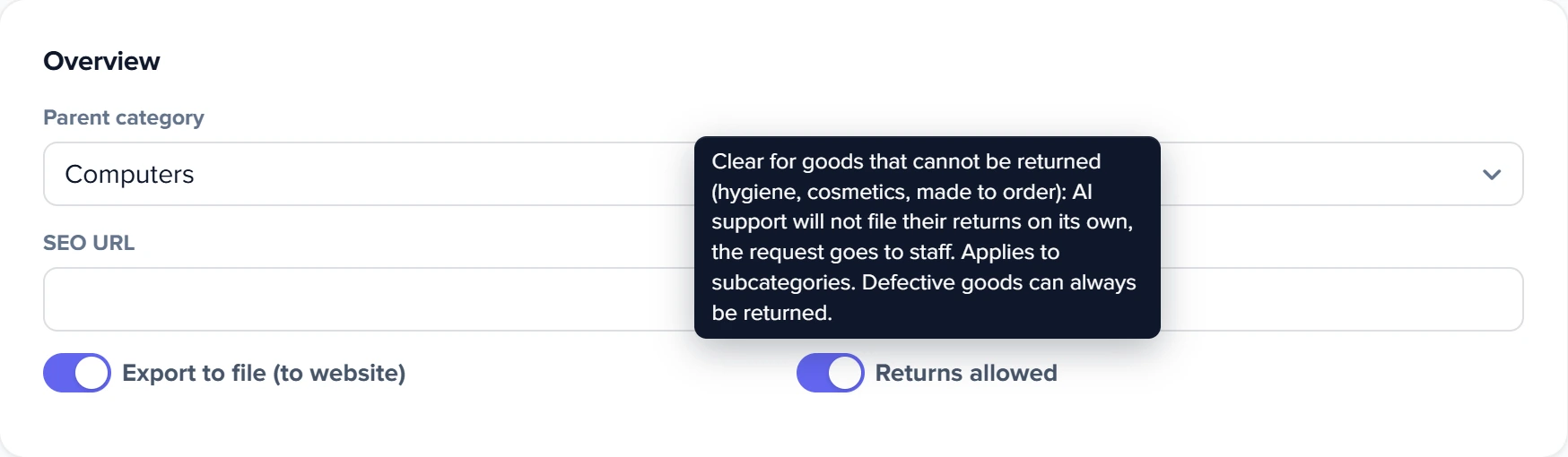
1
Returns allowed switch2
Tooltip- Returns allowed — on by default; clear it for goods that cannot be returned (hygiene, cosmetics, made to order).
- The tooltip explains that AI support will not file returns on its own and the request goes to staff; it applies to subcategories, and defective goods can always be returned.
How AI processes returns and what the customer sees — How AI arranges product returns.
Scenarios
Hide a product line in one store without touching products
What to do. This scenario is for accounts with two or more active stores. Click the category in the tree and, in the card's “Stores” block, uncheck the store you need.
What you get. The category is removed from that store's assignment: the export set up for that store no longer includes it. It stays in the other stores.
What won't happen. Category and product statuses don't change. The checkbox applies only to this category: subcategories aren't removed from the store, so uncheck each one in its own card. The store's export selects products by each product's own store assignment, which the category checkbox doesn't change.
Same markup for the whole branch
What to do. Set the rules in the parent category's card, click “Apply markup to child categories”, then “Calculate prices”.
What you get. Every subcategory at every level gets copies of the parent's rules, and prices are recalculated with them.
What won't happen. Subcategories' own rules in this section aren't kept: copying deletes them without confirmation.
FAQ
Can one subcategory have its own markup while the rest of the branch uses the parent's?
Yes: set separate rules in that subcategory. The “Markup for subcategories” system setting won't work here — with it, a subcategory's own markup doesn't override the parent's. More — category markup.
I unchecked a store in a category, but its products still go to the other store's feed. Why?
The template filter checks products by their own store assignment. Uncheck “Show product” for that store in the product cards. More — category in one store.
Why is there no “Stores” block in the category card?
It appears only when you have two or more active stores.
Can defective products be returned from a category where returns are disallowed?
Yes: AI will process a return for a defective item even in such a category.
Do prices change right after copying the markup?
No, only the rules change. Prices are recalculated by “Calculate prices” in the same section or by the next price list import. More — category markup.
Where to find it and who has access
- Menu
- Directories → Categories → click a category → card
- Markup
- the “Markup/Discount” section of the card
- Stores
- the “Stores” block in the right sidebar — with two or more active stores
- Returns
- “Overview” section → “Returns allowed”
- Access rights
- the “Categories” window; card sections — by group permissions
Related topics
- For the big picture of the catalog — How to build a catalog category tree.
- For markup rules on a supplier's price list — Pricing rules.
- To set up an export template filter by store — Export templates.
- To see how AI processes returns — How AI arranges product returns.