




The Elbuz configurator is not just a technical addition to your website, but a powerful tool for business transformation. It helps increase conversion, reduce operating costs and create a unique experience for buyers, which directly affects sales growth and brand recognition.
Step #1 - Upload your product catalog
For the configurator to work properly, you need to upload your online store products to the Elbuz platform. This ensures that all data – categories, products, characteristics and photos – will be up-to-date, and buyers in the configurator will always see the correct and up-to-date information.
Why is this important?
- The updated catalogue helps ensure the accuracy of choice for buyers.
- Up-to-date data improves the performance of the AI live chat, which advises visitors based on the information you upload.
- Correct data loading facilitates seamless integration with the shopping cart and other configurator elements.
Data sources and recommended formats
Elbuz supports downloading information in several ways:
-
Link to file in XML format
This is the recommended method because the XML file ensures that the data is structured and accurate. -
Link to file in XLS or CSV format
Allowed, but not recommended due to possible errors and difficulties in structuring information. -
Two-way integration module (Elbuz Tunnel)
Suitable for CMS such as OpenCart or WooCommerce. This module allows you to automatically synchronize changes in the catalog. When using the Elbuz function to process products from your suppliers' price lists, it also allows you to quickly update information on your site.
Step-by-step instructions for downloading a product catalog
Preparing a data file. Make sure the file contains a complete list of information:
- List of categories.
- Detailed description of goods (name, characteristics, prices).
- Links to product images.
Check that the file structure complies with the Elbuz platform requirements. You can contact support to agree on the file format.
Selecting a data source:
- If you already have an XML file ready, prepare a link to it.
- If the data is provided in XLS or CSV, please note that this method is less preferable.
- For CMS (e.g. OpenCart or WooCommerce) it is recommended install Elbuz Tunnel module for automatic integration.
Uploading data to the platform:
Go to the product catalog download section in the Elbuz admin panel.
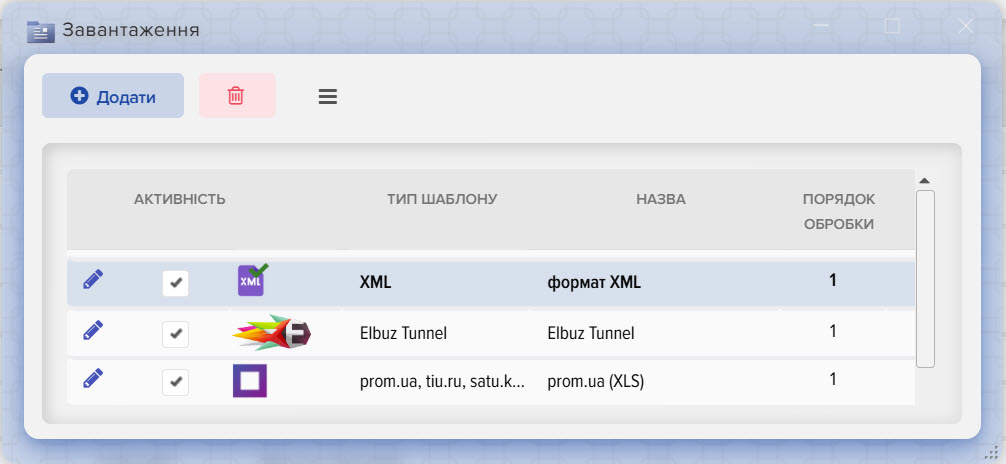
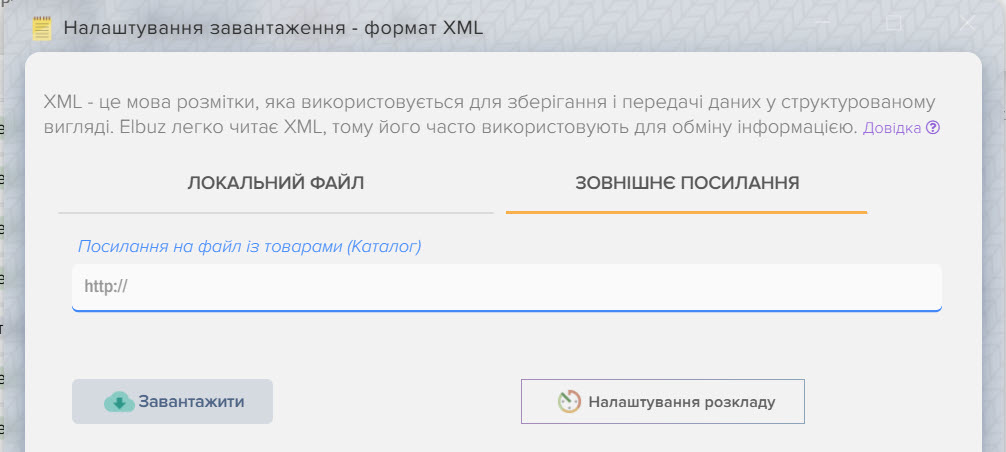
Insert the prepared link to the file
Or activate the two-way integration module Elbuz Tunnel.
Click the "Download" button to begin the data import process.
Setting up regular updates:
- In the settings, select the option for scheduled data downloads.
- Specify the update interval (for example, daily or every 3 hours).
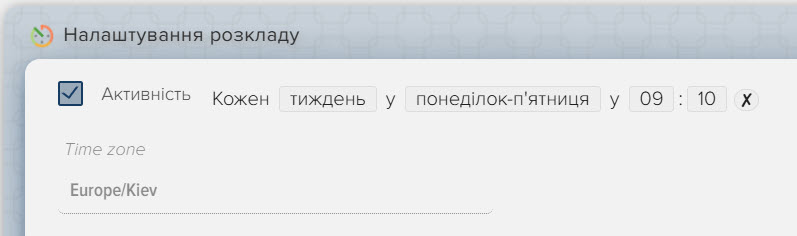
This will automatically keep the catalog up to date, which is especially important for the correct operation of the AI online chat and configurator.
Checking the download results:
- After downloading, check that all data is correctly imported into the system.
- If errors are found or data is missing, please make any necessary corrections and try uploading again.
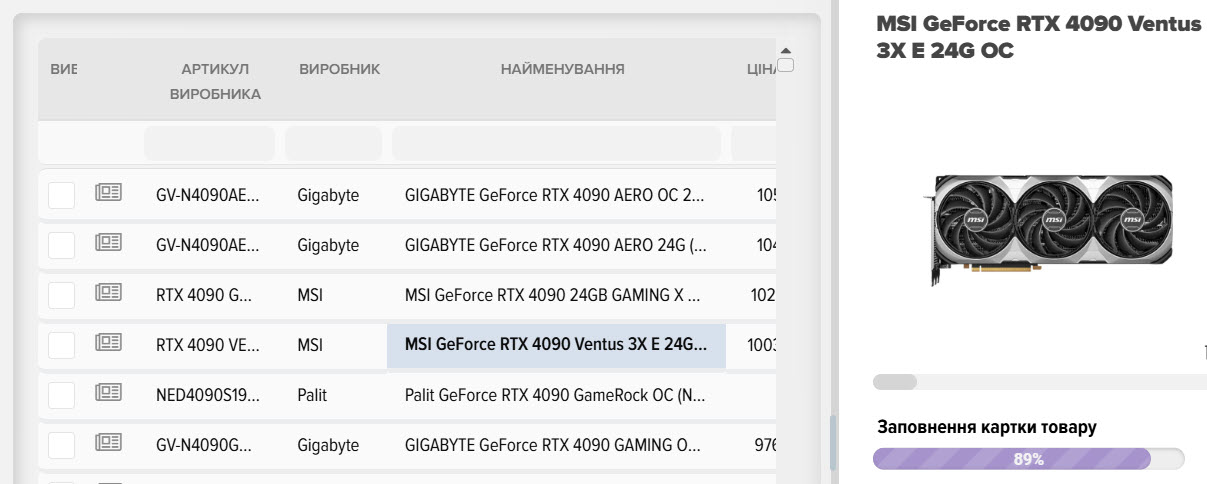
Now your product catalog has been successfully uploaded to the Elbuz platform and is ready for further work with the configurator.
Step #2 - Setting up the configurator
After successfully loading the catalog, the next step is to set up the configurator. This section allows you to flexibly manage the structure, appearance and functionality of the configurator so that it optimally meets the requirements of your online store. You can create several configurators at once on different topics, for example, place on your site "PC Configurator" and "Household Appliances Configurator for the Kitchen", this will give a new experience to your customers and improve the level of service.
Opening and initial configuration of the configurator
-
Open the category directory.
Click on the "Category List" item to access the general settings of the product catalog.
-
Launching the widget configurator settings.
Click the "Widget settings - configurator" button.
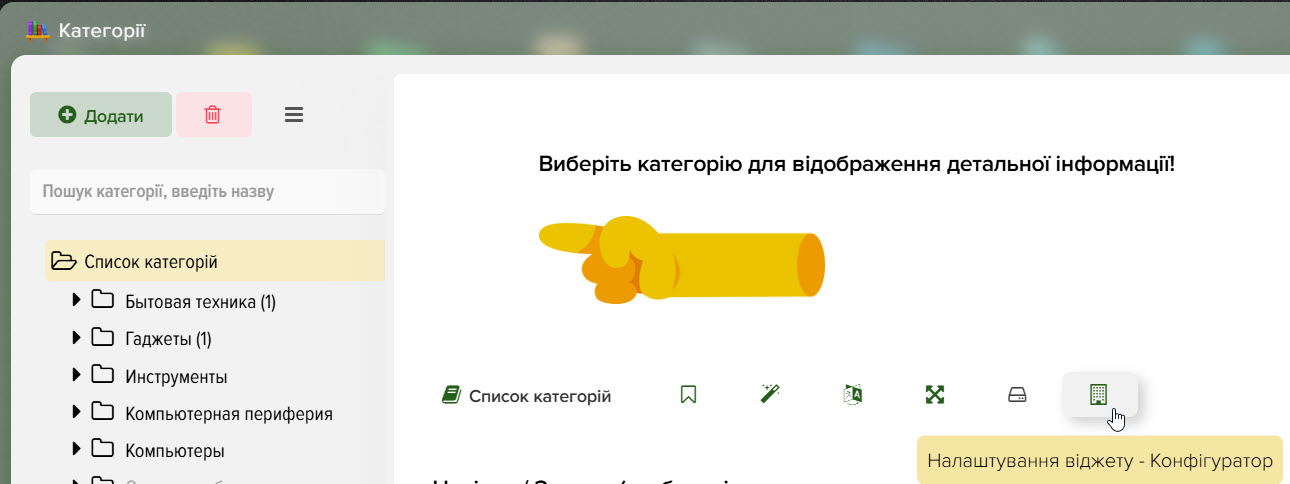
The window that appears will display a list of previously created configurators.
To create a new configurator, click the "+" button.
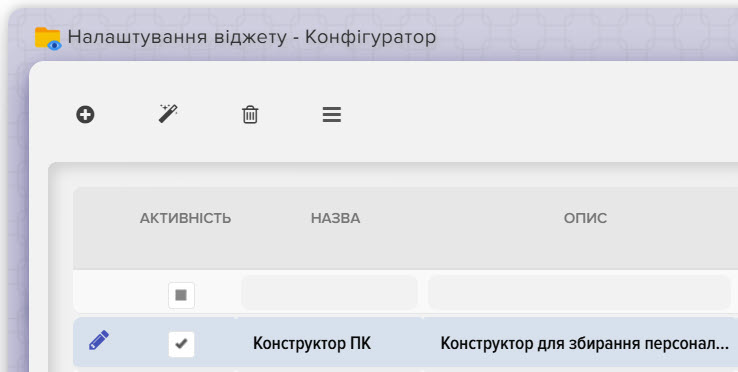
If you want to create a configurator in automatic mode using AI, click the "magic wand" button and specify a short task, for example: "It is necessary to create a configurator of a personal computer".

-
Editing configurator settings.
Open the editing window by clicking on the pencil icon. In this window you will see several tabs for detailed management of the configurator parameters.
Information tab
This tab is designed to fill in general information about the configurator and your online store, this helps AI to better navigate and correctly advise customers.
If you have a multilingual site, then you can specify values for each language separately.
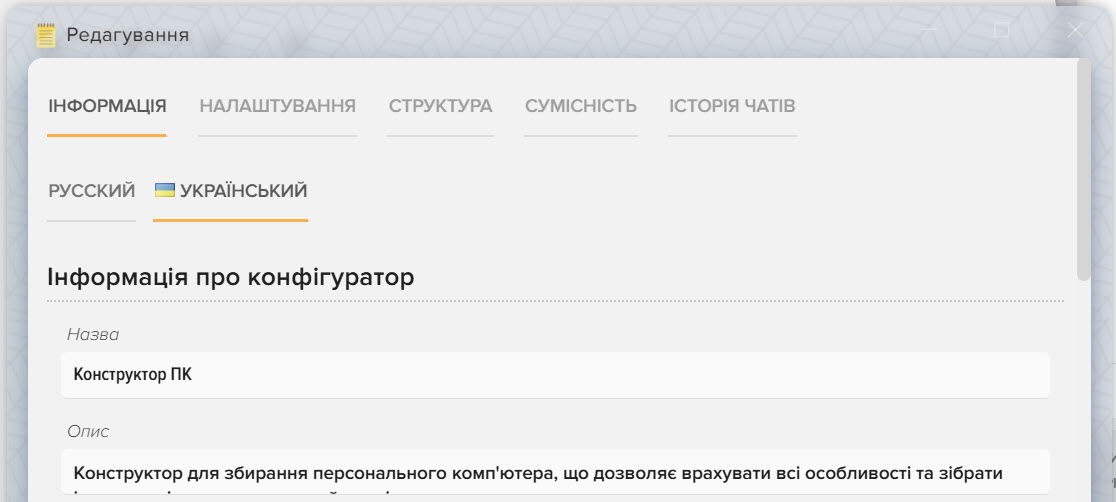
Block "Configurator Information":
- Name – the title that will be displayed on the configurator page on your website.
- Description - a brief subtitle description.
- Description complete – a detailed description and additional information displayed at the bottom of the page.
- Text after the title – additional information, such as links to other sections of your site (HTML code is supported).
- Welcome message in chat – text that is sent to the client at the beginning of a new chat. Macro substitutions can be used here:
{store_name} - company (store) name, {manager_firstname} - manager's name, {manager_name} - manager's first and last name, {user_firstname} - buyer's name, {user_name} - buyer's first and last name.
Example text: "Hello! I'm {manager_name}, your personal consultant for products at {store_name}. Tell us what you're interested in?" - Text after placing an order – text that will be displayed after the buyer places an order (used only in the "widget" mode).
Block "Company (store) information":
- Fill in the data: Name, Description, Phone, E-mail, Address, country, city, currency, working hours, delivery methods, delivery cost, delivery time, payment methods, terms of return of goods.
- Add meta tags (Title, Description, Keywords) for SEO.
- Insert links to your social media profiles and pages (WhatsApp, Telegram, Skype, Viber, Facebook Messenger, Facebook, Instagram, Twitter).
The Settings tab
Here you configure various configurator parameters.
Block "AI Chat Settings":
- The chat activity switch allows you to disable chat for visitors if necessary.
- Maximum number of messages in chat - allows you to limit the correspondence with the user in order to reduce the costs of using AI. By default, this field is set to 300 messages. If the issue in the chat is not resolved after this number of messages, then the user is offered to contact by phone to discuss the details.
- The AI model allows you to choose from a variety of AI models from trusted providers (the list is constantly expanding).
- The FAQ list gives you the opportunity to help the user and create a set of frequently asked questions that will be asked to the consultant (AI) in the chat.
Block "Price settings":
- You can change the source of the field for displaying the selling price of goods in the configurator if the standard "Price" field does not suit you.
- Round prices to whole number - if you want to hide decimal places in the price and round the price
- Display decimal places
- Display RRP - if the product catalog has a recommended price for the products, then it will be displayed for the products
- Display promotional price, if the products have promotional prices, then the user will see a crossed out price (old and promotional)
- Show old price, if the goods have the old price field filled in, then the user will see a crossed out price (old and new)
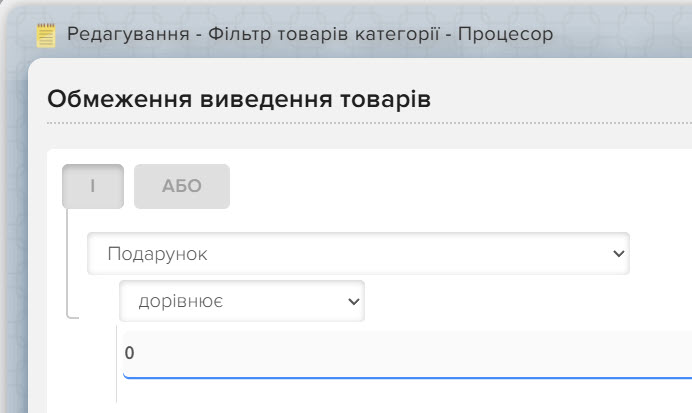
Block "Restriction of goods output":
- Allows you to restrict the display of products for users displayed in the configurator for all categories. For example, you can prohibit the display of products that are out of stock. For configuration, you can use various logical conditions and combine them with different fields from the product card, for example, prohibit the display of products of a certain brand and those with a price lower than the specified value.
Block "Integration code":
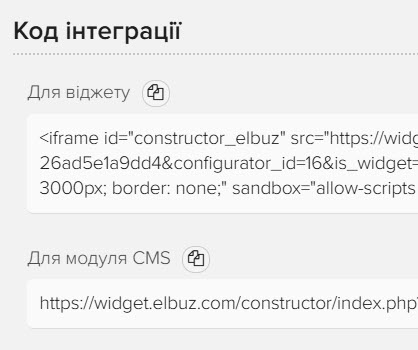
- The configurator can work in two modes and each of them is suitable for its type of integration. Choose the mode that best suits the capabilities of your site and your requirements for placing orders, a detailed description is in step #3. You can quickly copy the unique code that must be inserted into your site to connect the Elbuz configurator.
The Structure tab
Here you customize the appearance and organization of the configurator folders, which are built from groups and categories.
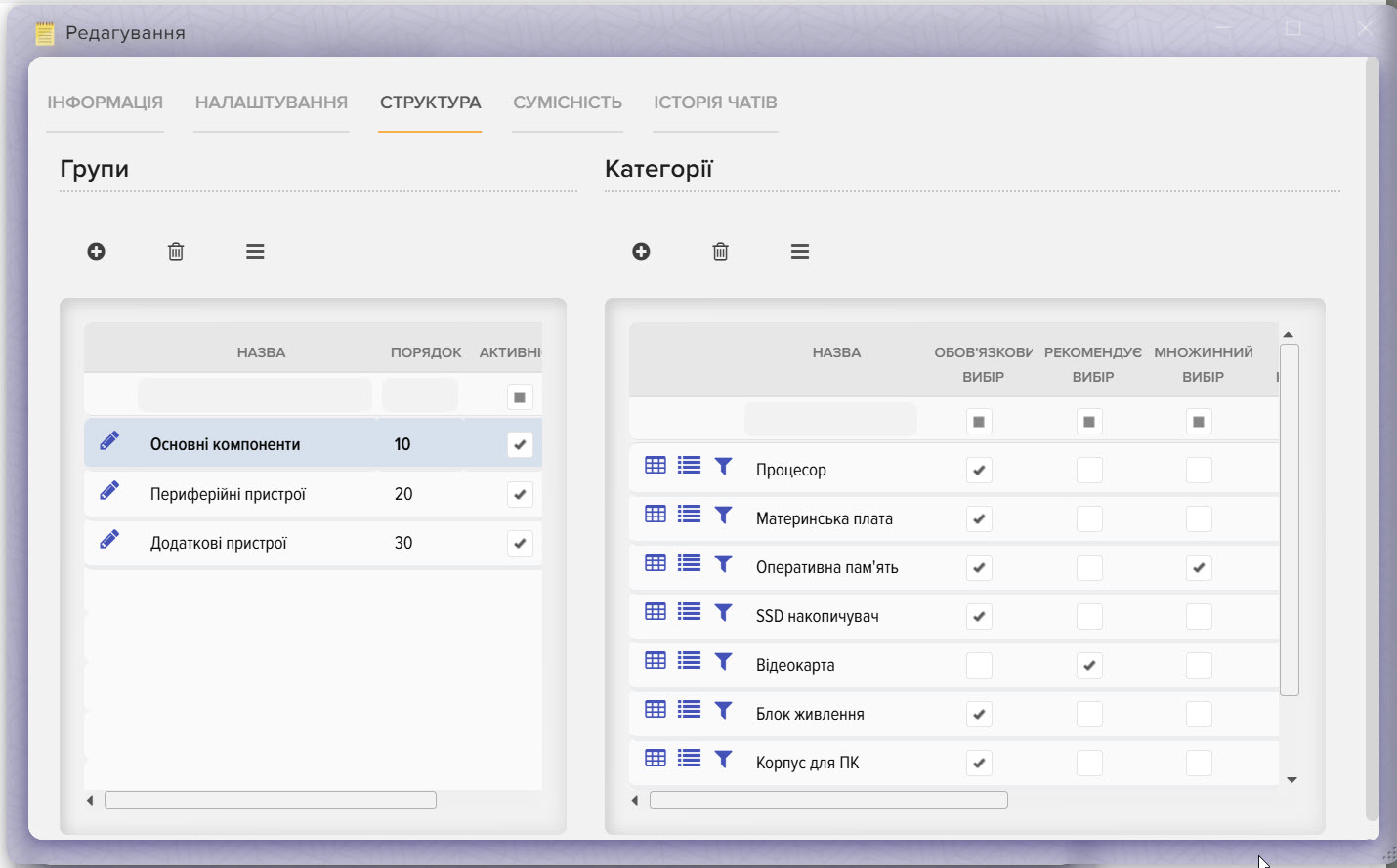
Groups:
- On the left you see a list of groups - this is an arbitrary name for sections that unite sets of categories.
- To create a new group, click the "+" button.
- To edit a group (the pencil icon), you can change the name, description, and set the sorting order (specify a number: the smaller the number, the earlier the group will appear in the list).
- To temporarily disable the group from being displayed, uncheck the Activity box or delete the group (which will be deleted along with its categories).
Categories:
- On the right are displayed the categories loaded from your product catalog.
- To add a new category to the selected group, click the "+" button.
-
The following settings are available for each category:
- Required choice: ensures that the selection of goods in this category is checked before placing an order.
- Recommended choice: Allows AI to suggest products from additional categories after products from mandatory ones have been selected.
- Multiple choice: Allows you to select multiple products.
- Select quantity: allows the user to specify the desired quantity of the selected product.
- Display order: Set a number to sort categories by.
Additional settings for the category:
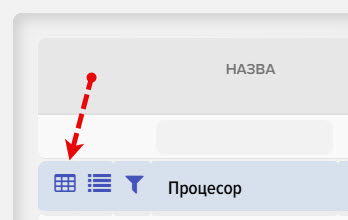
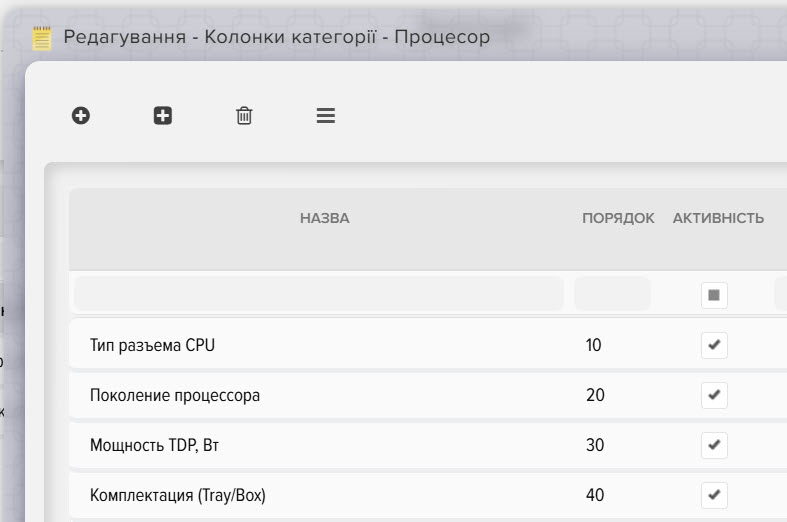
- List of columns:
Allows you to display additional information in the table with the list of products, this can be any field from the product card, for example, the "Internal Article" field, or it can be a characteristic (attribute) of the product, for example, "Color". The list of columns is configured individually for each category, this allows you to display only the necessary and important information within this category. In the future, the user will be able to perform a detailed search for products by each column. This information is also used by AI when selecting products to take into account the important characteristics of the products that you explicitly indicated in this setting.
By default, the following fields are always displayed in the table for the user:- Select button
- Photo
- Name
- Price
- Availability
- Brand
- Product ID
Click the grid icon to add columns that will be displayed in the product table.
- Services category (accessories):
Click the "list" icon to add additional products (services or accessories) that may be of interest to the buyer after selecting the main product.
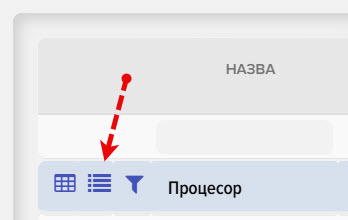
Recommendation: To add general services (for example, "Gift Wrapping"), create a separate "Services" group and add the corresponding category from your product catalog to display the list of your services. - Filter products by category:
Click the "filter" icon to set up restrictions on the display of products in this category.
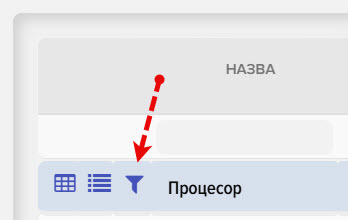
You can set up logical conditions using multiple fields to hide the display of products that you don't want to show to users in a given category.
Compatibility tab
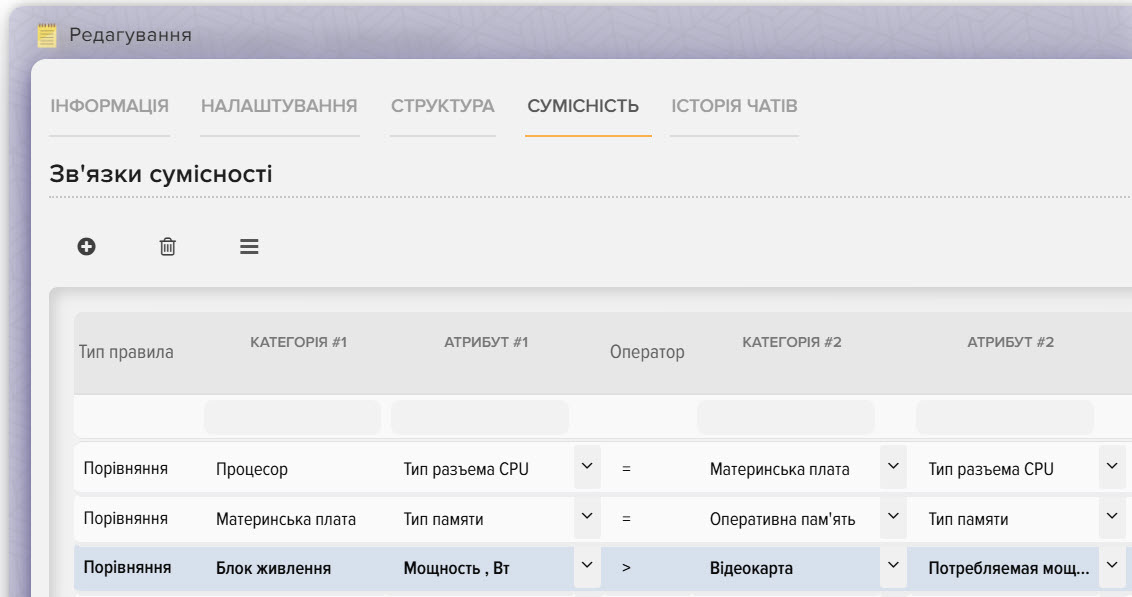
In this tab, you can set up product compatibility check rules so that the buyer cannot select components that are incompatible with each other.
Creating compatibility rules:
- Click the "+" button to add a new rule, select Category #1 for communication from the drop-down list (for example, "Processor").
- Next, specify the following parameters:
- Attribute #1: an attribute field from the first category (e.g. "CPU Socket Type").
- Category #2: the second category with which category #1 will be associated (for example, “Motherboard”).
- Attribute #2: the corresponding attribute from the second category (e.g. "CPU Socket").
- Operator for comparing values:
"=" for exact match.
"~" to search for word occurrences.
">" or "<» для числовых сравнений. - Text to delete - allows you to dynamically clear attribute values from unnecessary words when comparing. For example, in category #1, the attribute contains values in the form "Socket AM4", and in category #2, the attribute contains values in the form "AM4", if you specify the text to remove "Socket", then the values in these attributes will be the same and a connection between the products will be found.
Examples:
- If the user has selected "Processor" with a specific socket, then when selecting "Motherboard", the system will automatically filter out products that have the same values in the "CPU Socket Type" attribute and display these products in the table, so the user will see only products that are compatible with each other.
- Similarly, you can configure the compatibility between "Motherboard" and "RAM" using the "Memory Type" attribute.
Peculiarities:
- Setting up rules affects the display of products in tables and helps the AI assistant give the right recommendations.
- In the AI online chat, the buyer can also additionally request a compatibility check to ensure the correctness of the assembled set, the AI assistant will use your compatibility settings to check the buyer's choice.
Chat History Tab
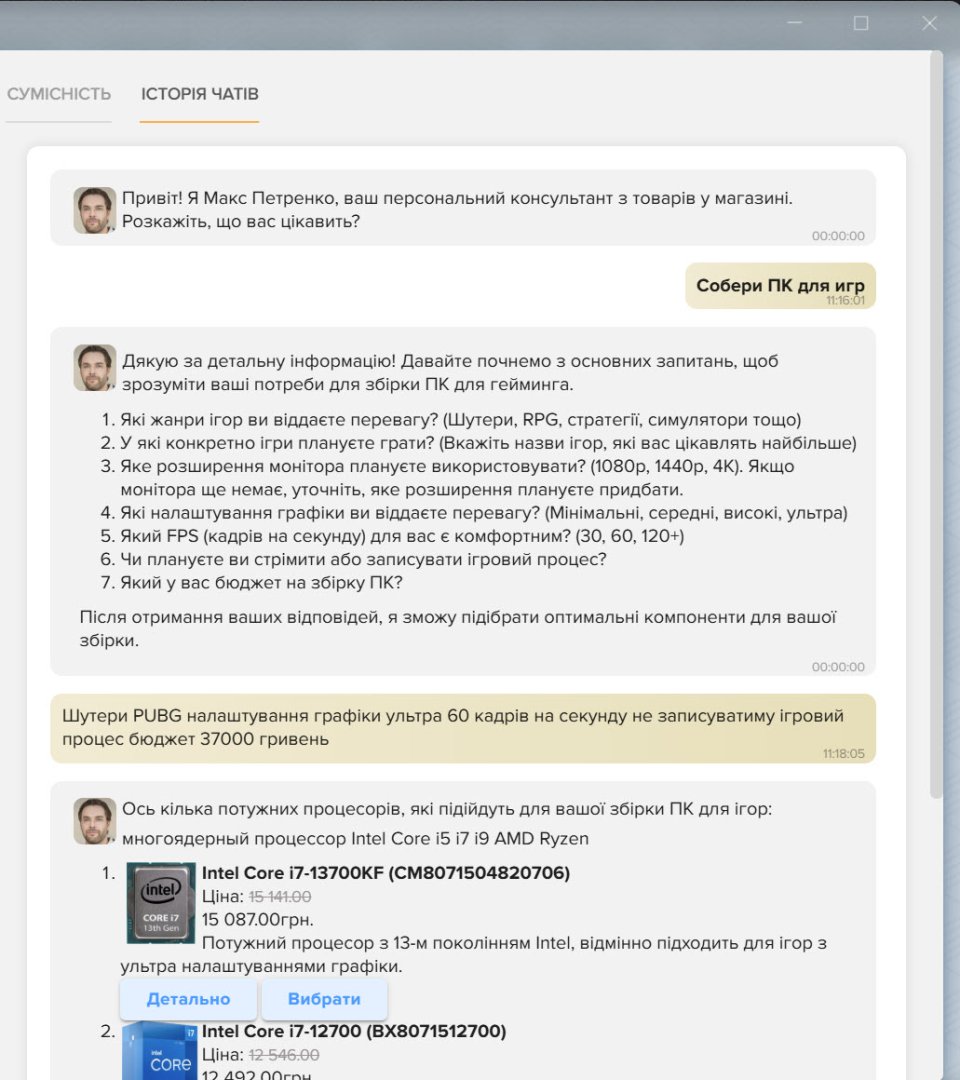
This tab allows you to analyze communication with customers and monitor the effectiveness of the online consultant.
Functional:
- On the left is a list of all chats with the date and time the session started.
- On the right is a detailed correspondence for each chat.
Advantages:
- Analysis of the obtained data helps to understand what questions customers ask and what problems they encounter.
- This allows us to improve the quality of service and adapt the configurator to the real needs of our customers.
Now your configurator is set up and ready to use. You can flexibly manage product information, control the compatibility of selected items, and analyze communication with customers to further improve the service.
If you need further clarification on any of the sections or have any questions, please contact Elbuz support.
Step #3 - Selecting the configurator operating mode
The Elbuz configurator can operate in two modes, each of which is suitable for different types of integration with your site. The correct choice of mode depends on your technical capabilities and requirements for placing orders.
Mode 1: Website Widget
In this mode, the configurator is integrated using HTML code that you insert into any page of your site. This approach is suitable if you want to quickly add the functionality of the configurator without complex CMS setup.
How to integrate:
- Copy the integration HTML code provided by the Elbuz platform in the "Settings" tab, "Integration Code" block.
- Paste the code into your information page or other area of the site where you want the configurator to be displayed.
- Publish the changes to the site.
- By default, the widget will only work on the site specified in the "Website Link" field (the "Information" tab), so don't forget to fill in this field. If you need to place the widget on several sites, then specify the domain addresses in the "List of domains where the widget can be placed" field.
Features of work:
- When placing an order, the built-in Elbuz configurator basket is used.
- Information about the order, goods and the buyer is stored in the Elbuz system (in the subsystem “Documents > Orders”).
- Ideal for quick-start projects and those who do not require deep integration with their own system.
- It is possible to customize the transfer of order information to your CRM.
Mode 2: Integration module for CMS
This mode implements deeper integration with your site through a module specifically designed for your CMS. Currently, integration with the OpenCart platform is available.
How to integrate:
- Install the integration module according to the instructions provided.
- Configure the module parameters in the CMS admin panel, specify the link with the access token, which can be copied from the "Integration code" block.
- Check the correct operation of the module on the test version of your site.
Features of work:
- The order is placed through the standard shopping cart on your website.
- All information about orders, products and customers is saved in the admin panel of your site (in the database).
- This mode allows you to maintain a uniform design style and use native CMS capabilities, which can be useful for comprehensive store management.
How to choose the right mode?
If you want:
- Start integrating quickly and without deep technical settings.
- Use the built-in cart and Elbuz functionality.
Then select the "Website Widget" mode.
If you need:
- Fully integrate the configurator's functionality with your website.
- Use the standard shopping cart and store data in the site database.
Then select the "Integration module for CMS" mode (not available for all CMS).
Now you are familiar with the Elbuz configurator modes and know how to choose the best option for your site. If you have any questions or need additional assistance, please contact Elbuz support.
Step #4 - Indexing Data for AI
After uploading the product catalog to the Elbuz platform, the next important step is to start the data indexing process for AI. This process “trains” the artificial intelligence so that it knows everything about your products, their characteristics and can subsequently competently advise buyers in the online chat.
Why is this important?
- Updated information: AI gets access to full product data, including names, descriptions and specifications.
- Quality Consulting: Properly indexed data allows AI to make accurate recommendations, taking into account all product parameters.
- Automatic updates: New products are automatically indexed, reducing the risk of outdated information.
Stages of starting data indexing
Checking the downloaded directory:
- Make sure that all products, categories, characteristics and photos are correctly imported into the platform.
- Check that the data is displayed correctly in the system. If there are errors or incomplete information, resolve them before indexing.
Starting the indexing process:
- Go to the data indexing administration section in the Elbuz platform.
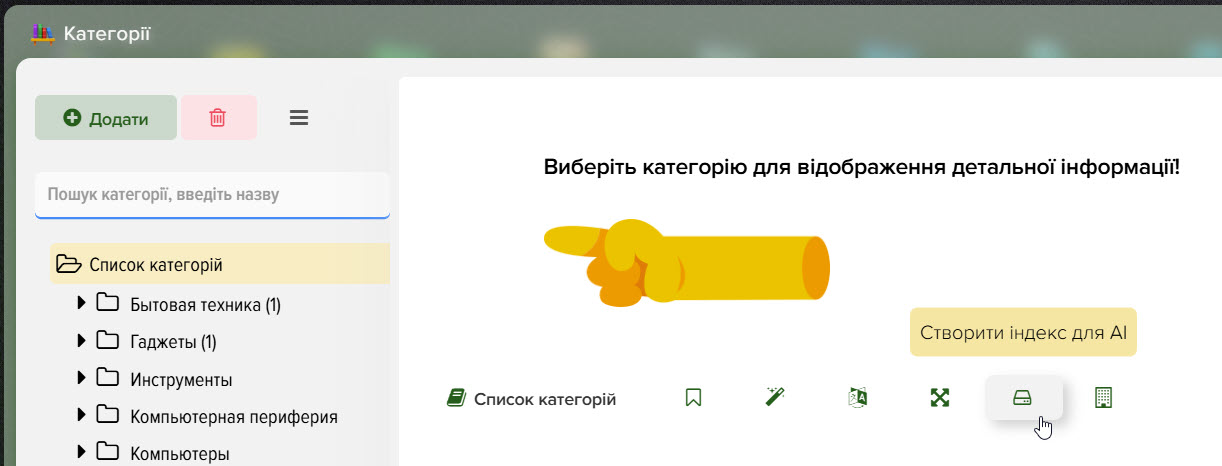
- Initiate the indexing process by clicking the "Start" button. If necessary, you can specify which category to index and which to skip. Indexing is always performed for categories that are added in the configurator settings, this allows you to index only the necessary categories from your product catalog and ignore others.
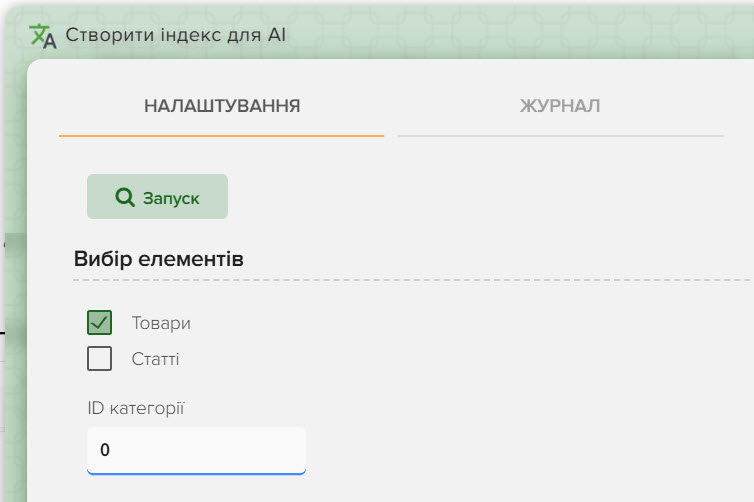
- Wait for the process to complete and make sure the system notifies you of successful completion.
Features of information update:
- If important parameters of the product card (name, description, characteristics) change, the indexing process to update the data will be launched automatically.
- Changes in price or availability of goods do not require restarting indexing.
- When you subsequently upload new products, indexing for them will occur automatically.
Checking the results:
- Once indexing and configuration of the configurator is complete, conduct a test online chat to ensure that the AI correctly responds to requests and uses up-to-date information.
- If the AI responses do not match the data you uploaded, go back to the catalog check and fix any errors you find, then re-index.
Fields for indexing
The following fields are used by default for indexing products:
- Product ID (product_id)
- Internal article number (sku)
- Manufacturer's Part Number (mpn)
- Category name (category_name)
- Product name (name)
- Description short (description_short)
- Description full (description_full)
- Description of the instruction (description_instruction)
You can expand the list of fields for the search index if you think that some information about the product is missing. To do this, in the settings of the base catalog grid, mark the required fields with the "Use for search index" flag.
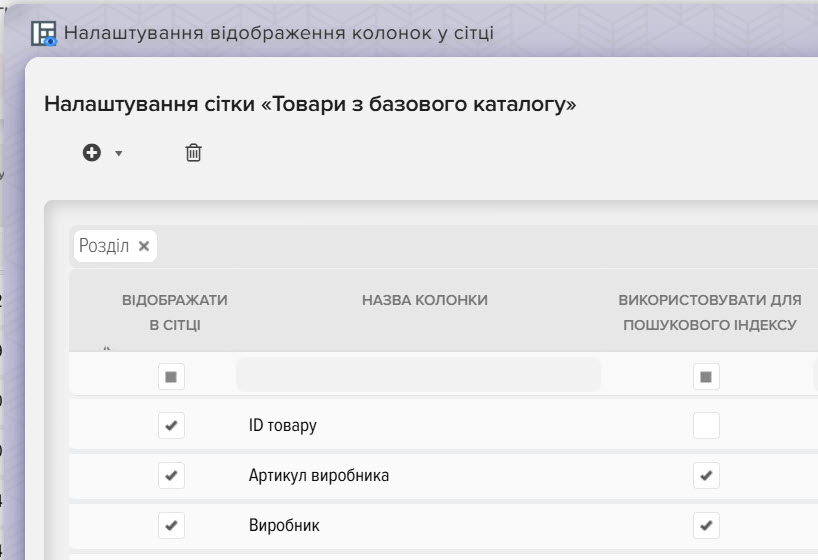
Do not add fields whose values change frequently, such as price and availability, this data will be requested dynamically in real time by the AI from the base catalog (if necessary).
Important note
If errors are found or the information is incomplete, indexing should not be performed by you. Make sure that all adjustments are made so that the AI "learns" only the correct and up-to-date data about your product catalog.
The indexing process for AI is now complete and your consultant is ready to work with up-to-date data.
Step #5 - Launching and monitoring the configurator
Once you have completed setting up all the components of the configurator – loading the product catalog, detailed configuration of the configurator, indexing data for AI and selecting the operating mode – the next important step is launching the configurator on your site and monitoring it regularly.
1. Launch the configurator on the site
Check the integration:
- If you have selected the "Website Widget" mode, make sure that the HTML code is correctly inserted on the desired page and the configurator is displayed without errors.
- If you are using a CMS integration module (such as OpenCart), make sure that the module is installed, activated, and displays the configurator in the standard design of your site.
Place a test order:
- Go through the product selection process using the configurator.
- Place a test order to make sure that all selected products are saved correctly - either in the Elbuz system when using the widget, or in your site's database when using the module.
2. Monitoring and analytics of the configurator's work
Use the Chat History tab:
- Regularly review chat sessions to understand what questions customers are asking and how the AI consultant works.
- Please note recurring issues or requests to improve product descriptions or configurator settings.
Checking the relevance of data:
- Make sure that product catalog loading and automatic indexing for new items work correctly.
- If you make changes to product cards (name, description, characteristics) on your website, then make sure that this information is promptly loaded into Elbuz.
Functionality testing:
- Use test orders regularly to check that all elements of the configurator work correctly.
- Compare the data displayed in the configurator with the data in your online store and make sure that the matches are complete.
3. Further optimization
Feedback Analysis:
- Collect feedback from customers via online chat and other channels.
- Use the data you receive to improve functionality, design, and product selection logic.
Updating settings:
- If necessary, make changes to the configurator structure, compatibility rules or update store information.
- Stay tuned for Elbuz platform technical updates to stay up to date with new features and improvements.
Launching the configurator on your site is an important step, confirming that the entire setup process has been successful. Regular monitoring and testing will ensure high quality service for your customers and promptly resolve any issues that arise.
If you have any additional questions or need further guidance, please contact Elbuz support.
Save a link to this article


Discussion of the topic – 🛠️ How to set up the Elbuz widget to create a product set configurator
🛠️ How to set up the Elbuz widget to create a product set configurator
There are no reviews for this product.

Write a comment
Your email address will not be published. Required fields are checked *