
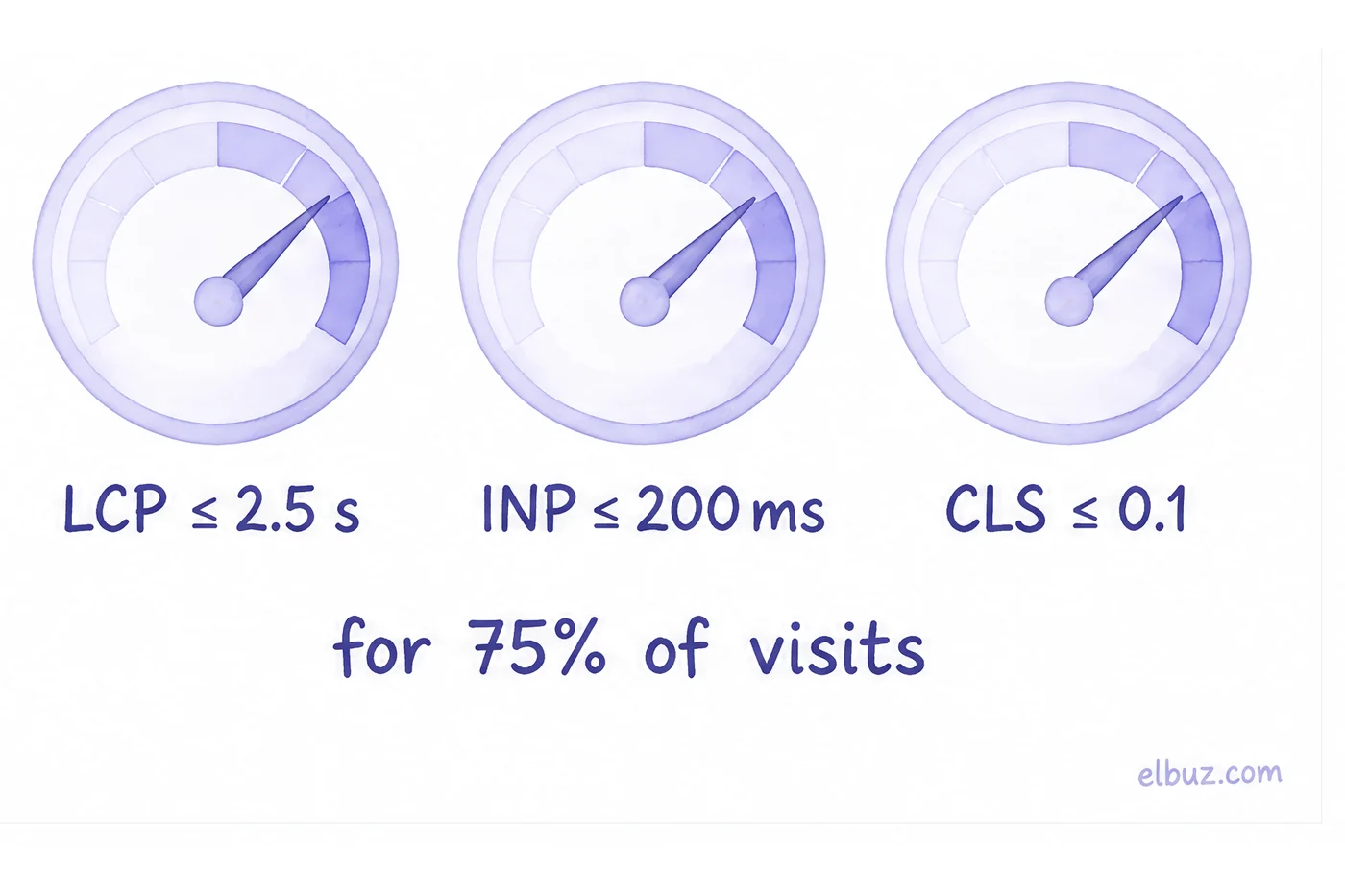
To speed up an OpenCart store, first measure Core Web Vitals and server response time (TTFB), break LCP into its parts and fix the biggest one: a slow server is fixed with page caching and OPcache, heavy images with the right size, WebP and load priority, slow clicks by removing extra scripts. Google's targets: LCP up to 2.5 s, INP up to 200 ms, CLS up to 0.1 for 75% of visits.
The most common mistake is the order of work: people install a "speed up" extension or compress images while the page waits 1.5 s for the server. The gain is then tenths of a second. Below: how to measure, how to break down LCP on an illustrative product page, what to set in OpenCart 3, on the server, in images, scripts and the database, and a checklist in the order that gives the biggest effect.
When people search for how to speed up OpenCart
Usually after one of three signals: PageSpeed Insights shows red numbers on mobile, Search Console reports "poor URLs" in Core Web Vitals, or the catalog has grown and category pages take several seconds to open. The searches are "speed up opencart", "opencart speed optimization", "opencart slow", and then: which extension to install, whether a cache is needed, whether hosting is to blame.
"Which extension should I install" is a premature question. First you need to know where the time is lost: the server, images, scripts or the database. Measurements answer that.
Measure first: which numbers count as good
Google assesses speed by three Core Web Vitals metrics, and each has a "good" threshold that 75% of page visits must meet, separately on mobile and desktop.
| Metric | What it measures | Good | What usually hurts it in OpenCart |
|---|---|---|---|
| LCP | When the largest element above the fold appeared | up to 2.5 s | Slow server response, a heavy banner or product image |
| INP | How fast the page responds to clicks and typing | up to 200 ms | JavaScript from extensions, widgets, analytics tags |
| CLS | How much the content "jumps" while loading | up to 0.1 | Images without dimensions, banners and fonts that load late |
| TTFB | How long the page waits for the first byte from the server | up to 0.8 s | Hosting, no cache, extensions, the database |
- Open PageSpeed Insights for the home page, a category with filters, a product page, the cart and checkout. Look at the Mobile tab: it is usually worse.
- If real-user data is shown at the top, go by it; the lab test below it shows the causes.
- In Search Console, open the Core Web Vitals report: it groups similar pages and shows which template is slow.
- Write the numbers down and measure again after each step.
Break LCP into parts
LCP has four parts: waiting for the server (TTFB), the delay before the main image starts loading, the image download itself, and rendering. Fix the biggest part, not everything at once. According to web.dev, TTFB and resource load time should each take roughly 40% of LCP, and the load delay and render delay less than 10% each.
Illustrative example for the arithmetic, not a measurement of a real site. A product page on mobile: the server responds in 1.4 s, the browser starts loading the main image 0.6 s later (it has lazy loading), the 900 KB image takes 1.2 s to download, rendering takes 0.3 s.
| LCP part | Before, s | What was done | After, s |
|---|---|---|---|
| TTFB | 1.4 | Page cache for guests, OPcache | 0.3 |
| Image load delay | 0.6 | Removed lazy loading from the main image, added fetchpriority="high" | 0.1 |
| Image load time | 1.2 | A thumbnail of the right size in WebP | 0.6 |
| Render delay | 0.3 | Fewer render-blocking scripts | 0.2 |
| LCP | 3.5 | 1.2 |
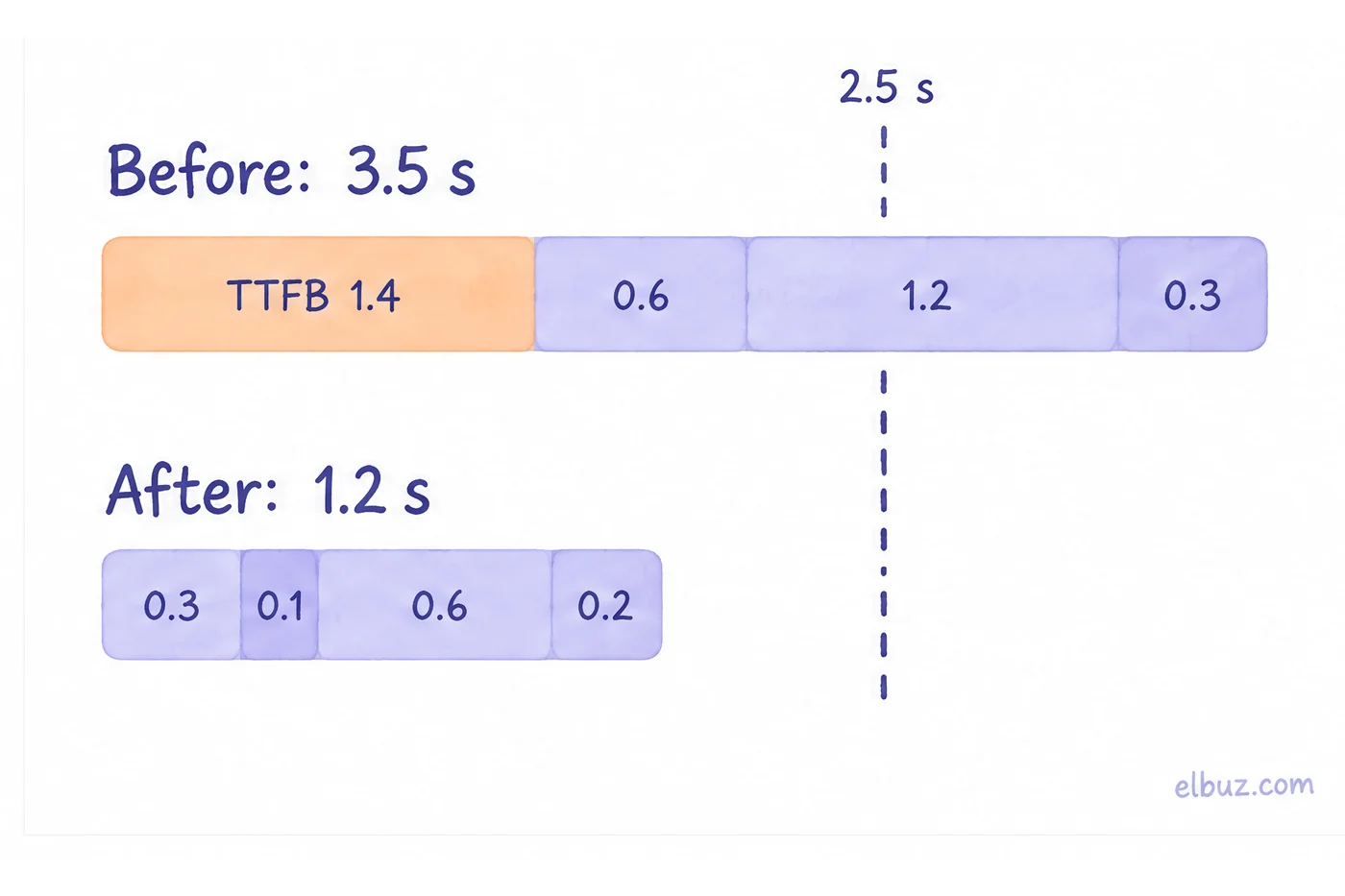
In the example, TTFB is 40% of LCP, and no amount of image compression would have brought the page under 2.5 s without a cache. The LCP parts for your own page are shown in the LCP breakdown of the PageSpeed Insights lab test.
OpenCart's own settings
A few admin settings cost nothing and affect every page. Names are for OpenCart 3.
- Theme cache. On the dashboard, the gear button opens the developer settings: on a live site, the theme cache should be on. Turn it off only while you edit templates.
- Category Product Count. System → Settings → Option tab. The OpenCart documentation warns that on a large catalog it affects speed: the menu counts the products in every category. Turn it off.
- Output Compression Level. Server tab. If the web server already compresses responses with gzip or Brotli, leave 0 so you do not compress twice; if not, the OpenCart documentation suggests 4–5 as a balance between size and CPU load.
- Modifications. After installing or removing extensions, refresh the modification cache (Extensions → Modifications → Refresh) and delete the modifications of removed extensions.
- Error log. An extension that writes hundreds of warnings to the log on every page also costs time.
Hosting, PHP and OPcache
If TTFB is above 0.8 s even on a simple page, start with the server: without that, optimizing images will not save LCP.
- PHP version. Newer PHP versions are faster. Check which one your OpenCart version and extensions officially support: old extensions are often what keeps a store on outdated PHP.
- OPcache. It keeps compiled PHP code in memory. Without it, PHP parses the OpenCart and extension files again on every request. On a live server it should be on, with enough memory for all of the site's code.
- Resources and limits. Shared hosting with a process limit handles one visitor and fails when a search engine crawler arrives.
- HTTP/2 or HTTP/3, static file caching. Cache headers for CSS, JS, fonts and images, so the browser does not download them on every page.
Page cache
The OpenCart 3 core has no full-page cache: it caches only some data (settings, currencies), and every category or product view runs the database queries and builds the template again. A full-page cache for guests is the biggest TTFB win.
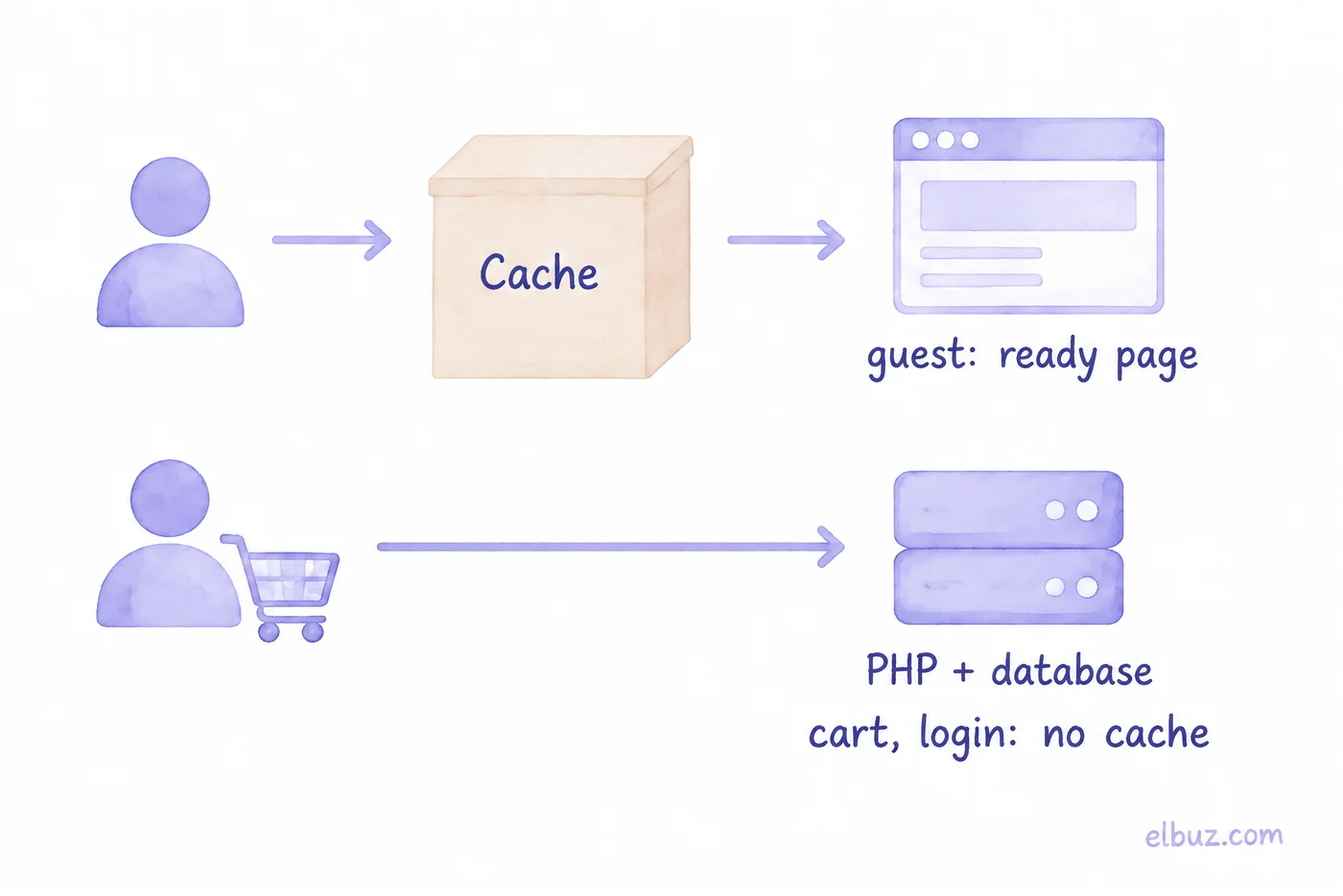
- Where to get it: a page cache extension or a cache at the web server level, such as the Nginx FastCGI cache.
- What to exclude: cart, checkout, account, product compare, and visitors with items in the cart or who are logged in. Include language and currency in the cache key, or a shopper will see someone else's.
- When to clear it: after a change of price, stock or description. If prices update automatically several times a day, keep the cache lifetime short.
- The data cache can move from files to Memcached or Redis when there are thousands of cache files on a slow disk.
Check: the TTFB of the same page on a second request from an incognito window should drop several times over.
Images: size, WebP, priority
Images are the heaviest part of a store page, and this is the easiest place to win the "resource load" part of LCP.
- Thumbnails. OpenCart creates resized copies in the image/cache folder on the first view. The first visitor to a new category waits for the resizing, so after a large product upload, warm up the image cache by crawling the site.
- Original size. 5–10 MB photos from a phone or a supplier's site slow down resizing. Reduce them to a sensible size before upload; how is covered in how to optimize product images.
- WebP. OpenCart 3 saves thumbnails in the original format, so WebP is added with an extension, conversion on the server, or a CDN.
- Lazy loading only below the fold. loading="lazy" on the main product image or banner delays LCP. The main image gets fetchpriority="high" instead.
- width and height on the img tag reserve space for the image, so the page does not jump: that is CLS.
Scripts, styles and fonts
JavaScript hurts INP and part of the render delay in LCP. Remove what you do not use and defer the rest.
- Extra scripts. Chats, widgets, several analytics tags, extensions with their own libraries. Keep what you need and load it with defer or after the first interaction.
- Theme. The default OpenCart 3 theme loads jQuery, Bootstrap 3 and Font Awesome in full, and third-party themes add more libraries. What actually loads is visible in the Network tab of the browser's developer tools.
- Critical CSS for the first screen inline in the page, the rest without blocking rendering.
- Fonts: one or two weights, font-display: swap, served from your own server.
Database
If TTFB stays high with OPcache on a fast server, look for slow queries.
- The MySQL slow query log shows what takes the most time. Start there, not with general advice.
- Indexes. Run EXPLAIN on a slow query: filter and SEO extensions often create tables without indexes on the fields they search.
- Search. OpenCart's default search uses LIKE '%word%', and such a query cannot use an index, so on a large catalog it scans every product. A dedicated search extension or service takes this load off.
- Sessions. OpenCart 3 stores sessions in the database by default. If the session table has grown to millions of rows, check that old records are cleaned up.
Extensions: how to find the one that slows the store
Disable extensions one at a time on a copy of the site and measure TTFB after each. The one whose removal makes the time drop noticeably is the candidate for replacement.
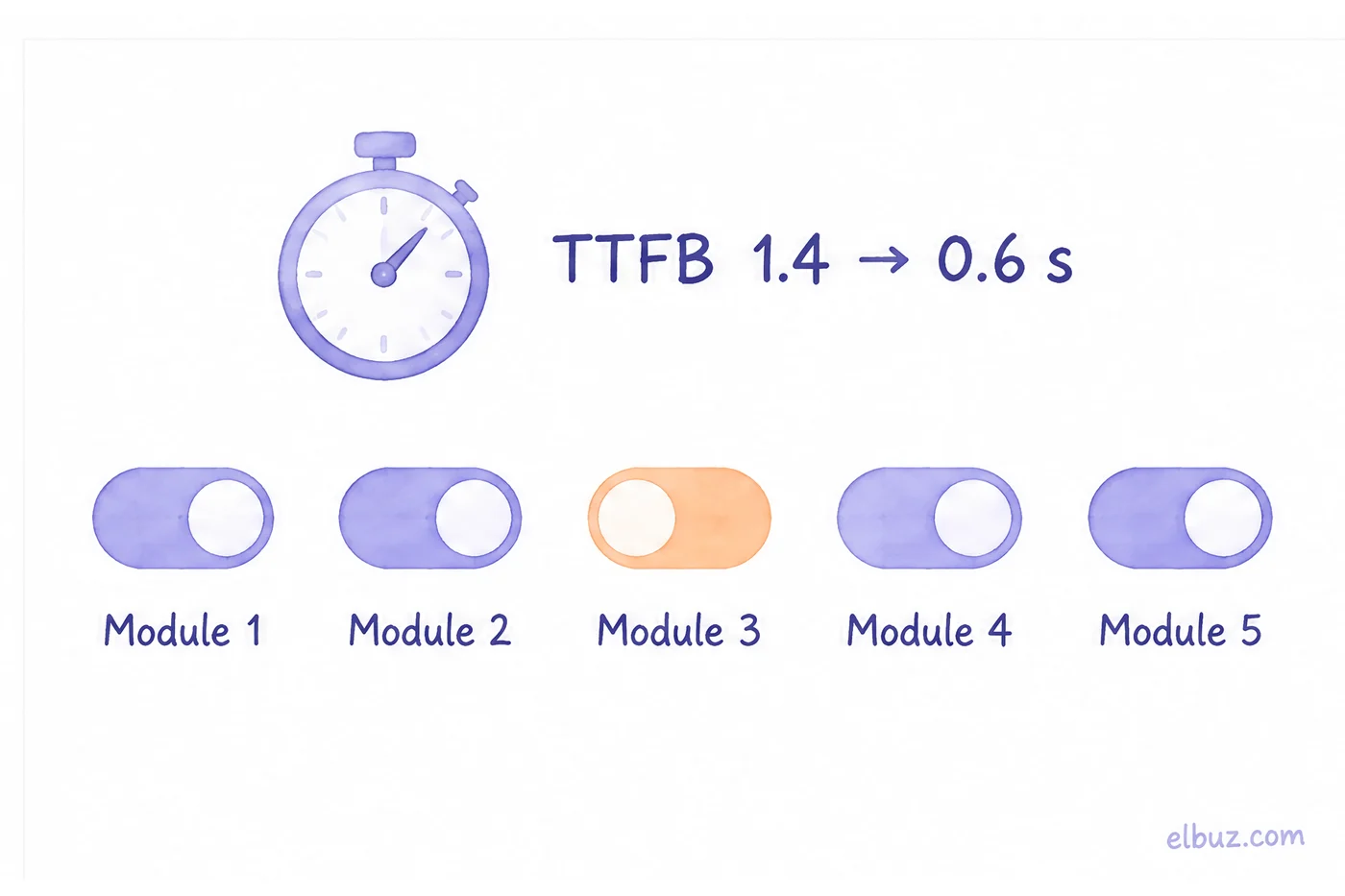
Typical cases:
- an extension calls an external API on every page (exchange rates, a shipping carrier, a CRM), and the page waits for the answer;
- two extensions do the same job: two filters, two SEO extensions, two caches;
- an extension is disabled, but its modification still changes the core code.
CDN
A CDN serves images, styles and scripts from a server closer to the shopper and takes load off the hosting; some also cache HTML for guests and filter out bots. For a store that sells in one country with the server nearby, the main gain is not distance but a lighter server load and protection.
OpenCart speed optimization checklist
- Record LCP, INP, CLS and TTFB for the home page, a category, a product and checkout, separately for mobile.
- Break LCP into parts and start with the biggest.
- Turn on the theme cache, turn off Category Product Count, refresh modifications.
- Check the PHP version, OPcache, compression and static file caching.
- Add a page cache for guests, with exceptions for cart, login, language and currency.
- Shrink original images, serve WebP, remove lazy loading from the main image, set width and height.
- Remove extra scripts and load the rest with defer.
- Find slow queries, add indexes, move search off the database.
- Test extensions one by one on a copy of the site.
- Measure again and compare with step one.
If you would rather not manage the server and extensions
Most of the steps above are about the server, the cache and extensions, which means ongoing technical work. If your store is not live yet or you do not want to do that work, there is a ready option on the same core.
Elbuz CMS is an ecommerce platform on the OpenCart 3 core, connected to the Elbuz back office. The service takes care of hosting, SSL, backups and platform updates, Cloudflare protection is on for every site, and speed is handled by built-in optimization modules. Products, prices and stock come to the site from Elbuz, so you do not install data exchange extensions.
Who it does not fit: if you already run a customized OpenCart, you do not have to move. Elbuz can send products, prices and stock to your existing store through the Elbuz Tunnel connector. Before choosing the platform, check that the payment and shipping methods you need are available. More on the Elbuz CMS page.
A store on the OpenCart core without server workHosting, updates and speed are on the service side
Frequently asked questions
Why is my OpenCart site so slow?
Usually several causes together: slow hosting without a page cache, large images, extensions with their own queries and scripts, and a database without the right indexes. Measure TTFB and break LCP into parts to find the main one.
How do I check the speed of an OpenCart store?
In PageSpeed Insights for the home page, a category, a product and checkout, separately for mobile. The Core Web Vitals report in Search Console shows which groups of pages are slow for real visitors.
Does OpenCart have a page cache?
No. OpenCart 3 caches only some data and builds the page again on every view. A page cache is added with an extension or at the web server level, excluding cart, checkout and account pages.
How do I enable WebP in OpenCart?
OpenCart 3 saves thumbnails in the original format, so WebP is added with an extension, server-side conversion, or a CDN that serves WebP to browsers that support it.
Which OpenCart speed optimization extension should I choose?
First find out which part of LCP is the biggest. A cache extension helps with TTFB but not with heavy images or scripts, and it should not duplicate a cache your hosting or CDN already provides.
Does site speed affect Google rankings?
Yes, but not decisively: Core Web Vitals are among the ranking signals, but they do not outweigh how relevant the page is to the search. Speed has a more visible effect on how many visitors reach checkout.
Sources
- LCP, INP and CLS thresholds and the 75th percentile — web.dev: Web Vitals.
- LCP parts and recommended shares — web.dev: Optimize Largest Contentful Paint.
- TTFB threshold of 0.8 s — web.dev: Time to First Byte.
- Category Product Count and Output Compression Level — OpenCart documentation: Option, Server.
- Core Web Vitals in Google Search — Google Search Central.
Checked on October 31, 2026. The numbers in the LCP breakdown are an illustrative example for the arithmetic.


